79
PictBridge: Picture Selection
Select pictures to print
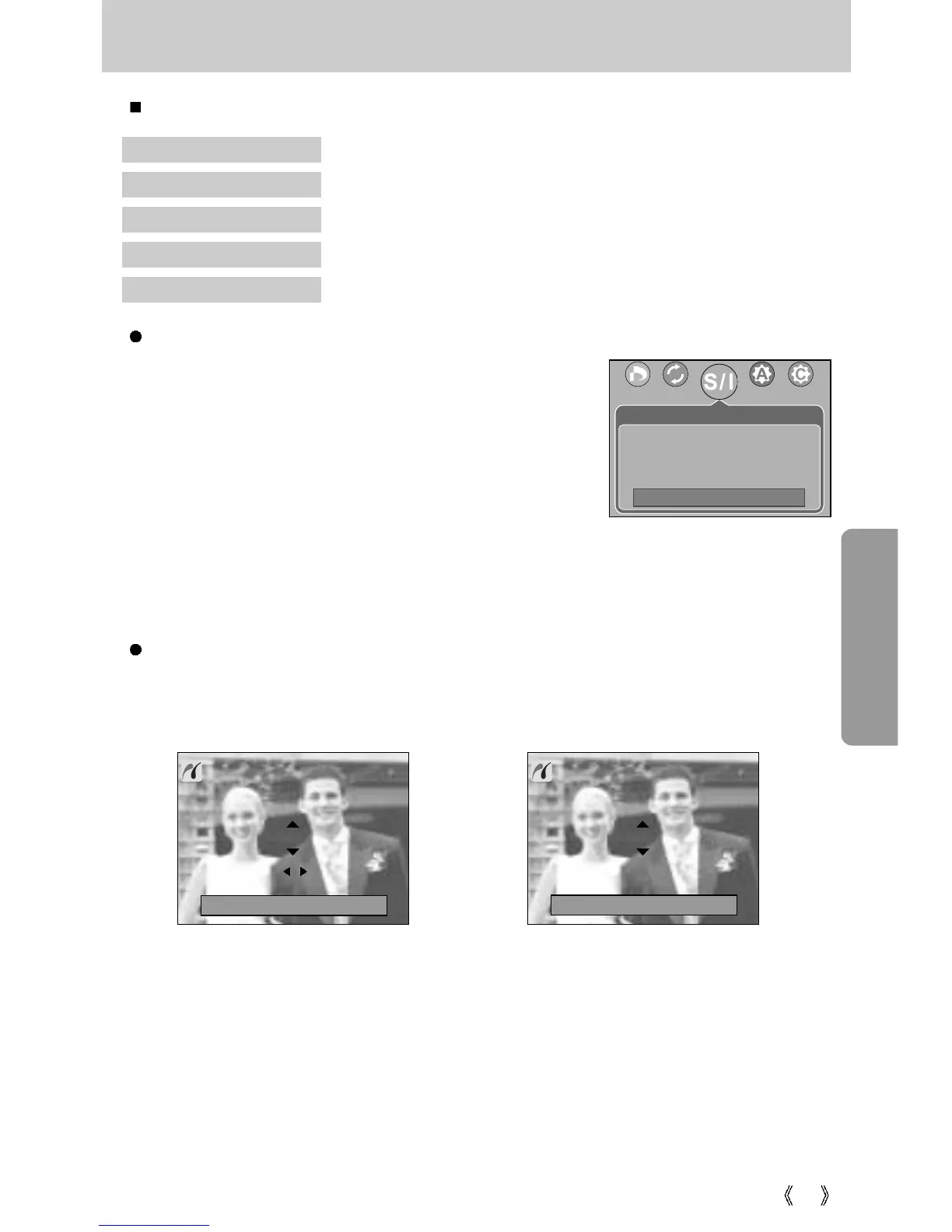
1. The [Images] menu will appear.
2. Use the UP and DOWN buttons to select the desired
submenu value, and then press the OK button.
When [One Pic] is selected : The PictBridge function will
be applied only to the
picture currently displayed.
When [All Pics] is selected : The PictBridge function will
be applied to all pictures,
excluding movie clips and voice files.
Images : Select the pictures to be printed.
Printer Setup : Setting up printing(Auto Set/ Custom Set)
Print : Printing pictures
DPOF Print : Printing the DPOF files
Reset : Initializing the PictBridge functions
You can set up the following settings from the PictBridge menu.
[When [One Pic] is selected] [When [All Pics] is selected]
- Press the Up/Down button to select the number of prints.
- Use the Left/Right button to select another picture and select the number of prints for
another picture.
- After setting the number of prints, press the OK button to save.
- Press the Shutter button to return to the menu without setting the number of prints.
Setting the Number of Copies to Print
- Select [One Pic] or [All Pics]. A screen where you can set the number of copies to print will
appear as shown below.
Images
Move:
0
Exit:Shutter Set:OK
10
PREV NEXT
0
Exit:Shutter Set:OK
One Pic
All Pics






 To Next Page