EasyManua.ls Logo

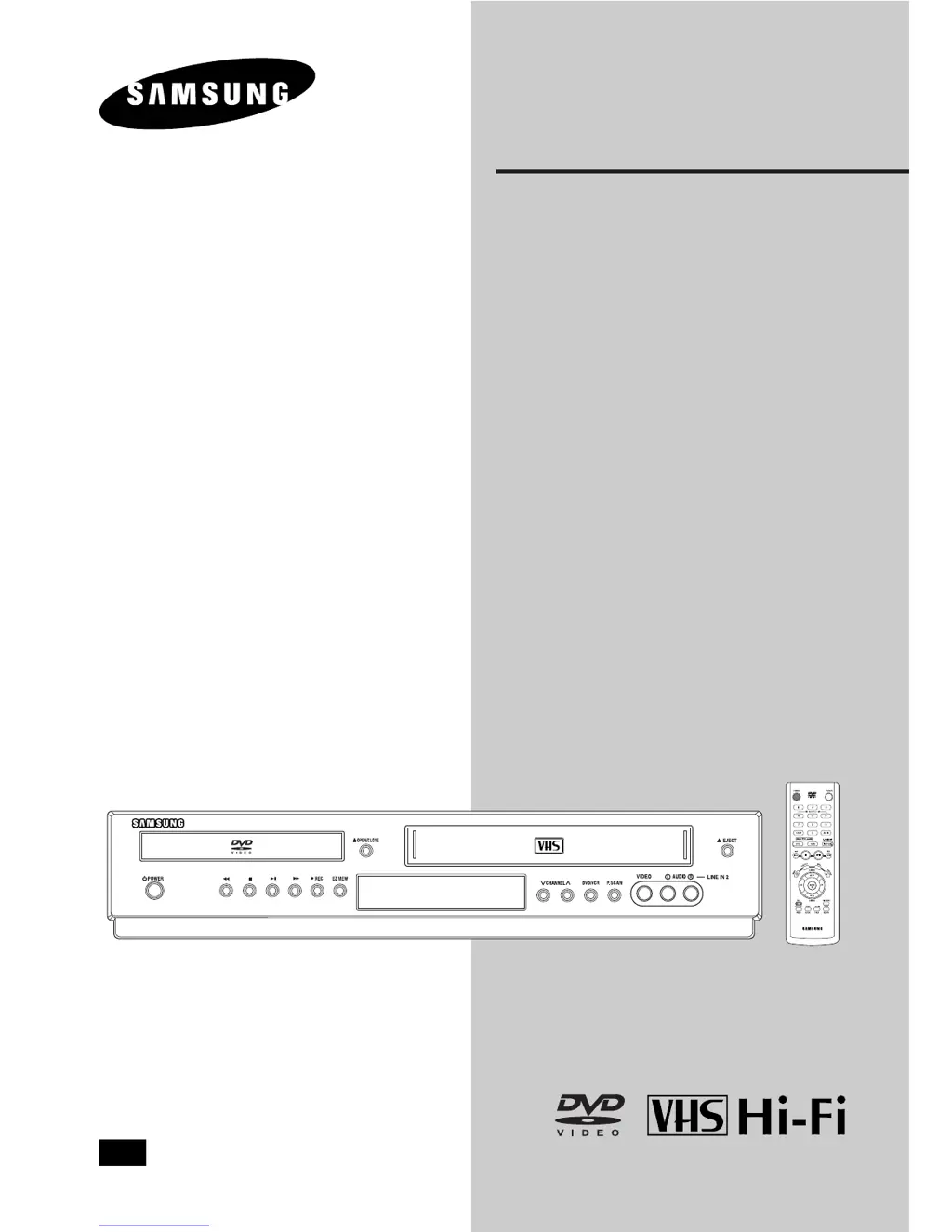
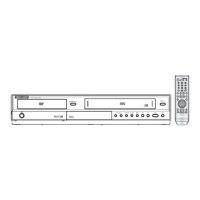
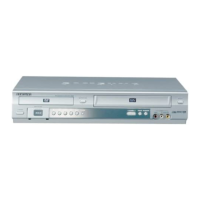
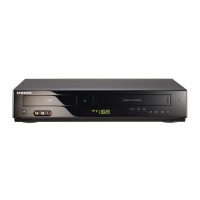
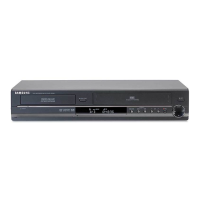
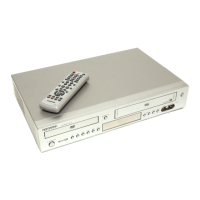
Samsung DVD-V5500 - User Manual

Samsung DVD-V5500
86 pages
Print Icon
To Next Page IconTo Next Page
Loading...
Instruction Manual
DVD-V5500
DVD-V6500
CA
CA
AK68-00593B.01
www.samsung.ca

Table of Contents

Other manuals for Samsung DVD-V5500

Questions and Answers

  • M
    matthew82Sep 12, 2025
    When should I clean the video heads on my Samsung DVD-V5500 DVD VCR Combo?
    • C
      Carlos RodriguezSep 12, 2025
      If poor pictures appear on a variety of cassettes on your Samsung DVD VCR Combo, the video heads may need cleaning. This is not a common problem and unless it appears, the heads should not be cleaned. When cleaning the video heads, read all instructions provided with the head cleaning cassette. Incorrect head cleaning can permanently damage the video heads.
  • G
    greencarrieAug 25, 2025
    What to do if Samsung DVD-V5500 DVD VCR Combo remote control not working?
    • A
      Alvin GregoryAug 25, 2025
      If the remote control for your Samsung DVD VCR Combo isn't working, try these steps: * Check and replace the batteries in the remote. * Ensure you are within 20 feet of the unit. * Reset the remote by removing the batteries, pressing and holding one or more buttons for several minutes, then reinstalling the batteries.
  • N
    nathan51Aug 25, 2025
    Why Samsung DVD-V5500 DVD VCR Combo disc does not play?
    • V
      vcarterAug 26, 2025
      If a disc isn't playing on your Samsung DVD VCR Combo, make sure the disc is inserted with the label side facing up and check the region number of the DVD to ensure it is compatible.
  • C
    Cynthia TranSep 23, 2025
    How to clean video heads on Samsung DVD VCR Combo?
    • G
      Garrett NobleSep 23, 2025
      If poor pictures appear on a variety of cassettes with your Samsung DVD VCR Combo, the video heads may need cleaning. This is not a common problem and should only be done if necessary. When cleaning, carefully follow all instructions provided with the head cleaning cassette, as incorrect cleaning can permanently damage the video heads.
  • P
    Patrick GarrettSep 12, 2025
    How to minimize noise bars during still picture on Samsung DVD VCR Combo?
    • P
      Paul MackSep 12, 2025
      If the still picture has severe “noise bars” streaks when the ?II button is pressed during playback on your Samsung DVD VCR Combo, press the TRK buttons during slow motion to minimize this effect. A still picture may have “noise bars”, depending on the condition of the tape.
  • M
    michael35Sep 18, 2025
    How to remove noise bars on Samsung DVD VCR Combo?
    • T
      Theresa HarrisonSep 18, 2025
      If you're seeing noise bars or streaks during playback on your Samsung DVD VCR Combo, try pressing the TRK buttons to minimize this effect.
  • R
    Ronald WallSep 5, 2025
    Why can't I insert a video cassette into my Samsung DVD-V5500 DVD VCR Combo?
    • P
      Peggy WhiteSep 6, 2025
      A video cassette can only be inserted into your Samsung DVD VCR Combo with the window side up and the safety tab facing you.
  • C
    Carlos GutierrezSep 6, 2025
    What does the icon on my Samsung DVD-V5500 DVD VCR Combo screen mean?
    • B
      Brian HigginsSep 6, 2025
      The icon appearing on the screen of your Samsung DVD VCR Combo indicates that the current feature or action cannot be completed because: the DVD’s software restricts it, the DVD’s software doesn’t support the feature, the feature is not available at the moment, or you’ve requested something out of range.
  • J
    Jennifer HoganSep 18, 2025
    How to fix noise bars when pausing Samsung DVD-V5500?
    • A
      annette95Sep 18, 2025
      If you see severe noise bars or streaks when pausing during playback on your Samsung DVD VCR Combo, a still picture may have “noise bars”, depending on the condition of the tape. Press the TRK buttons during slow motion to minimize this effect.
  • D
    Dawn AcostaAug 30, 2025
    How to resolve TV interference when tuning to Samsung DVD-V5500?
    • C
      courtney64Aug 30, 2025
      If you experience interference when tuning your TV to the Samsung DVD-VCR Combo, remove the aerial input plug from the jack marked with the aerial symbol on the rear of the DVD-VCR. Follow the instructions for 'Tuning Your Television for the DVD-VCR'. Then follow the instructions for 'Setting the DVD-VCR output Channel', and move the channel number several channels down from the original setting. Replace the aerial plug into the jack marked with the aerial symbol on the rear of the DVD-VCR. Re-tune your TV to the DVD-VCR again by following instructions 'Tuning Your Television for the DVD-VCR'. If the problem persists, repeat these steps, moving several more channels away from the original setting.

Summary

Important Safety Instructions

Precautions

Operational Cautions and Care

Handling Cautions

Guidelines for safe operation and handling of the DVD-VCR unit.

Disc Storage Recommendations

Guidelines for proper storage of discs to prevent damage and ensure longevity.

Cabinet Maintenance

Instructions for cleaning and maintaining the exterior of the DVD-VCR unit.

Getting Started

Accessories Included

Lists the included accessories with the DVD-VCR unit.

Install Remote Control Batteries

Step-by-step instructions for inserting batteries into the remote control.

Chapter 1: Setup

General Features Overview

Overview of the DVD-VCR's capabilities and main functions.

Disc Type and Characteristics

Details on playable disc types, their sizes, and playback times.

Product Description

Front Panel Controls

Identifies and explains the buttons and indicators on the front panel of the DVD-VCR.

Device Interfaces

Rear Panel Connections

Details the various input and output ports located on the rear of the DVD-VCR.

Front Panel Display Indicators

Explains the meaning of the indicators shown on the DVD-VCR's front panel display.

Remote Control Overview

Chapter 2: Connections

Connecting the Antenna Cable

Instructions for connecting an antenna to the DVD-VCR for receiving TV signals.

TV Connection Methods

Connecting to TV via Video;Audio

Step-by-step guide for connecting using standard composite video and audio cables.

TV Connection: S-Video

Connecting to TV using S-Video

Instructions for connecting via S-Video cable for improved picture quality.

TV Connection: Component (Interlace)

Connecting to TV via Component Interlace

Guides for connecting using component video cables for high-quality images.

TV Connection: Component (Progressive)

Connecting to TV via Component Progressive

Details on connecting for progressive scan output for enhanced picture clarity.

Audio System Connections

Connecting to a 2-Channel Amplifier

Instructions for connecting the DVD-VCR to a standard stereo amplifier.

Connecting to Dolby Digital;MPEG2;DTS Amplifier

Guides for connecting to advanced audio systems using digital audio outputs.

Power and Auto Setup

Connecting Power Cord & Auto Setup

Steps for connecting the power cord and initiating the automatic setup process.

Chapter 3: Initial Setup

Selecting Menu Language

Steps to change the on-screen menu language (English, French, Spanish).

Clock Setting

Setting the Clock Automatically

Instructions for setting the current time automatically via antenna signal.

Setting the Clock Manually

Instructions for setting the current time manually.

Channel Setup

Selecting Video Signal Source

Manually setting the tuner band to Antenna or Cable TV.

Storing Channels (Automatic)

Automatically scanning and storing active TV channels.

Adding;Erasing Channels (Manual)

Manually adding or deleting channels from the channel list.

Selecting RF Output Channel

Configuring RF Output Channel

Configuring the RF output channel for TV connection.

Setting Front Panel Display

Adjusting Front Panel Display

Adjusting the brightness and dimming behavior of the front panel display.

Setting Automatic Power Off

Configuring Auto Power Off

Configuring the DVD-VCR to turn off automatically after a period of inactivity.

Chapter 4: DVD Operations

Playing a Disc

Instructions for inserting, playing, stopping, and resuming DVD playback.

Search and Skip Functions

Navigating with Search;Skip

Quickly navigating through chapters or tracks on a disc.

Using the Display Function

Viewing Playback Information

Accessing and viewing information like title, chapter, and time during playback.

Disc and Title Menu Navigation

Accessing Menus

Accessing and navigating disc-specific menus and title menus.

Function Menu Operations

Using Function Menu

Accessing DVD functions like Information, Zoom, Bookmark, Repeat, and EZ View.

Repeat Playback Modes

Setting Repeat Play

Setting up repeat playback for tracks, chapters, titles, sections, or the entire disc.

A-B Repeat Function

Defining A-B Repeat Segment

Repeating a specific segment (A-B) of the disc playback.

Slow Repeat Play

Performing Slow Repeat Play

Slowly repeating scenes for closer study during DVD playback.

Adjusting Aspect Ratio (EZ View)

Using EZ View for Aspect Ratio

Setting the screen aspect ratio for optimal viewing on different TVs.

Selecting Audio Language

Choosing DVD Audio Language

Choosing the desired audio track language for DVD playback.

Selecting Subtitle Language

Choosing DVD Subtitle Language

Choosing the desired subtitle language for DVD playback.

Changing Camera Angles

Switching DVD Camera Angles

Switching between multiple camera angles available on a DVD.

Using the Bookmark Function

Marking Scenes for Later Retrieval

Marking specific scenes for easy retrieval later.

Using the Zoom Function

Magnifying Screen During Playback

Magnifying parts of the screen during DVD/VCD playback.

MP3;WMA;JPEG File Playback

Navigating Clips Menu

Navigating and playing music and picture files organized in folders.

Folder Selection for Media Files

Methods for selecting parent, peer, or sub-folders containing media files.

MP3;WMA Playback

Playing MP3 and WMA Files

Playing MP3 and WMA audio files from discs.

Program and Random Play

Customizing Audio CD Playback

Setting up custom playback orders for audio CDs.

Picture CD Playback

Viewing JPEG Images

Viewing JPEG image files from Picture CDs.

Using the Setup Menu

Setup Menu Navigation

Overview of accessing and navigating the DVD-VCR's setup menu options.

Setting Language Features

Configuring Language Preferences

Configuring disc menu, audio, and subtitle language preferences.

Setting Audio Options

Configuring Audio Output

Configuring audio output settings for external audio systems.

Setting Display Options

Adjusting Video Settings

Adjusting video settings like TV aspect ratio and black level.

Setting Parental Control

Restricting DVD Playback

Restricting playback of DVDs based on their rating levels.

Setting the Rating Level

Defining Acceptable Rating Levels

Defining the acceptable rating levels for DVD playback.

Changing the Password

Modifying Parental Control Password

Modifying or resetting the parental control password.

Chapter 5: VCR Operations

Inserting and Ejecting Tapes

Instructions for loading and unloading VHS tapes in the VCR.

Playing Pre-Recorded Tapes

Basic VHS Playback

Steps for playing back standard VHS video cassettes.

Special VCR Playback Features

Advanced VCR Playback

Exploring features like Frame Advance, Skip, and Repeat for VCR playback.

Using Automatic Tracking

Adjusting Tracking for Clear Playback

Adjusting tracking to remove picture noise or streaks on playback.

Selecting Cassette Type

Indicating Cassette Length

Indicating cassette length for accurate time remaining display.

Setting Auto Play

Enabling Automatic Tape Play

Configuring tapes to play automatically upon insertion.

Setting Auto Repeat

Enabling Continuous Playback

Enabling continuous playback of videotapes.

Using the Tape Counter

Tracking Elapsed Time and Sequences

Utilizing the counter to track elapsed time and locate sequences.

Assemble Edit Function

Performing Assemble Editing

Starting new recordings at specific points for smooth scene changes.

Selecting Audio Output Mode

Choosing Audio Modes

Choosing audio output modes like Left, Right, Mono, or Hi-Fi.

Searching for Specific Sequences

Variable Search System

Using index marks to fast-forward or rewind to specific points on a tape.

Chapter 6: Reference

Troubleshooting Guide

Common problems and solutions for DVD-VCR operation.

Identifying DVD Problems

Troubleshooting DVD Playback Issues

Troubleshooting steps for common issues encountered with DVD playback.

Identifying VCR Problems

Troubleshooting VCR Playback Issues

Troubleshooting steps for common issues encountered with VCR playback.

Technical Specifications

DVD-VCR Specifications

Detailed technical information about the DVD-VCR's hardware and performance.

Warranty Information

Product Warranty Details

Information regarding the product's limited warranty coverage and exclusions.

Samsung DVD-V5500 Specifications

General IconGeneral
Audio formats supportedMP3, WMA
I/O portsRF in RF out SCART Composite out Audio L/R out
Zoom capabilityYes
Digital audio coaxial out1
Device typeDVD player
Product colorSilver
Disc types supportedDVD+RW, DVD-R, DVD-RW

Related product manuals