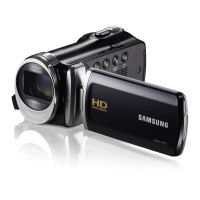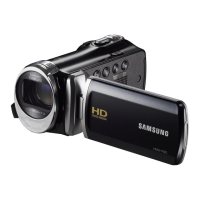
How do I fix 'Read Error' on my Samsung HMX-F90BP Camcorder?
- JJanet MartinSep 10, 2025
If your Samsung Camcorder displays 'Read Error', format the storage media using the menu after backing up important files to your PC or another storage device.

How do I fix 'Read Error' on my Samsung HMX-F90BP Camcorder?
If your Samsung Camcorder displays 'Read Error', format the storage media using the menu after backing up important files to your PC or another storage device.
What to do if my Samsung HMX-F90BP says 'Card Error'?
If your Samsung Camcorder displays 'Card Error', it indicates that the memory card has a problem and cannot be recognized. You can try to format the memory card or replace it with a new one.
Why does my Samsung HMX-F90BP say 'Low Battery'?
If your Samsung Camcorder displays a 'Low Battery' message, replace the depleted battery with a fully charged one, or use the power adapter to continue operating the camcorder. Also, ensure you charge the battery.
How to fix 'Card Locked' message on Samsung HMX-F90BP Camcorder?
If your Samsung Camcorder shows 'Card Locked', it means the write protection tab on the memory card is set to the lock position. Simply release the write protection tab to unlock the card.
What to do if my Samsung HMX-F90BP Camcorder displays 'Insert Card'?
If your Samsung Camcorder shows the message 'Insert Card', it means that a memory card is not currently inserted in the device. Simply insert a memory card into the camcorder.
Why does my Samsung HMX-F90BP say 'Please format'?
If your Samsung Camcorder displays the message 'Please format', it means the memory card is not formatted. Format the memory card using the camcorder's menu options.
What to do if my Samsung HMX-F90BP says 'File number is full. Cannot take a photo.'?
If your Samsung Camcorder displays 'File number is full. Cannot take a photo.', it means that the folder and file number have reached the maximum number. Set File No. to Reset and format the storage media, remembering to back up important files before formatting.
What does 'Check the lens cover' mean on Samsung HMX-F90BP?
If your Samsung Camcorder displays 'Check the lens cover', it means the lens cover is currently closed. Open the lens cover to proceed.
What to do if my Samsung Camcorder says 'The number of photo files is full'?
If your Samsung Camcorder displays 'The number of photo files is full. Cannot take a photo.', it means that the card has reached its maximum capacity of 9,999 photo files. You can delete unnecessary files, back up files to your PC or another storage media and then delete them, switch to another card with sufficient free space, reset the File No., or format the storage media.
What to do if Samsung HMX-F90BP says 'The number of video files is full'?
If your Samsung Camcorder shows 'The number of video files is full. Cannot record video.', it means the maximum number of video files (9,999) has been reached. You can delete unnecessary files, back up files to your PC or another storage media and then delete them from the card, switch to another card with free space, reset the File No., or format the storage media.
| Sensor type | CMOS |
|---|---|
| Total megapixels | 5 MP |
| Optical sensor size | 1/3.2 \ |
| Effective megapixels (image) | 0.921 MP |
| Digital zoom | 130 x |
| Optical zoom | 52 x |
| Image stabilizer | Yes |
| Focal length range | 2.1 - 109.2 mm |
| Interchangeable lens | No |
| Image stabilizer type | Electronic Image Stabilization (EIS) |
| Maximum aperture number | 4.9 |
| Minimum aperture number | 1.8 |
| Focal length (35mm film equivalent) | 35.3 - 2298 mm |
| Camcorder media type | Memory card |
| Compatible memory cards | SD, SDHC, SDXC |
| Internal storage capacity | - GB |
| Focus adjustment | Auto/Manual |
| Built-in light | - |
| Display diagonal | 2.7 \ |
| Viewfinder type | Not available |
| Camcorder type | Handheld camcorder |
| Minimum illumination | 15 lx |
| Product color | Black |
| Video resolutions | 720 x 576, 1280 x 720 pixels |
| Video formats supported | H.264 |
| Maximum video resolution | 1280 x 720 pixels |
| Analog signal format system | PAL |
| Image formats supported | JPG |
| Maximum image resolution | 1600 x 1200 pixels |
| Still image resolution(s) | 800 x 600, 1280 x 720, 1600 x 1200, 1696 x 960 |
| Audio formats supported | AAC |
| USB 2.0 ports quantity | 1 |
| Component video (YPbPr/YCbCr) out | 0 |
| Battery type | BP105R |
| Battery capacity | - mAh |
| Battery life (max) | 1.67 h |
| Cables included | AV, USB |
| Depth | 119 mm |
|---|---|
| Width | 53.9 mm |
| Height | 56.4 mm |
| Weight | 220 g |
Identifies the product covered by the manual.
Explains the meaning of safety icons used throughout the manual.
Gives an overview and context for the user manual's content.
Defines key terms and terminology used within the manual.
Indicates potential risk of death or serious personal injury.
Outlines the initial setup steps before using the camcorder.
Details the items included in the camcorder package.
Identifies the buttons and ports on the camcorder's front and left side.
Explains the indicators and information shown on the LCD screen.
Instructions for installing and removing the camcorder's battery.
Procedures for charging the camcorder's battery using different methods.
Steps to power the camcorder on and off.
Guide to setting the camcorder's date and time upon initial use.
How to switch between recording and playback modes.
How to access frequently used functions via the shortcut menu.
Instructions for handling the memory card.
Guidance on choosing compatible memory cards.
Information on how much video and how many photos can be stored.
Step-by-step guide to recording video footage.
How to pause and resume video recording to capture separate scenes.
Step-by-step guide to capturing still photos.
Using the SMART AUTO mode for automatic scene optimization.
How to use the zoom function for close-up or wide-angle shots.
Switching between video and photo playback views.
How to view recorded video files.
Playing back specific scenes tagged with the My Clip function.
How to view recorded still image files.
Provides examples and guidance on menu interaction.
Lists available menu options for recording and playback.
Automatically adjusts settings based on scene for optimal recording.
Selects the resolution for recorded video files.
Selects the resolution for captured still photos.
Automatically detects and optimizes settings for faces in the frame.
Manually adjusts the exposure level for desired brightness.
Options for manual or automatic focus adjustment.
Compensates for image instability caused by camera shake.
Applies creative visual effects to recordings.
Selects between optical, intelligent, and digital zoom modes.
Captures photos in rapid succession.
Records frames at intervals to create time-lapse videos.
Customizes how recorded files are displayed as thumbnails.
Controls how videos are played back (once, repeatedly).
Erases recorded videos or photos one by one or all at once.
Removes My Clip tags from videos.
Prevents accidental deletion of important files.
Marks videos for direct upload to sites like YouTube.
Displays detailed information about recorded files.
Shows details about the storage media's capacity and usage.
Sets the camcorder's date and time for recording metadata.
Adjusts the brightness of the camcorder's LCD screen.
Enables or disables audible beeps for button presses.
Sets the camcorder to turn off automatically after a period of inactivity.
Deletes all files and prepares storage media for use.
How to connect the camcorder to an HDTV using an HDMI cable.
How to connect the camcorder to a standard definition TV.
How to copy videos to VCRs or DVD/HDD recorders.
Features available when connecting to a Windows computer.
Introduction to the camcorder's bundled PC editing software.
Overview of the Intelli-studio software interface.
How to play back recorded content using Intelli-studio.
Uploading videos and photos to web services.
One-press function to upload videos to YouTube.
Using the camcorder as a storage device to transfer files.
Details the organization of files and folders on the storage media.
Explains warning indicators and messages displayed on the screen.
Troubleshooting issues related to memory cards and storage.
General guide to diagnosing and resolving camcorder issues.
Troubleshooting common recording errors and issues.
Troubleshooting issues specific to playback on the camcorder itself.
Troubleshooting problems related to computer connectivity.
Troubleshooting general camcorder operations.
Guidelines for maintaining the camcorder's condition.
Considerations for using the camcorder internationally.
Definitions of technical terms used in the manual.