EasyManua.ls Logo

Samsung HW-J6501 - User Manual

Samsung HW-J6501
33 pages
Print Icon
To Next Page IconTo Next Page
Loading...
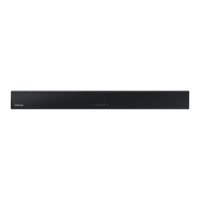
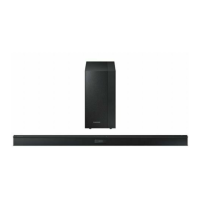
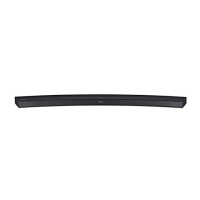
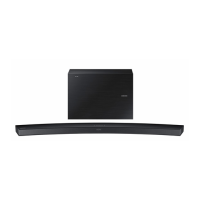
Curved Soundbar
Imagine the possibilities
Thank you for purchasing this Samsung product.
To receive more complete service, please register your product at
www.samsung.com/register
User manual
'This Nanum Gothic Eco font is provided by NAVER'
HW-J6500
HW-J6501
HW-J6502
HW-J6500_01_02_XU_ECO_ENG_0211.indd 1HW-J6500_01_02_XU_ECO_ENG_0211.indd 1 2015-02-12  3:28:022015-02-12  3:28:02

Questions and Answers

  • B
    bobby65Aug 20, 2025
    What to do if my Samsung Speaker System remote control does not work?
    • D
      Denise ForbesAug 20, 2025
      If the remote control for your Samsung Speaker System isn't working, it could be due to drained batteries or excessive distance from the main unit. Try replacing the batteries with new ones and ensure you are closer to the unit when using the remote.
  • J
    jordanscottAug 22, 2025
    Why is my Samsung Speaker System remote control not working?
    • S
      sharon92Aug 22, 2025
      The remote control might not be working because the batteries are drained, or the distance between the remote control and the main unit is too far. Try replacing the batteries with new ones and move closer to the unit.
  • D
    Debbie Roth DDSAug 25, 2025
    How to adjust subwoofer vibration on Samsung HW-J6501 Speaker System?
    • S
      Shannon JenningsAug 25, 2025
      If the subwoofer drones and vibrates noticeably, you can adjust its vibration. Press the WOOFER button on your remote control to adjust the value (between -12, -6 to +6).
  • W
    wrightstephanieAug 26, 2025
    What to do if the TV SoundConnect (TV pairing) failed on Samsung Speaker System?
    • J
      John LeeAug 26, 2025
      If TV SoundConnect pairing fails on your Samsung Speaker System, several factors could be at play. First, ensure your Samsung TV supports TV SoundConnect (available on models from 2012 onwards) and that its firmware is up to date. If an error occurs during connection, press and hold the p button for 5 seconds to reset the TV SoundConnect connection.
  • S
    smithbethAug 28, 2025
    What to do if the red LED on the subwoofer blinks and the subwoofer is not producing sound on my Samsung Speaker System?
    • D
      Derrick TaylorAug 28, 2025
      If the red LED on your Samsung Speaker System's subwoofer is blinking and no sound is produced, it might not be properly connected to the main unit. Try to connect your subwoofer again.
  • A
    Allen LongAug 30, 2025
    Why is there no sound coming from my Samsung Speakers?
    • T
      Thomas JohnsonAug 30, 2025
      If your Samsung Speakers aren't producing sound, check if the Mute function is activated or the volume is set to the minimum. To resolve this, press the (Mute) button to cancel the function, or adjust the volume to a suitable level.
  • J
    Julie RosalesSep 1, 2025
    How to fix Samsung Speakers TV SoundConnect (TV pairing) failed?
    • J
      Jeffrey CummingsSep 1, 2025
      If TV SoundConnect (TV pairing) failed on your Samsung Speakers, first ensure that your TV supports TV SoundConnect, which is available on some Samsung TVs released from 2012 onwards. Also, make sure your TV firmware is updated to the latest version. You can also try to reset the TV SoundConnect connection by pressing and holding the & button for 5 seconds.
  • D
    Dennis RamseySep 3, 2025
    What to do if my Samsung Speakers unit will not turn on?
    • S
      sherrybryantSep 3, 2025
      If your Samsung Speakers unit won't turn on, ensure that the power plug is securely connected to the outlet.
  • A
    Alison VasquezSep 5, 2025
    What to do if Samsung Speaker System TV SoundConnect failed?
    • C
      Christina HardySep 5, 2025
      If TV SoundConnect (TV pairing) failed, it could be due to several reasons. First, ensure your TV supports TV SoundConnect (available on some Samsung TVs released from 2012). Next, update your TV to the latest firmware. If an error occurs during connection, press and hold the & button for 5 seconds to reset the TV SoundConnect connection.
  • I
    ilopezSep 7, 2025
    Why is the red LED blinking on my Samsung Speaker System subwoofer?
    • D
      Debra WilliamsonSep 7, 2025
      The red LED on the subwoofer might be blinking because it is not connected to the main body of the product. Try to connect your subwoofer again.

Summary

Samsung Curved Soundbar User Manual

Getting Started

Product Features

Details key functionalities like streaming, sound enhancement, and wireless connectivity.

Legal Licenses

Outlines terms and trademarks from Dolby, DTS, and HDMI.

Safety Information

General Safety Warnings

Crucial warnings regarding electrical shock, wiring, and safe operation.

Precautions for Use

Usage and Environmental Precautions

Advice on placement, ventilation, and protection from environmental factors.

Battery Safety Precautions

Critical warnings about handling, ingestion, and disposal of batteries.

Whats Included

Manual Icon Definitions

Explains the meaning of icons used throughout the manual for clarity.

Included Accessories

Lists all items provided in the product packaging.

Descriptions

Top and Front Panel Overview

Identifies and describes the buttons and display on the soundbar's top and front.

Descriptions

Rear and Bottom Panel Connections

Details all available input/output ports and connection interfaces.

Descriptions

Remote Control Layout and Functions

Explains the purpose and operation of each button on the remote.

Descriptions

Remote Control Operations Guide

Further details on specific functions like sound modes, volume, and Anynet+.

Remote Battery Installation

Step-by-step guide for correctly inserting the battery into the remote.

Installation

Wall Mount Installation Guide

Provides instructions and precautions for mounting the soundbar on a wall.

Installation

Wall Mount Installation Steps

Details the process of marking, drilling, and attaching brackets for wall mounting.

Installation

Securing the Soundbar to the Wall Mount

Final steps to attach the soundbar to the wall brackets and ensure stability.

Installation

TV Stand Mounting

Instructions for attaching the soundbar to a compatible TV stand.

Free-Standing Placement

Guide for placing the soundbar on a flat surface.

Connections

Wireless Subwoofer Connection

Procedures for linking the subwoofer to the main unit, both automatically and manually.

Connections

Connecting TV via HDMI

Step-by-step guide for HDMI connection to a TV.

Connecting TV via Optical Cable

Step-by-step guide for Optical connection to a TV.

Connections

Auto Power Link Function

How to enable the soundbar to turn on automatically with the TV.

TV SoundConnect Setup

Instructions for establishing a wireless audio connection with compatible Samsung TVs.

Connections

External Device Connectivity

Overview of connecting external sources like Blu-ray players or game consoles.

HDMI and Optical;AUX Connections

Detailed steps for connecting external devices using HDMI, Optical, or AUX cables.

Connections

USB Device Connection

How to connect USB storage devices for media playback.

Connections

USB File Format Compatibility

List of supported audio file formats and their specifications for USB playback.

Functions

Input Mode Selection

Guide on how to select and switch between different audio input sources.

Functions

Bluetooth Device Pairing

Step-by-step instructions for connecting a Bluetooth-enabled device for wireless audio.

Functions

Bluetooth Connection Management

Instructions for disconnecting Bluetooth devices and general information about Bluetooth.

Bluetooth Performance Tips

Advice for optimizing Bluetooth connection quality and troubleshooting interference.

Functions

Network Standby On Configuration

How to enable the soundbar to power on automatically via network connection.

Multiroom Link Setup

Requirements and basic steps for connecting multiple Samsung Multiroom devices wirelessly.

Functions

Samsung Multiroom App Installation

Guide for downloading and installing the companion app for multiroom features.

Network Connection Setup

Steps to connect the soundbar to your home network using the app.

Functions

Software Update via USB

Procedure for updating the soundbar's system firmware using a USB drive.

Functions

Automatic Software Update Feature

How the soundbar automatically checks and installs firmware updates when online.

Troubleshooting Guide

Common Issue Resolution

Solutions for frequent problems like no power, no sound, remote failures, and connectivity errors.

Appendix

Product Specifications

Detailed technical specifications including dimensions, power output, and operating conditions.

Warranty and Support

Warranty Terms and Conditions

Details the warranty period, coverage, and conditions for service.

Worldwide Contact and Disposal

Samsung Customer Support Contacts

Provides contact information for customer support across various regions.

Product and Battery Disposal

Instructions for environmentally sound disposal of the product and its batteries.

Samsung HW-J6501 Specifications

General IconGeneral
Audio decodersDolby Digital 5.1, DTS Digital Surround
RMS rated power300 W
Audio output channels6.1 channels
Surround modes quantity4
Audio Return Channel (ARC)Yes
Subwoofer typeActive subwoofer
Subwoofer locationSeparate
Subwoofer connectivityWireless
Receiver includedNo
Product colorSilver
Wall mountable-
Recommended usageTV
Audio formats supportedAAC, FLAC, MP3, OGG, WAV, WMA
Consumer Electronics Control (CEC)Anynet+
Sound effectsFlanger/Digital Signal Processing (DSP)
Apple docking compatibilityNot supported
Subwoofer driver diameter (imperial)7 \
HDMI in1
USB 2.0 ports quantityUSB 2.0 ports have a data transmission speed of 480 Mbps, and are backwards compatible with USB 1.1 ports. You can connect all kinds of peripheral devices to them.
Connectivity technologyWired & Wireless
Power consumption (standby)0.45 W
Power consumption (typical)28 W
Package depth206 mm
Package width1135 mm
Package height480 mm
Package weight12000 g
Weight and Dimensions IconWeight and Dimensions
Depth129 mm
Width1078 mm
Height47.5 mm
Soundbar weight2700 g
Subwoofer depth154 mm
Subwoofer width452 mm
Subwoofer height335 mm
Subwoofer weight6800 g

Related product manuals