EasyManua.ls Logo

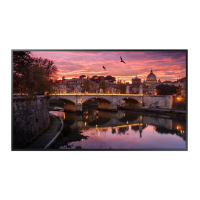
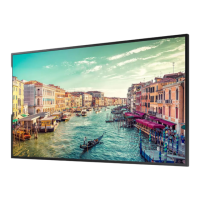
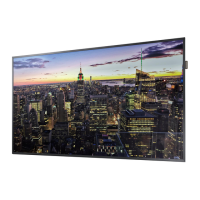
Samsung QMR Series - User Manual

Samsung QMR Series
114 pages
Print Icon
To Next Page IconTo Next Page
Loading...
© Samsung Electronics
Samsung Electronics owns the copyright for this manual. Use or reproduction of this manual in parts or entirety without the authorization of Samsung Electronics is prohibited. Trademarks other than Samsung Electronics are
property of their respective owners.
The colour and the appearance may differ depending on the product, and the content in the
manual is subject to change without prior notice to improve the performance.
This manual provides common information for all Smart Signage models regarding safety precautions, options to connect the product, and product features.
Series: QBN, QBR, QMN, QMR, QEN, OMN, OMN-D, OHN, OHN-DK, VMR-U, QPR-8K, QER, OMR, QHR
Smart Signage User Manual (Common Use)

Table of Contents

Other manuals for Samsung QMR Series

Questions and Answers

  • R
    Robert JacksonJul 30, 2025
    How to fix Anynet+ not working on Samsung Digital Signage?
    • C
      Chloe MartinezJul 30, 2025
      If Anynet+ is not working on your Samsung Digital Signage, first verify that the device is Anynet+ compatible, as the system only supports these devices. Ensure the Anynet+ device's power cord and Video/Audio/HDMI cable connections are properly connected. Also, check that Anynet+ (HDMI-CEC) is enabled in the System menu and that the remote control is Anynet+ compatible. Note that Anynet+ may not function during the initial setup. If you have reconnected the HDMI cable, rescan for devices or power cycle your product. Finally, confirm that the Anynet+ function of the Anynet device is enabled.
  • D
    dennisshawAug 4, 2025
    What to do if connected device is not displayed on Samsung Digital Signage?
    • A
      amyandersonAug 5, 2025
      If your connected device isn't showing up on your Samsung Digital Signage, first confirm that the device supports Anynet+ functions and that the HDMI cable is correctly connected. Check that Anynet+ (HDMI-CEC) is enabled in the System menu and try rescanning for Anynet+ devices. Ensure you are using an HDMI connection, as Anynet+ requires it. Note that some HDMI cables might not support Anynet+ functions. If there was a power failure or the HDMI cable was disconnected, repeat the device scan.
  • R
    Richard KruegerAug 10, 2025
    How to start Anynet+ on Samsung QMR Digital Signage?
    • A
      Anita NelsonAug 11, 2025
      To start Anynet+ on your Samsung Digital Signage, ensure the Anynet+ device is properly connected to the product. Also, verify that Anynet+ (HDMI-CEC) is set to 'On' in the System menu.
  • J
    jamessullivanAug 16, 2025
    What to do if the message 'Disconnecting Anynet+ device ...' appears on Samsung QMR Digital Signage?
    • D
      Dalton KingAug 17, 2025
      If the message 'Disconnecting Anynet+ device ...' appears on the screen of your Samsung Digital Signage, it means you cannot use the remote control while Anynet+ is being configured or while switching to a view mode. Please wait until the configuration or switching process is complete before using the remote control.
  • K
    krodriguezAug 22, 2025
    How to exit Anynet+ on Samsung Digital Signage?
    • N
      Nicholas GuzmanAug 22, 2025
      To exit Anynet+ on your Samsung Digital Signage, press the SOURCE button on the product remote control and select a device that is not Anynet+ compatible.

Summary

Before Using the Product

Safety Precautions

Essential safety instructions for personal safety and property protection.

Installation

Guidelines for safely installing the product to prevent damage or injury.

Operation

Instructions for safe and proper product operation to avoid hazards.

Connecting and Using a Source Device

Multiple Display Control

Cable Connection

Information on connecting cables for controlling multiple displays, including RS232C and LAN.

Player feature

Clone Product

Video Wall

Video Wall

Activating or deactivating the video wall feature to organize multiple displays.

On;Off Timer

Screen Adjustment

Backlight; Brightness; Contrast; Sharpness

Adjusting fundamental picture quality settings like backlight, brightness, contrast, and sharpness.

Picture Size Settings

Screen Protection

Sound Adjustment

Sound Mode

Selecting a sound mode (Standard, Music, Movie, Clear Voice, Amplify) for audio preferences.

Network

Network Settings (Wired)

Detailed methods for attaching the product to a LAN using a cable connection.

Network Settings (Wireless)

Server Network Settings

System

Touch Control

Power Control

Eco Solution

Temperature Control

Security

Support

Software Update

Upgrading the product's software to the latest available version for improved functionality.

Troubleshooting Guide

Requirements Before Contacting Samsung Customer Service Centre

Steps to follow before contacting support to diagnose product issues.

Appendix

Samsung QMR Series Specifications

General IconGeneral
Viewing Angle (H/V)178° / 178°
OrientationLandscape / Portrait
Display TypeLED
Refresh Rate60Hz
Operating SystemTizen
ConnectivityWi-Fi, Bluetooth, Ethernet
Display Size55", 65", 75", 85"
Screen Size55", 65", 75", 85"
Response Time8ms
Wi-FiYes
BluetoothYes
Internal Memory8GB
Speaker20W (10W x 2)
HDRHDR10
PortsHDMI x 3, USB x 2, Ethernet x 1
Wall MountVESA compatible
Warranty3 years
Resolution3840 x 2160 (UHD)

Related product manuals