Chapter 3. Installing the Product 3-19
NOTE
You cannot input the following characters: #, [, ", :, ?, |,
\, "
Department
Enter details about the medical institution or the organization. This
information is used to identify information transferred via DICOM.
Date
The current date is displayed. To change the date, click .
NOTE
You cannot change the date and time when a
patient ID has been registered. To change the date
and time, you should finish the current diagnosis by
tapping the End Exam button on the touch screen.
You can select a year from 2006 to 2027.
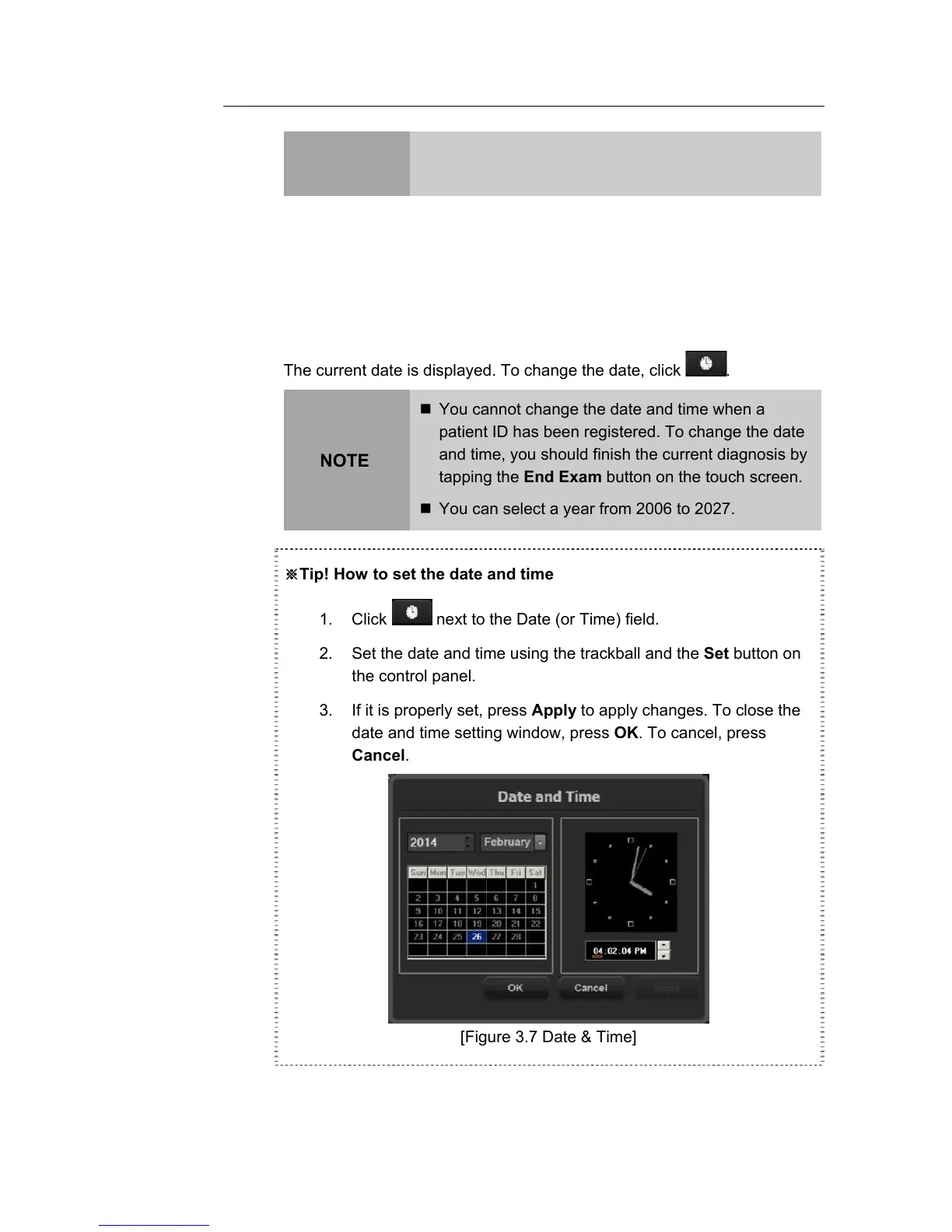
※Tip! How to set the date and time
1. Click next to the Date (or Time) field.
2. Set the date and time using the trackball and the Set button on
the control panel.
3. If it is properly set, press Apply to apply changes. To close the
date and time setting window, press OK. To cancel, press
Cancel.
[Figure 3.7 Date & Time]



 To Next Page