52
Note: ActiveSync
®
must be checked on the service list. If Serial is
available, instead, select it and make sure that a correct Bluetooth COM
port is selected from the Connection Settings on the PC ActiveSync
®
.
10. Press the Done soft key.
Synchronizing Information
To begin synchronization, connect your phone to your
computer. For more information on connecting the
phone and the computer, see page 50. The Microsoft
®
ActiveSync
®
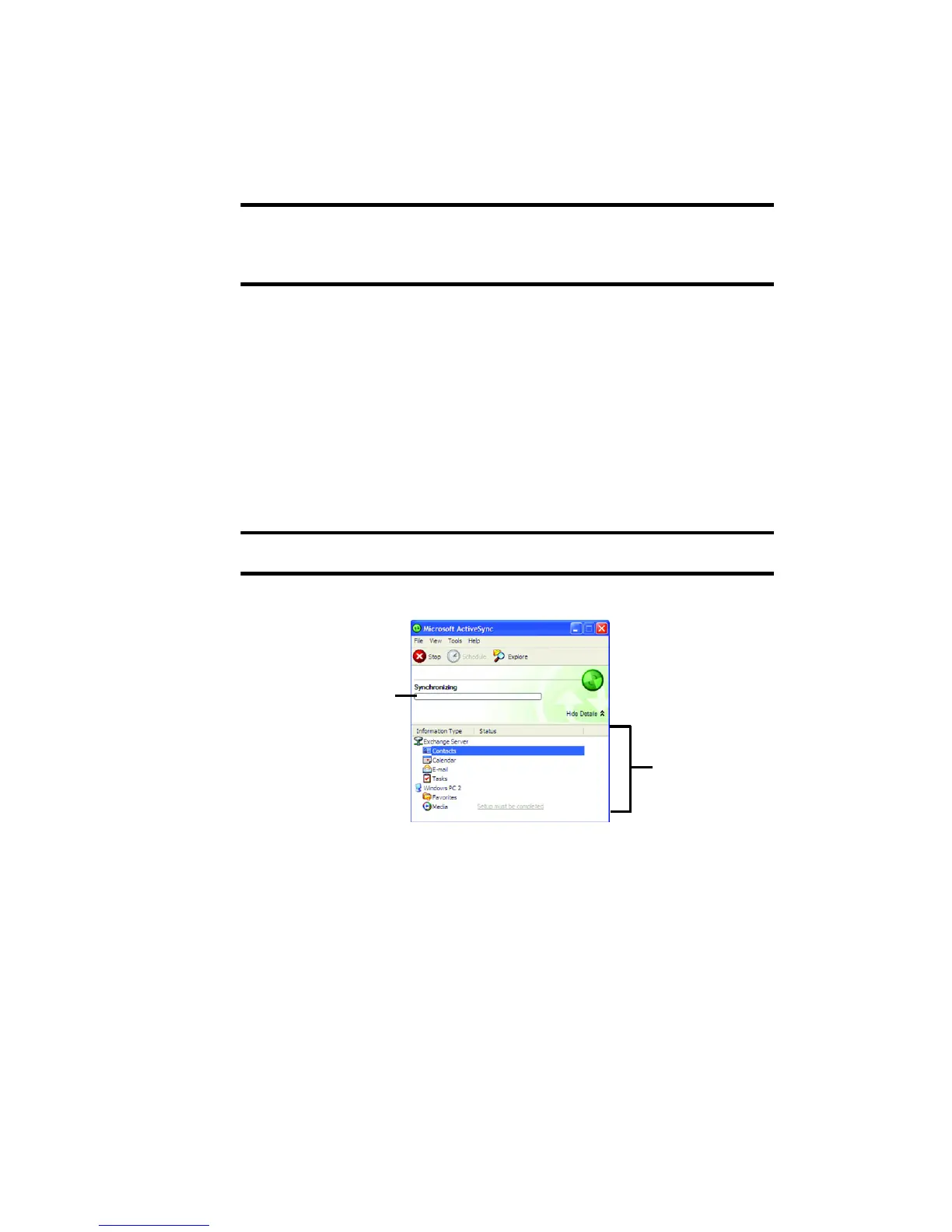
window on your computer automatically
appears and synchronization starts.
Note: Shows the synchronisation status.
Once the synchronization is completed, the phone stays
connected to the computer. If any change is made,
Microsoft
®
ActiveSync
®
automatically will begin
synchronization. To begin synchronization, press the
Sync soft key in Microsoft
®
ActiveSync
®
on your
phone. You can open the phone’s file directory by
clicking Explore from the Microsoft
®
ActiveSync
®
Shows
synchronization
status
Shows types
of information to
be synchronized.






 To Next Page