COLOR CCD CAMERA User’s Manual
27
COLOR CCD CAMERA User’s Manual
26
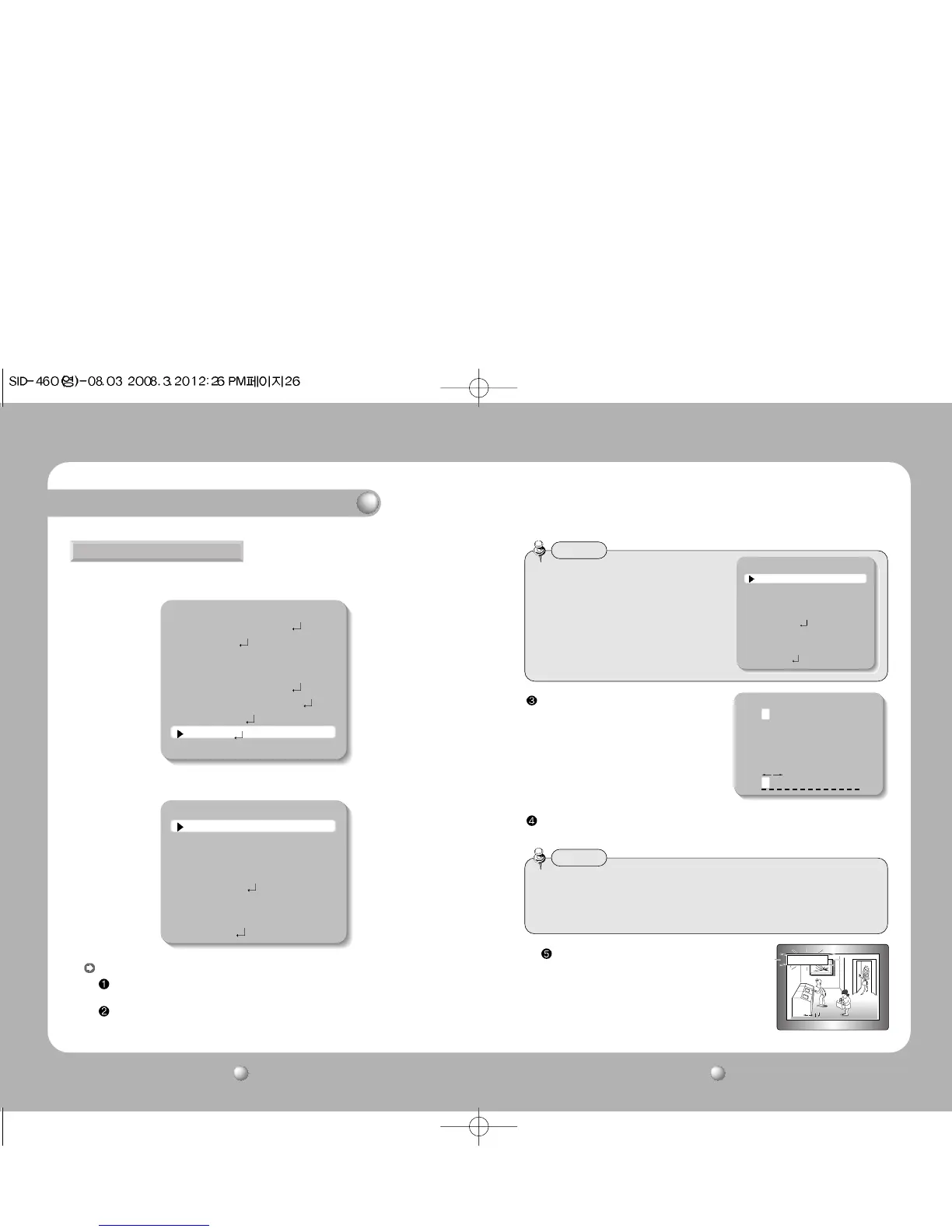
1. When the SETUP menu screen is displayed, select ‘SPECIAL’ by using the Function
Setup switch so that the arrow indicates ‘SPECIAL’.
CAM TITLE : If you enter a title, the title will appear on the monitor.
If the SPECIAL menu screen is displayed, use theFunction Setup switch so that
the arrow indicates ‘CAM TITLE’.
Set it to ‘ON’ by using the Function Setup switch.
2. Select a desired mode using the Function Setup switch.
Press the Function Setup switch.
Use the Function Setup switch to move to a desired letter and select the letter by
pressing the switch. Repeat this to enter multiple letters. You can enter up to 15 letters.
• When the CAM TITLE menu is ‘OFF’, no
title will be displayed on the monitor
screen even if you enter one.
Notes
• When the CAM TITLE menu is ‘OFF’, no title
will be displayed on the monitor screen even
if you enter one.
Notes
• If you move the cursor to CLR and press the Function Setup switch, all the letters are
deleted. To edit a letter, change the cursor to the bottom left arrow and press the
Function Setup switch. Move the cursor over the letter to be edited, move the cursor to
the letter to be inserted and then press the Function Setup switch.
Notes
SPECIAL
1. CAM TITLE OFF
2. MOTION DET OFF
3. PRIVACY OFF
4. DIS OFF
5. COMM ADJ
6. LANGUAGE ENGLISH
7. RESET
8. RETURN
Camera ID
ABCDEFGHIJKLM
NOPQRSTUVWXYZ
abcdefghijklm
nopqrstuvwxyz
-.123456789
CLR POS END
MAIN SETUP
1.LENS DC
2.EXPOSURE
3.WHITE BAL ATW
4.BACKLIGHT OFF
5.SSNR ON
6.DAY/NIGHT AUTO
7.IMAGE ADJ
8.SPECIAL
9.EXIT
SPECIAL
1. CAM TITLE OFF
2. MOTION DET OFF
3. PRIVACY OFF
4. DIS OFF
5. COMM ADJ
6. LANGUAGE ENGLISH
7. RESET
8. RETURN
SPECIAL
Enter a title, move the cursor to ’POS’ and press the
Function Setup switch. The entered title appears on the
screen. Select the position to display the title on the
screen by using the Function Setup switch and press.
When the position is determined, select ’END’ and press
the Function Setup switch to return to the SPECIAL menu.



 To Next Page