EasyManua.ls Logo

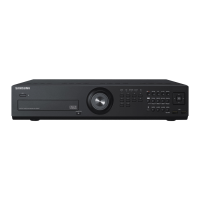
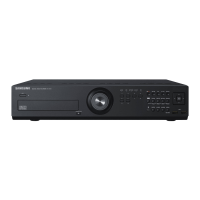
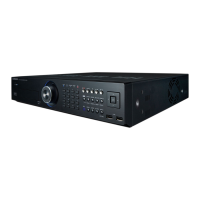
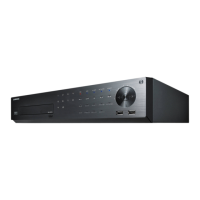
Samsung SRD-830DC - User Manual

Samsung SRD-830DC
132 pages
Print Icon
To Next Page IconTo Next Page
Loading...
8 CHANNEL/
16 CHANNEL DVR
User Manual
SRD-830/830D/830DC/
850/850D/850DC/870/870D/870DC/
1610/1610D/1610DC/1630/1630D/1630DC/
1650/1650D/1650DC/1670/1670D/1670DC

Table of Contents

Other manuals for Samsung SRD-830DC

Questions and Answers

  • A
    Austin WestSep 3, 2025
    How to improve the recording quality on my Samsung DVR?
    • M
      Marcia SmithSep 3, 2025
      If the image quality of the recording data on your Samsung DVR isn't satisfactory, try increasing the resolution and quality level in Menu – Record – Quality / Resolution. Select a bigger size when specifying the recording size (4CIF>2CIF>CIF). Specify a bigger level for the recording quality. Keep in mind that increasing resolution and recording quality will increase the data size, filling the HDD faster and overwriting existing data sooner.
  • L
    Lynn WarnerSep 1, 2025
    Why can't I play backup data from my Samsung SRD-830DC?
    • J
      julie05Sep 2, 2025
      If you're having trouble playing backup data from your Samsung DVR on your PC or the DVR itself, remember that you have choices about the player either: PC or DVR, when you are backing up data. If using a PC, the backup file format should be AVI or SEC. If using the DVR, formatting backup files should be done by the DVR.
  • G
    George DelgadoAug 31, 2025
    Why are some channels showing a black screen on my Samsung SRD-830DC DVR?
    • B
      Brooke FryAug 31, 2025
      If some channels on your Samsung DVR only display a black screen, even when they should be receiving video, first check if the camera connected to the system properly displays the image, and ensure the camera is properly supplied with power. Sometimes, this problem may occur on a channel with a weak video signal from a video distributor connected to multiple systems; in this case, input the video source of the camera directly into the DVR.
  • S
    Sara HicksAug 29, 2025
    Why doesn't my Samsung DVR recognize all external HDDs?
    • A
      Ann KingAug 29, 2025
      If you've found that your Samsung DVR doesn't recognize as many disks as installed when you have connected multiple external HDDs, keep in mind that it takes time for the DVR to recognize multiple external HDDs. It may also occur due to a mechanical error of the HDD installed, so try again with a different HDD.
  • L
    Lindsey PenaAug 28, 2025
    What does 'NO HDD' mean on my Samsung SRD-830DC DVR?
    • T
      Toni WilliamsAug 28, 2025
      If your Samsung DVR displays the “NO HDD” icon and an error message, first check the HDD connection. If the problem persists, it is recommended to contact a service center to have the HDD checked.
  • M
    Michael PetersonAug 26, 2025
    What to do if the alarm button doesn't work on my Samsung SRD-830DC?
    • T
      Tracy MartinAug 26, 2025
      If the alarm on your Samsung DVR sounds and pressing the [ALARM] button on the front panel doesn't stop it, try the following steps using the [MENU] button: 1) To release the event monitoring mode: go to Monitoring Mode and set the duration of the event monitoring to Off. 2) To release the alarm sound: go to Event Record Mode - Alarm (Motion Detection/Video Loss) and deactivate the alarm sound. 3) To release the event: go to Event Record Mode - Alarm (Motion Detection/ Video Loss) and set the mode to Off.
  • T
    Troy SmithAug 25, 2025
    How to fix a Samsung DVR that does not turn on?
    • V
      Vernon HollowayAug 25, 2025
      If your Samsung DVR does not turn on and the indicator on the front panel remains off, check whether the power supply system is properly connected. Also, verify the system's input voltage from the power source. If the problem continues, it might be necessary to inspect the power supplier and replace it if needed.
  • B
    brian66Aug 22, 2025
    Why is my Samsung DVR recording not working?
    • M
      Michelle StoutAug 22, 2025
      If your Samsung DVR is not recording, first, make sure you see an image on the screen. If you do, check your recording settings. To manually record, press the [REC] button on the front panel of the DVR or on the remote control. To schedule recording, specify a desired time in Menu – Record - Recording Schedule. There are different recording options: Continuous (recording proceeds in any conditions at the specified time), Event (recording performs only if the event is of alarm, motion detection and video loss), Continuous / Event (if there is no event found, continuous recording will perform. If an event occurs, event recording will perform).

Samsung SRD-830DC Specifications

General IconGeneral
Network InterfaceEthernet (RJ-45)
Power Supply12V DC
CompressionH.264
Operating SystemEmbedded Linux
USB InterfaceUSB 2.0
Video OutputHDMI, VGA
Audio Inputs/Outputs4 audio inputs, 1 audio output
USB Ports2
Recording ModeMotion Detection
Remote ViewingYes
Video Input8CH, BNC

Related product manuals