55
Resizing or Relocating the Screen
6
6 Resizing or Relocating the Screen
6.2 Image Size
Change the picture size.
6.2.1 Changing the Image Size
1 Press any button on the front of the product to display the Key guide. Next, press [ ] to display
the corresponding menu screen.
2 Press [ ] to move to SIZE&POSITION and press [ ] on the product.
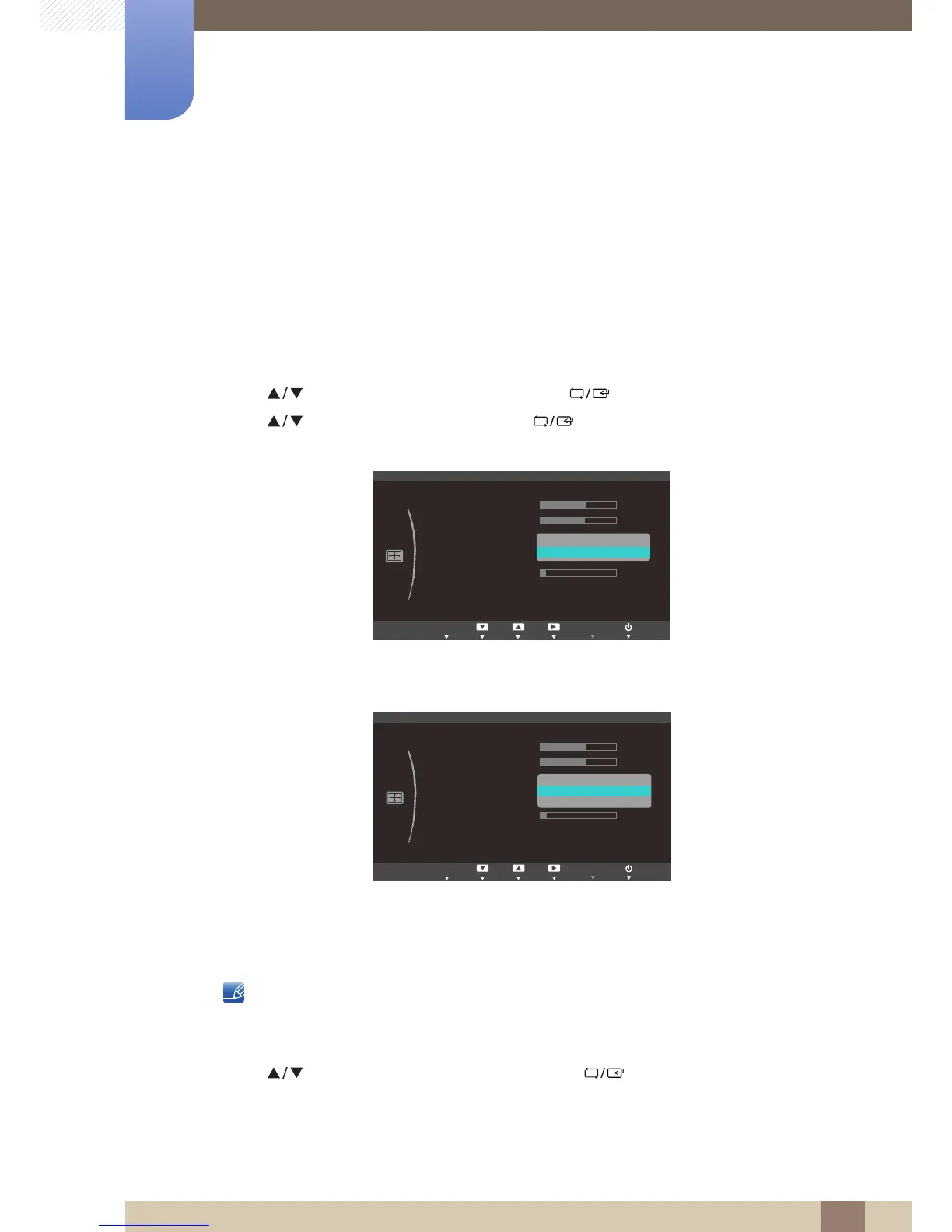
3 Press [ ] to move to Image Size and press [ ] on the product. The following screen will
appear.
z Auto: Display the picture according to the aspect ratio of the input source.
z Wide: Display the picture in full screen regardless of the aspect ratio of the input source.
z 4:3: Display the picture with an aspect ratio of 4:3. Suitable for videos and standard broadcasts.
z Wide: Display the picture in full screen regardless of the aspect ratio of the input source.
z Screen Fit: Display the picture with the original aspect ratio without cutting off.
Changing the screen size is available when the following conditions are satisfied.
z A digital output device is connected using the DVI cable.
z The input signal is 480p, 576p, 720p, 1080i, or 1080p.
4 Press [ ] to move to the option you want and press [ ].
5 The selected option will be applied.



 To Next Page