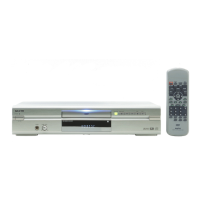
EasyManua.ls Logo

Sanyo DWM-390 - User Manual

Sanyo DWM-390
40 pages
Print Icon
To Next Page IconTo Next Page
Loading...
INSTRUCTION MANUAL
DVD Video Player
1AD6P1P1806-- DWM-390, Issue Number 1
DWM-390
®
TM
SANYO'S HELP-LINE
Call the toll-free number below if you have any difficulties operating this product.
1-800-813-3435 (Weekdays: 7:30 AM - 4:00 PM Central Time)
TM
q
n a
ef
z/ON
REMOTE CONTROLLER RB-SL25
z /ON
NEXTPREV
FWD SLOWREV SLOW
PAUSE/STEP
PLAY
REV FWD
CLEAR
SEARCH
MODE
123C
456
789
0
4
b
5
a
ENT
SETUP MENU
AUDIO RETURN
PICTURE
MODE
ANGLE
REPLAY
ZOOM ANGLE
LAST MEMO
SURROUND
ON SCREEN
OPEN/CLOSE
REPEAT A-B REPEAT
SUBTITLE
CHANGE
SUBTITLE
ON/OFF
TOP MENU
PROGRAM
/RANDOM

Table of Contents

Other manuals for Sanyo DWM-390

Questions and Answers

  • D
    Derrick ChapmanAug 15, 2025
    What to do if my Sanyo DWM-390 DVD Player remote control does not work properly?
    • R
      Robert PerezAug 15, 2025
      If the remote control for your Sanyo DVD Player isn't working right, it could be due to a few things: * Weak or incorrectly installed batteries. Check the battery polarity (+ or -) and replace the batteries if needed. * The remote control not aimed correctly. Make sure you're aiming the remote control at the remote sensor window on the DVD player.
  • T
    Timothy GlassAug 18, 2025
    What to do if the disc tray on my Sanyo DWM-390 does not open?
    • R
      Rodney BrownAug 18, 2025
      If the disc tray on your Sanyo DVD Player won't open, it might be locked. Press the q button on the unit until “Un-LOC” appears.
  • A
    angelaallenAug 21, 2025
    What to do if my Sanyo DVD Player has no power?
    • J
      Jonathan RomeroAug 21, 2025
      If your Sanyo DVD Player isn't powering on, the power plug might not be properly connected to the AC wall outlet. Make sure the power plug is fully inserted into the outlet.
  • A
    Ana ParkerAug 25, 2025
    Why is there no sound coming from my Sanyo DVD Player?
    • A
      Anthony CrawfordAug 26, 2025
      If you're not getting any sound from your Sanyo DVD Player, there could be a few reasons: * The TV might be turned off. Ensure that your TV is turned on. * The audio cables might not be properly connected. Check that the audio cables are securely plugged into the jacks. * The audio equipment connected to the DVD player may be off. Turn on any audio equipment connected with the audio cable.
  • A
    Angela DominguezAug 28, 2025
    Why does my Sanyo DWM-390 say 'No Play' on the TV screen?
    • D
      Devin WilliamsAug 28, 2025
      If your Sanyo DVD Player shows 'No Play' on the screen, it could be due to a few reasons: * An unplayable disc is loaded. Ensure the loaded disc is playable, checking its logo, type, color system and regional code. * “PARENTAL” is set. Cancel the parental lock function or change the rating level. Reset it after play. * The disc may not have the correct file or data. Load a playable disc.
  • P
    paulwaltersAug 31, 2025
    Why is there no picture on my Sanyo DWM-390?
    • R
      Richard ShortAug 31, 2025
      If you're not getting a picture from your Sanyo DVD Player, here are some possible causes: * An unplayable disc is loaded. Make sure you are using a playable disc. * The TV is not set to receive signal from the player. Ensure that the TV is set to the correct input function. * The video cable is not connected. Verify that the video cable is securely connected to the jack. * The S-video cable is not connected. Ensure the S-video cable is connected to the jack. * “PROGRESSIVE” mode is set. Select “INTERLACE” mode.
  • M
    Michael HartSep 3, 2025
    What to do if my Sanyo DVD Player does not start playback?
    • R
      richard01Sep 3, 2025
      If your Sanyo DVD Player isn't starting playback, consider these possibilities: * No disc is loaded. Load a disc into the player. * An unplayable disc is loaded. Ensure you're using a playable disc. * The disc is loaded incorrectly. Make sure the disc is loaded on the disc tray correctly, with the label side up. * The disc is dirty. Clean the disc or replace it. * “PARENTAL” is set. Cancel the parental lock function or change the rating level. Reset it after play.
  • J
    Jason HardySep 7, 2025
    How to fix a dark FL display on my Sanyo DWM-390?
    • L
      Lori BrownSep 7, 2025
      If the FL display on your Sanyo DVD Player is dark, it might be set to “Dark”. Reset it to “Normal”.
  • F
    freyesSep 10, 2025
    What to do if the operation or display of my Sanyo DVD Player is not normal?
    • K
      Kaitlyn ZamoraSep 12, 2025
      If the operation or display of your Sanyo DVD Player isn't normal, the unit might need to be reset. Disconnect the power cord, reconnect it, and then resume operation.

Summary

Sanyo Help Line

Important Information

Connecting to a TV

Requirements for connecting the DVD player to a TV.

TVGuardian Operation

Details on operating the built-in TVGuardian® Foul Language Filter.

Dolby Digital Sound

Instructions for enjoying Dolby Digital sound output.

Important Safety Instructions

General Safety Precautions

Covers reading instructions, cleaning, water, ventilation, and power.

Electrical Safety

Covers power sources, grounding, polarization, and cord protection.

Environmental and Hazard Warnings

Warnings about lightning, ventilation, and placement.

Important Safety Instructions (Continued)

Antenna and Electrical Line Safety

Safety regarding outdoor antennas and power lines.

Operational and Maintenance Safety

Covers overloading, object entry, servicing, damage, and replacement parts.

Heat and Product Placement

Advice on product placement to avoid heat damage.

Safety Certification

Compliance and Warnings

Certifications, radiation exposure caution, and FCC information.

Accessories

Remote Control and Cables

Lists the included wireless remote and audio/video cable.

Controls Overview

Front Panel Controls

Identification and function of front panel controls.

FL Display Indicators

Explanation of indicators and information on the FL display.

Rear Panel Connections

Identification of rear panel connection jacks.

Remote Control Details

Remote Control Buttons

Detailed list and description of remote control buttons.

Remote Battery and Range

Instructions for inserting batteries and information on remote range.

Before Connection

Connection Information

Key requirements for connecting the DVD player to a TV or amplifier.

Choosing the Right Connection

Decision tree to determine the correct connection method.

Basic Connections

Conventional TV Connection (Example 1)

Step-by-step guide for connecting to a standard TV.

S-Video and Component Connections

Instructions for using S-Video and Component Video for better playback.

RF Modulator Connections

TV and RF Modulator Setup

Diagram and steps for connecting via RF Modulator to a TV.

VCR, TV, and RF Modulator Setup

Steps for connecting via RF Modulator with a VCR and TV.

Progressive-scan TV Connection (Example 2)

Understanding Progressive Scanning

Explanation of progressive scanning for sharper images.

Additional Connection Examples

Audio System and TV Connection (Example 3)

Connecting the player to both an audio system and a TV.

Advanced Video Connections

Instructions for S-Video and Component Video connections.

Amplifier Connections

Digital Audio Decoding (Example 4)

Connecting to amplifiers with Dolby Digital, DTS, or MPEG2 decoders.

2-Channel Digital Stereo (Example 5)

Connecting for 2-Channel Digital Stereo sound output.

Amplifier with Dolby Pro Logic Connection (Example 6)

Power Supply and Safe Operation

Power Supply Details

Instructions for connecting and using the power supply.

Safe and Efficient Operation Guidelines

General guidelines for safe and efficient use of the unit.

Playable Discs

Disc Types and Region Coding

Information on supported disc formats and region restrictions.

DVD and CD Disc Structure

Explanation of DVD titles/chapters and CD tracks.

Disc Handling and Care

Guidelines for handling, storing, and cleaning discs.

Playable Disc Cautions

Important cautions regarding disc compatibility and playback.

Basic Operation

Preparations for Operation

Steps to prepare the unit and TV before operation.

Basic Playback Steps

Instructions for starting and performing basic playback.

Playback Controls

Stopping Playback (DVD & CD)

How to stop playback for DVD discs and Audio CDs.

Last Memo Playback (DVD)

Feature to continue playback from where you stopped.

DVD Menu Navigation

Selecting a DVD Menu

How to navigate and select items from the DVD menu.

Selecting a Top Menu

How to access and select the DVD's top menu.

Chapter and Track Skipping

Skipping Forward and Backward

How to skip to the next/previous chapter or track.

Disc Searching Functions

Title, Chapter, and Time Search (DVD)

How to search for specific titles, chapters, or times on DVDs.

Time and Track Search (CD)

How to search for specific times or tracks on Audio CDs.

Advanced Playback Controls

Fast and Slow Motion Playback

How to use fast playback and slow motion features.

Still Picture and Frame Advance

How to pause playback and advance frame by frame.

Picture and Angle Adjustments

Picture Zoom (Pin Point Zoom)

How to zoom in on DVD pictures and adjust the view.

Camera Angle Selection

How to select different camera angles on multi-angle DVDs.

Repeat Playback Modes

Standard Repeat Playback

How to set repeat playback for titles, chapters, or tracks.

Designated Range Repeat (A-B Repeat)

How to set a specific playback section for repeat.

Advanced CD Playback Modes

Random Playback (CD)

How to play tracks in a random order.

Programmed Playback (CD)

How to create and manage custom playback sequences.

Disc Language Selection

Subtitle Language (DVD)

How to select subtitle languages for DVD playback.

Audio Soundtrack Language

How to select different audio languages for playback.

On-Screen Display and Picture Settings

On-Screen Information Display

How to view disc information on the TV screen.

Picture Mode Selection

How to adjust the picture mode for optimal viewing.

Spatializer 3 D Surround Sound

How to activate the Spatializer virtual 3D surround sound.

TVGuardian Operation Setup

Before Setting Up TVGuardian

Initial setup and TV preparation for TVGuardian®.

Setting TVGuardian Parameters

Step-by-step guide to configure TVGuardian® settings.

TVGuardian Functionality

How TVGuardian Works

Explanation of how the TVGuardian® Foul Language Filter operates.

TVGuardian Setting Examples

Tables showing TVGuardian settings and their operations.

MP3;WMA CD Operation

MP3;WMA CD Before Starting

Prerequisites and notes before playing MP3/WMA CDs.

MP3 and WMA File Specifications

Details on MP3 and WMA file formats and bitrates.

Display Limitations and Cautions

Information on display limitations and playback cautions.

MP3;WMA CD Playback Controls

Stopping and Pausing MP3;WMA Files

How to stop and pause playback of MP3/WMA files.

Skipping and Repeating MP3;WMA Files

How to skip files and set repeat playback for MP3/WMA.

Picture Disc Operation

Kodak Picture CD Playback Guide

Instructions for playing Kodak Picture CDs and viewing photos.

Slide Show and File List Notes

Notes on stopping slide shows and accessing file lists.

JPEG CD Playback

JPEG Image Viewing and Zoom

How to view JPEG images and use the zoom function.

Mixed Media Disc Playback

Playback behavior for discs containing mixed media files.

Initial Settings

Setting Language Preferences

How to set the language for OSD, Audio, Subtitle, and DVD Menu.

Setting Display Options

TV Type Aspect Ratio Settings

How to set aspect ratio (4:3 LB, 4:3 PS, 16:9) for your TV.

Display Setting Notes

Notes on screen size differences and potential distortion.

Setting Digital Audio Output

PCM and Bitstream Output Settings

Configuring output for LPCM, Dolby Digital, DTS, and MPEG.

Setting Parental Control

Parental Control Setup Procedure

Steps to set parental lock levels and password.

Parental Control Guidelines

Explanation of MPAA ratings and lock level equivalencies.

Language Code List

Troubleshooting Guide

Common Playback Issues

Troubleshooting for no power, no picture, no sound, and poor picture.

Disc and Display Problems

Troubleshooting for disc loading errors, tray issues, and display.

Troubleshooting and Servicing

Operation and Remote Control Issues

Troubleshooting abnormal operation and remote control problems.

Product Maintenance and Specifications

Cleaning instructions and detailed technical specifications.

Limited Warranty Information

Warranty Terms and Coverage

Details on warranty periods for labor, parts, and exclusions.

Obtaining Warranty Service

Procedure for claiming warranty service and purchaser obligations.

Sanyo DWM-390 Specifications

General IconGeneral
Progressive ScanYes
Remote ControlYes
TypeDVD Player
Region Code1
Power SupplyAC 120V, 60Hz
Playable Media FormatDVD, CD
Video OutputComposite Video, S-Video, Component Video
Disc CompatibilityDVD-Video

Related product manuals