EasyManua.ls Logo

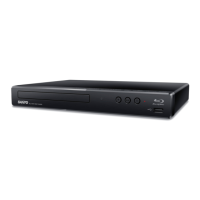
Sanyo FWBP507FF - User Manual

Sanyo FWBP507FF
57 pages
Print Icon
To Next Page IconTo Next Page
Loading...
Blu-ray Disc™ / DVD
Player
FWBP507FF / FWBP505F Q
Owners Manual
INSTRUCCIONES SIMPLIFICADAS
INCLUIDOS EN ESPAÑOL.
To obtain a more detailed electronic copy of this
manual or much further contents, go to
www.sanyo-av.com
Para obtener una copia electrónica más detallada de este manual o mucho otras
contenido, visite
Need help?
Please call toll free 1 866 212 0436 or visit our web site above:
¿Necesita ayuda? Llame por favor sin costo al 1 866 212 0436 ó visite nuestro sitio web en:

Questions and Answers

  • M
    matthew81Sep 9, 2025
    Why Sanyo FWBP507FF cannot read a USB memory stick?
    • E
      Eric RowlandSep 9, 2025
      If your Sanyo Blu-ray Player cannot read a USB memory stick, it might be because the format of the USB memory stick is not compatible with this unit. This unit supports the FAT16 / FAT32 file systems. If the USB memory stick has been formatted on a PC or another device, the file system may be incompatible.
  • T
    Tommy FordAug 23, 2025
    How to troubleshoot no power on Sanyo FWBP507FF?
    • D
      Donna RodriguezAug 23, 2025
      If your Sanyo Blu-ray Player isn't powering on, ensure the AC power cord is securely connected. If it is, try using a different power outlet. As a last resort, unplug the AC power cord, wait 5-10 seconds, then plug it back in and try turning the unit on again.
  • J
    Jordan GonzalezAug 25, 2025
    What to do if no sound or picture on Sanyo FWBP507FF?
    • S
      Shelby LeachAug 25, 2025
      If you're getting no sound or picture from your Sanyo Blu-ray Player, first ensure that both the TV and the Blu-ray player are turned on. Next, verify that the connections to the TV are correctly made. Also, make sure the connected TV or device supports HDCP, as the unit won't output a video signal without it.
  • B
    Brandy HolmesAug 26, 2025
    Why no audio/video signal on display device via HDMI cable from Sanyo FWBP507FF Blu-ray Player?
    • S
      Samantha SantosAug 27, 2025
      If you are not getting any audio or video signal on your display device via HDMI cable from Sanyo Blu-ray Player, make sure the display device is set to the correct input/video source. If the unit is connected to a non-certified HDMI device, the audio/video signal will not be sent. Try performing an HDMI hotplug by disconnecting the HDMI cable from the display device, turning on both devices, and then plugging the HDMI cable back in. Check if there are any software updates available for your TV and verify that the HDMI cable is a certified version.
  • T
    thomasriceAug 27, 2025
    What to do if Sanyo FWBP507FF cannot play back a disc?
    • D
      Dr. Eric Price MDAug 28, 2025
      If your Sanyo Blu-ray Player isn't playing a disc, first, ensure that the unit supports the disc type. Check the region code for the disc; this unit supports Blu-ray Disc™ region 'A' and DVD regions 'ALL' or '1'. For DVD-RW/-R discs, verify that the disc is finalized. Clean the disc if it's dirty. Consider that if the disc is a newer title, a software update might be needed.
  • J
    Jessica CoxAug 29, 2025
    Why no high-definition video signal on Sanyo FWBP507FF?
    • M
      michellemeyersAug 29, 2025
      If you're not getting a high-definition video signal on your TV screen from your Sanyo Blu-ray Player, ensure that the disc contains high-definition video. Also, verify that your TV supports high-definition video.
  • L
    Lisa Ellis DVMSep 17, 2025
    Why music files play choppy on Sanyo Blu-ray Player?
    • M
      Michael PierceSep 18, 2025
      If music files play choppy on your Sanyo Blu-ray Player, it may be because CDs/DVDs containing FLAC (.flac) files with high frequency and large quantization bit rates may not play properly. In such cases, copy the music files to a Blu-ray Disc™ or USB memory stick, then try playing.
  • I
    Isaac StaffordSep 19, 2025
    Why no audio signal from surround system of audio system with Sanyo Blu-ray Player?
    • J
      jason69Sep 22, 2025
      If there's no audio signal from the surround system of your audio system when using your Sanyo Blu-ray Player, make sure the audio system is turned on and that the input mode on the audio system is set to the correct channel. Check if the surround system is compatible with either bitstream or LPCM. Increase the volume level on the surround system.
  • R
    Ryan SmallSep 7, 2025
    Why playback does not start when title is selected on Sanyo FWBP507FF?
    • O
      obeardSep 7, 2025
      If your Sanyo Blu-ray Player isn't starting playback when a title is selected, check the settings in the 'Parental Control' menu.
  • M
    marthafloresSep 4, 2025
    What to do if Sanyo FWBP507FF Blu-ray Player cannot read contents on USB memory stick?
    • L
      Lori WhiteSep 4, 2025
      If your Sanyo Blu-ray Player isn't reading the contents on the USB memory stick, turn off the unit and then turn it back on. To soft reset the unit, press and hold [y(POWER)] on the front panel for 10 seconds to shut down the unit to standby mode, or to hard reset the unit, unplug the AC power cord from the AC outlet for 5-10 seconds.

Summary

Introduction

Safety Instructions

Essential guidelines for safe operation and handling of the device.

Unit Placement and Environment

Advice on optimal location, temperature, and humidity for the player.

Dew Condensation Warning

Information on conditions that may cause condensation inside the unit.

Recycling and Battery Disposal

Guidelines for environmentally responsible disposal of packaging and batteries.

Included Accessories

Features

Blu-ray Disc and BD-Java Playback

Enables playback of high-capacity Blu-ray discs and interactive BD-Java content.

DVD Upscaling and Multi-Format Support

Enhances DVD picture quality and supports playback of DVDs, CDs, and USB media.

HDMI Connectivity and Control

Details easy connection via HDMI and integrated system control (HDMI CEC).

Advanced Playback Features

Explains PiP (BONUSVIEW™), Pop Menus, and x.v.Color support for enhanced viewing.

USB and AVCHD File Playback

Allows playback of photo, music, and AVCHD files from USB memory sticks or discs.

System Information and Software Updates

Understanding Media Symbols

Functional Overview

Front Panel Overview

Identifies and describes buttons and ports on the front of the player.

Rear Panel Overview

Details the input and output jacks located on the back of the player.

Remote Control Overview

Remote Control Battery Installation

Instructions for correctly installing batteries in the remote control.

Remote Control Usage Guidelines

Tips for optimal remote control performance and range.

On-Screen Display Guide

Connections

Connecting to a TV

Step-by-step instructions for connecting the player to a TV via HDMI.

Connecting to an Audio System

Procedures for linking the player to external audio receivers or amplifiers.

HDMI Audio Output

Explains available audio output formats and settings via HDMI connection.

Before You Start

Finding TV HDMI Input

Guidance on locating the correct HDMI port on your television for connection.

Initial Setup Procedure

Walkthrough for the first-time setup, including language and basic configurations.

Information on Playback

Playable Media and Files

Details which types of discs and files the player can successfully read and play.

Unplayable Media and Files

Lists discs and file types that the player does not support.

Region Code Restrictions

Explains region code limitations for BD-Video and DVD-Video playback.

Guide to File List Navigation

How to Insert a Disc

Basic Playback

Playing Back a Disc

Covers the fundamental process of playing content from optical discs.

USB Memory Stick Playback

Instructions for accessing and playing media files stored on a USB drive.

Using Title;Disc;Pop Menus

Special Playback

Speed Control Playback (FF;REW;Slow)

Details on using fast forward, fast reverse, and slow playback modes.

Step-by-Step Playback

Instructions for advancing playback frame-by-frame.

Repeat Playback Modes

Options for repeating chapters, titles, tracks, or all files.

Shuffle;Random Playback

How to play files in a random or shuffled order.

Slide Show

Instructions for viewing photo files as a slideshow.

PiP (BONUSVIEW) Setting

How to enable and use the Picture-in-Picture feature on compatible discs.

Title;Chapter Search

Methods for quickly locating specific titles or chapters on a disc.

Track;File Search

Techniques for finding specific audio tracks or media files.

Time Search

How to jump to a specific point in time during playback.

Number Select Search

Using numerical input to navigate to specific scenes or menus.

Switching Subtitles

Guide on selecting different subtitle languages or styles during playback.

Switching Audio Soundtrack

How to select different audio languages or formats for playback.

Switching Camera Angles

How to select different camera views for scenes shot from multiple angles.

Noise Reduction

Adjusting picture quality by reducing playback noise.

Closed Caption Display

Instructions for enabling and configuring closed captions for synchronized subtitles.

List of Settings

Language and OSD Settings

Customizing on-screen display language and menu preferences.

Audio and Subtitle Settings

Configuring audio output and subtitle display options.

Security and System Settings

Managing passwords, parental controls, and system updates.

Display Settings (TV Screen, Resolution)

Adjusting aspect ratio, video resolution, and HDMI output formats.

Picture Control and Angle Settings

Controlling picture enhancements like noise reduction and camera angles.

Closed Caption Appearance Settings

Customizing the appearance and attributes of closed captions.

Closed Caption Font and Style

Advanced customization for closed caption font, opacity, and edge effects.

Voice Guide and Audio Output

Configuring voice guidance features and HDMI audio output options.

Setups

HDMI CEC Setup

Enables integrated control of connected HDMI devices for simplified operation.

HDMI Video Resolution

Setting the optimal video output resolution and frame rate for HDMI connections.

Parental Control Setup

Setting up parental locks and managing the access password for restricted content.

Rating Levels and Temporary Parental Lock

Explains content rating systems and how to temporarily disable parental locks.

Software Update

Steps for updating the player's firmware using discs or USB memory sticks.

Voice Guide Settings

Setting up and customizing the voice guidance feature for user assistance.

Restore Default Settings

Resets all player settings back to their factory default values.

Troubleshooting

Troubleshooting Common Issues

Provides solutions for common problems encountered during operation.

Specifications

General Specifications

Technical details including power, dimensions, operating conditions, and signal systems.

Terminal Information

Lists available USB and HDMI ports and their capabilities.

Maintenance

Servicing Information

Guidance on when to seek professional service and how to contact support.

Cleaning and Care

Instructions for cleaning the unit, discs, and disc lens for optimal performance.

IR Signal Check

Method to test the remote control's infrared signal transmission.

Trademark Information

Brand and Technology Trademarks

Lists official trademarks and logos associated with the product and its technologies.

Glossary

Glossary Terms (A-C)

Definitions for technical terms starting with A, B, and C.

Glossary Terms (D-J)

Definitions for technical terms starting with D through J.

Glossary Terms (L-X)

Definitions for technical terms starting with L through X.

Limited Warranty

Warranty Coverage and Limitations

Details the terms, conditions, and exclusions of the product's limited warranty.

Customer Assistance and Legal Notices

Information on how to obtain support and important legal disclaimers.

Sanyo FWBP507FF Specifications

General IconGeneral
BrandSanyo
ModelFWBP507FF
CategoryBlu-ray Player
LanguageEnglish

Related product manuals