5
Operating Design
Input
Numeric Input
To enter numbers: Press the
12… 0 . keys
To store numbers entered:
Press the corresponding soft key
(i.e., the arrow key under the
appropriate abbreviation in the
bottom line of the display)
To interrupt/cancel numeric input:
Press c
Alphabetic Input
(see also the example given
on page 39)
● To enter letters or characters:
first press the a key
> Letters are displayed in the
bottom line
● To select a different letter: press the
corresponding soft key to change
the letter shown (i.e., the arrow key
under the letter displayed)
● To select the letter/character
shown: press the corresponding
soft key
> The selected letter is shown
in the display
$ Enter the next letter/character,
if desired, as above.
● To store a word:
press the corresponding soft key
(e.g., S ID)
● To delete a word: press c
Parameter Settings
The parameters for configuration
are in the application menu and
the balance operating menu.
These menus have several levels.
● To set parameters: press M
and then the appropriate soft key
(e.g., App for the application
menu)
● To move within a menu level:
use the Q and q soft keys
Soft Key Labels
The labels are symbols and/or
abbreviations to indicate soft key
functions. The abbreviations
are usually self-explanatory.
The arrows indicate the following
functions:
oo Return to Setup menu
(in the Setup menu: save settings
and exit the Setup program)
o Go back to the higher
selection level
O Show sub-items under the
active item
Q Move upward in the input/output
window
q Move downward in the
input/output window
l Set the selected menu parameter
Display for Menu Parameter Settings
(Setup)
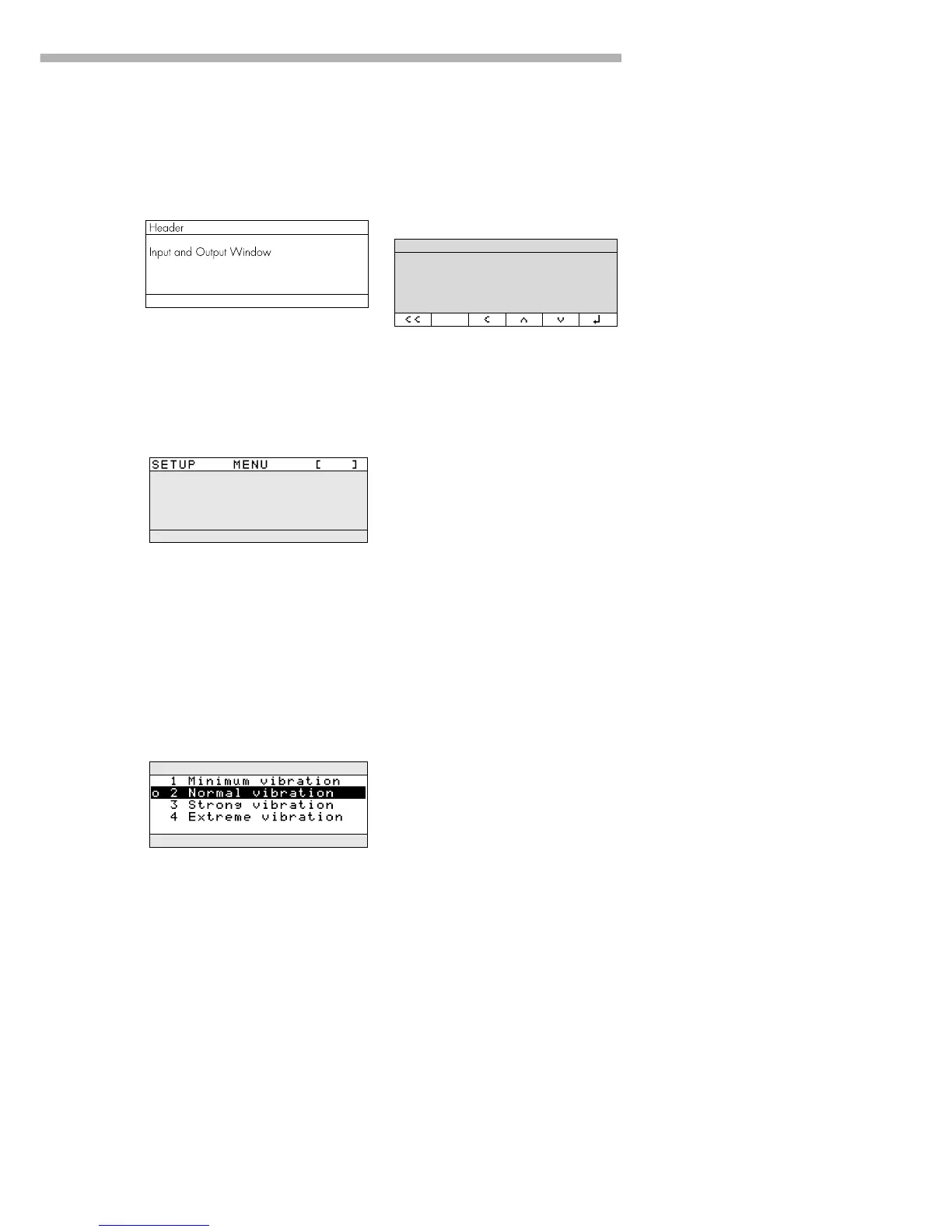
This display is divided into
three sections.
Header
The header indicates the function
of the current screen page. In the
Setup program, the current menu
ath is shown here.
Example in the Path “Setup/Menu”:
Input and Output Window
This window contains either detailed
information (e.g., on the active
application) or a pick list. A selected
item is displayed inversely. You can
also enter information in an
active field in this window using the
alphanumeric keys.
Example in the Path “Setup/Menu”:
The o symbol in this window
indicates the current menu setting.


 To Next Page