33 / 37
3.5.8 Creation of a Text Report
NotePad is required for this operation
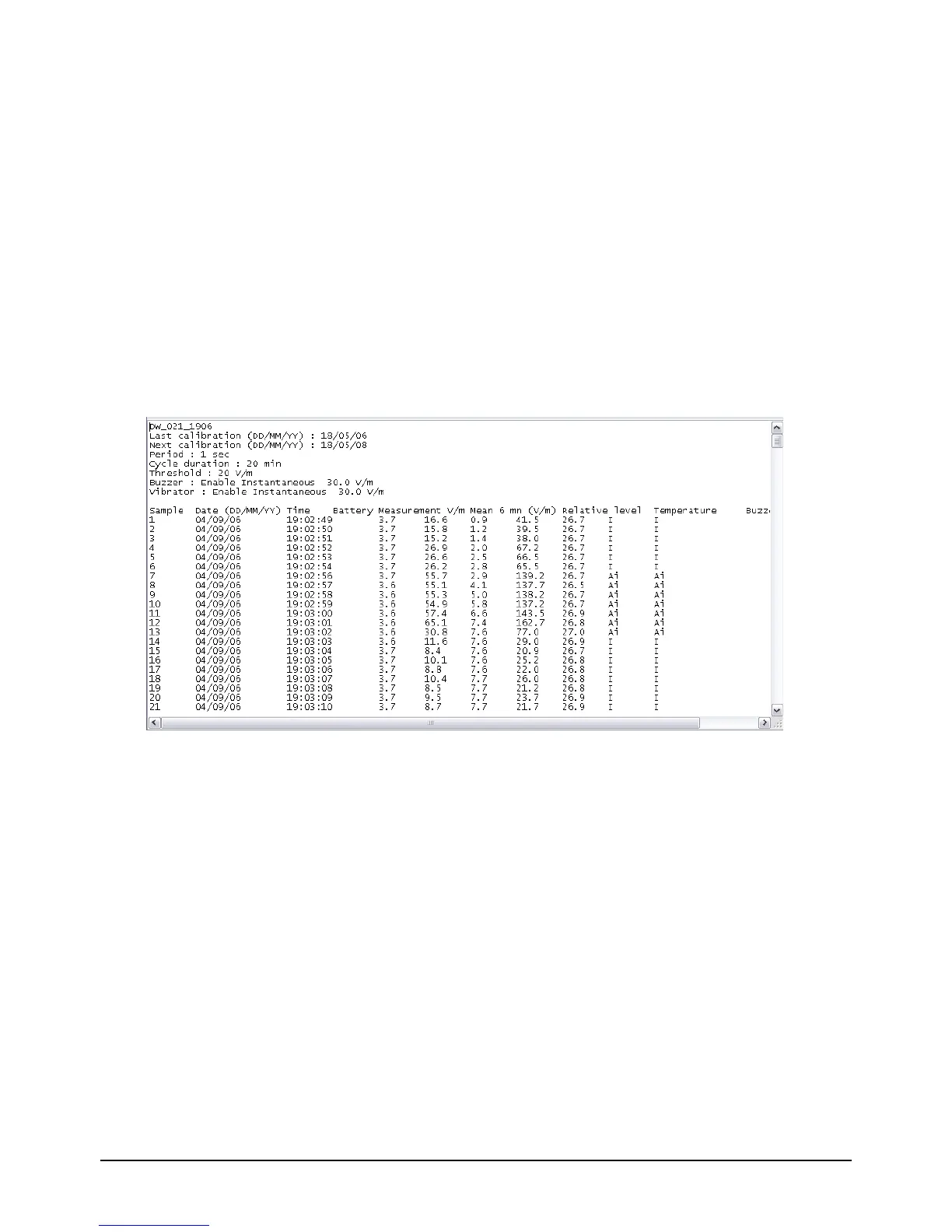
It is possible to create a file in text format from a measurement file.
The text file also enables access to the information contained in the measurement file:
- Serial Number and calibration dates of the dosimeter which made the measurements.
- Name of Excel file.
- Sample number.
- Date and time of beginning and end of measurement recording cycle.
- Configuration of the dosimeter during the measurement recording cycle (period and
duration of cycle, reference threshold for the visual alarms and configuration of the audio
and vibrating alarms.
- Measurement details (sample number, date and time of measurement, battery and
temperature levels, field values in V/m, level relative to reference threshold and alarm
configuration at the time of measurement).
Figure 36 : Measurement file text report
Creation of a text file:
- Open the measurement file and select the menu File Ö Report Ö Text Report. The
Windows Save File window opens.
- Choose the name and location of the file in which the measurements are to be saved.
By default the file will be placed in the folder Rapports_Texte in the work folder and will
have the same name as the measurement file (if the name of the loaded measurement file
is « mesure1.bin », the text file created will have the name « mesure1.txt »).
NB :
- Each time Text Report menu is selected, a new Windows Save File window is opened,
even if the .txt file has already been created. Thus several Text files for one measurement
file could possibly be created.
- Once created, it is always possible to access the Text files directly through the NotePad
application. Opening the Text file through Excel displays the information in different
columns.


 To Next Page