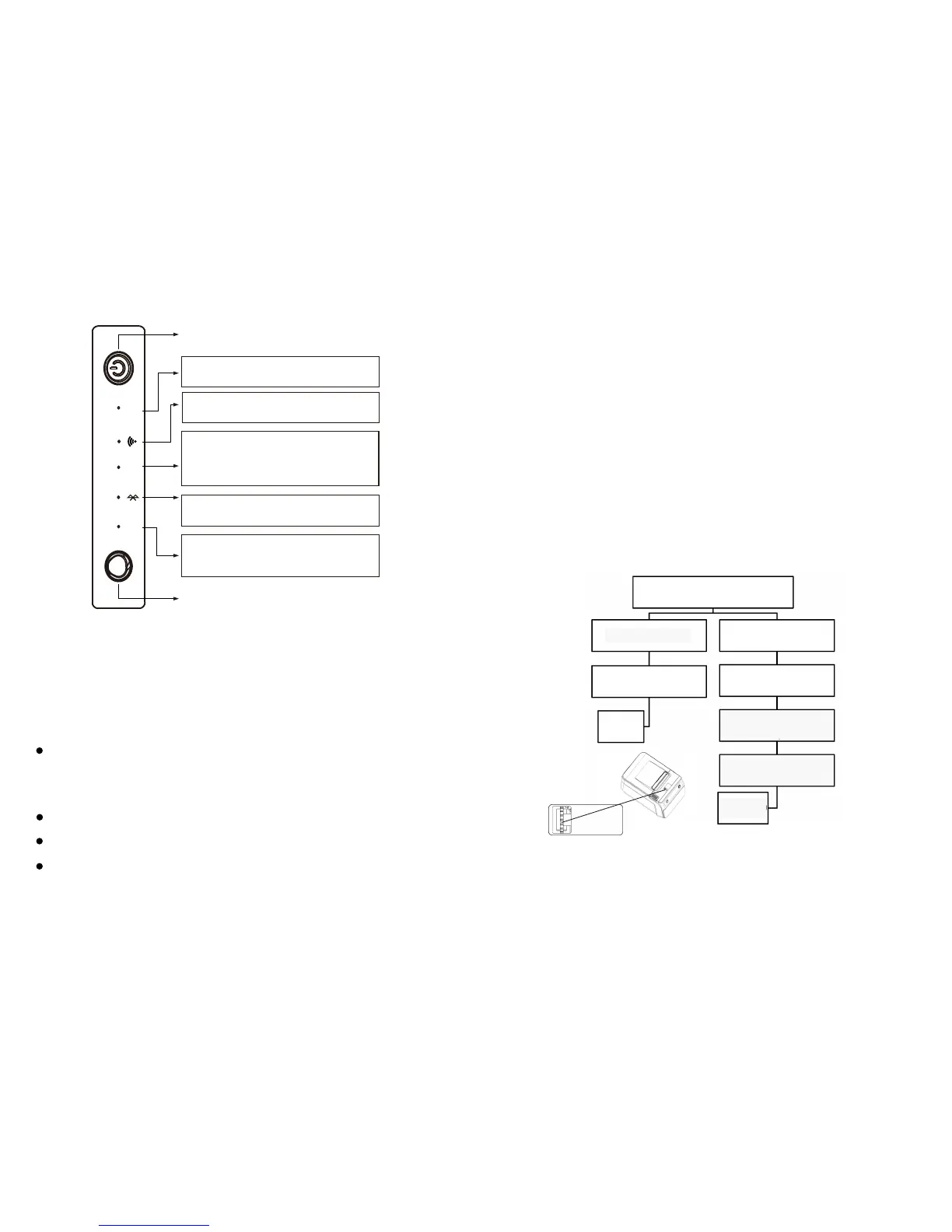
Power light-Light appears when connected to the
power supply.
Low Receipt Paper Light-Light appears when the
receipt paper roll is low and/or wrong replacement
of the paper.
Error light-Light appears under the following condition:
1. Printer overheats
2. Receipt Paper Low
3. Roll Paper Cover and/or cutter replacement error
NP ERR PWR
Wifi light, light will be on when wifi connect succes
Bluetooth light, light will be on when Bluetooth
connect succes
Chapter 3. Printer Management
3.1 Self-Checking Function
The Self-Checking Function allows the user to identify if the printer is operating normally. If the printer
is detected with failure condition, please contact the distributor.
3.2 Self-Checking Process :
Self-checking Procedure:
1. Make sure the printer is powered off
2. Press FEED button and switch on the power supply while the FEED button still pressed.
3. The Self-Checking list should be printing the printer is brought to power.
Self-Checking function printers out bytes, part of Chinese character set,command mode, interface
type,local printer dial-up switch setting printer setting,…, etc, sequentially.
For the printer equip with auto-cutter, the auto-cutter spontaneously cuts the receipt paper
immediately after finish printing.
The printer automatically goes into data receipt mode after finish self-checking process.
3.3 Printer Maintenance
Maintaining the printer regularly is a necessary step to sustain the printer quality as the residual
paper wool got collected through the thermal slice.
Maintaining the Printer with the following steps:
1. Open the paper roll cover and remove the receipt paper roll if necessary.
2. Use the alcohol swab to clean the thermal slice printer head.
3. Slight damp a swab and gentle wipe through the roller and the paperchecking sensor.
4. Reload the paper roll into the printer and closed the paper roll cover.
3.4 Fix Paper Jam
The error light appears and flashes with warning prompt when paper jam happens.
Gently press button to open paper roll cover
Paper Roll Cover Opens
Paper Roll Cover Fail to Open
* Do not open by force
Clear the paper jam and reload
the paper roll.
Restart the printer and try to
open the paper roll cover
Paper Jam
Fixed!
Slide out the cutter cover located in
front of the printer, and the turn the
wheel upwards to retreat the cutter
as shown on the image left
Turn the wheel till the roll paper
cover opens to fix the paper jam.
Paper Jam
Fixed!
6 7
POWER BUTTON
FEED KEY


 To Next Page