Following is the way of changing Printer ID address.
Firstly, connect one of the two printers sharing the same ID address with PC.(Note:Connect only one
printer with the PC, the other one will be offline or power off.)
Then,from Pinter setting toool--Ethernet input the new ID address on the textbox after “MAC
ADDRESS” (Make sure this ID address is different from other ID addresses of printers and PCs). If
you want to set the Ethernet ID as “0-164-165-167-168-169”,then input “0-164-165-167-168-169”.
And then select “DOWNLOAD”, in this way,the printer ID address (Ethernet ID) will be revised. In
printer power-on self-test” page, you can check the printer ID address(Ethernet ID).
Note: after revising the printer ID address (Ethernet ID),user needs to restart PC or forbidden/start
using PC network so that PC can connect with printer successfully.
8.After revising the IP address and ID address, users can print the windows testing page through the
new IP port.
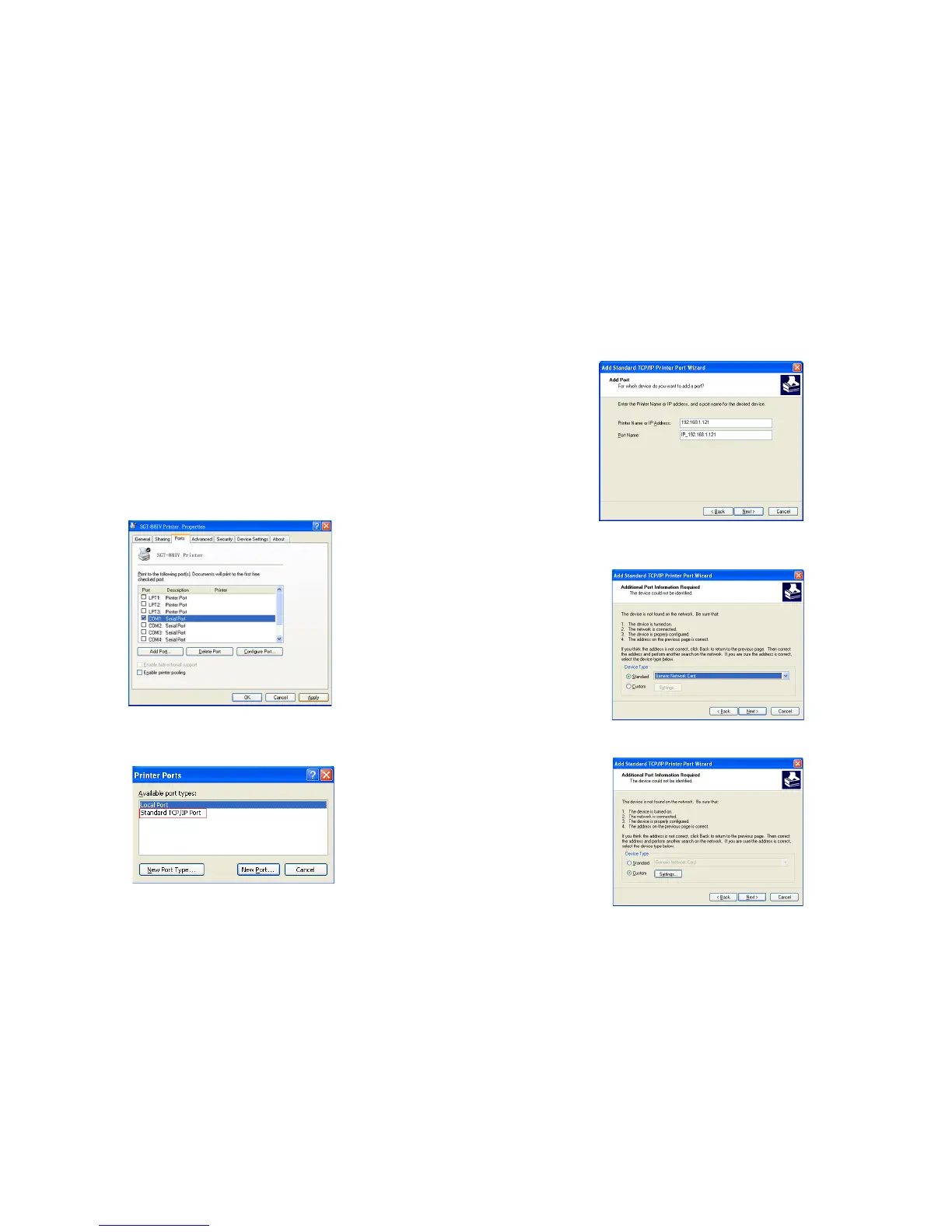
a."Windows" →"Printer and Fax"→"SGT-88IV Printer Property→ "Ports". See the following picture.
b.Click "Add Port" → Standard TCP/IP Port→"New Port".See the following picture.
c.If the printer IP address is " 192.168.121", users can follow the printer ports" and input "192.168.1.
121 " after the "Printer Name or IP Address" textbox.
Then click "Next>". See the following picture.
Users need to choose "Custom" option. See the following picture.
14 15


 To Next Page