5–8 TextBridge Pro User’s Guide
To process a simple document, use the following procedure:
1. Start TextBridge.
TextBridge appears.
2. Select the page source
Click the drop down arrow on the Get Pages button to select
Image File.
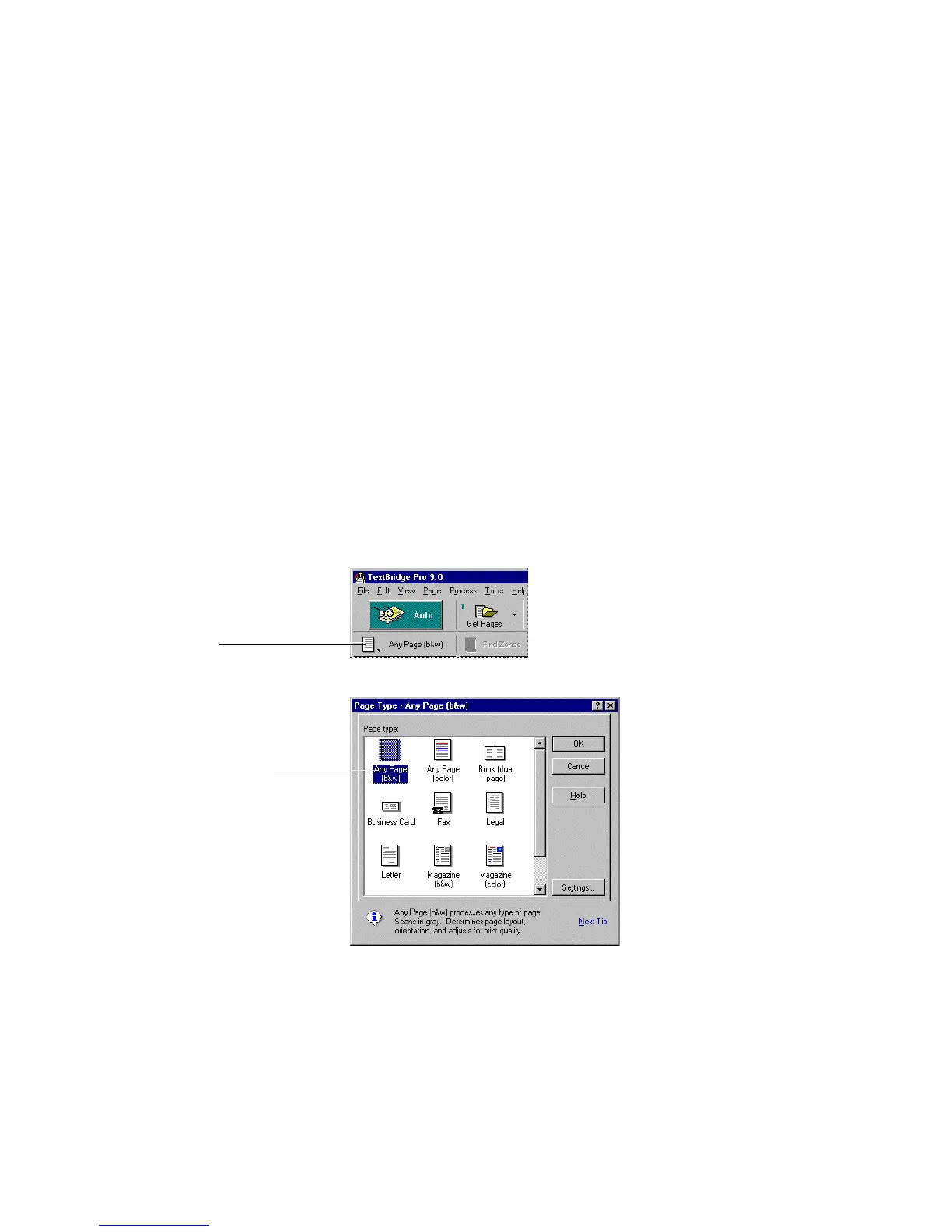
3. Select the page type.
Click the Page Type button to select Any Page (b&w),
Figure 5–5).
Select Any Page (b&w)
Click the page
type button
Figure 5–5. Page Type dialog box with Any Page (b&w) selected



 To Next Page