5–22 TextBridge Pro User’s Guide
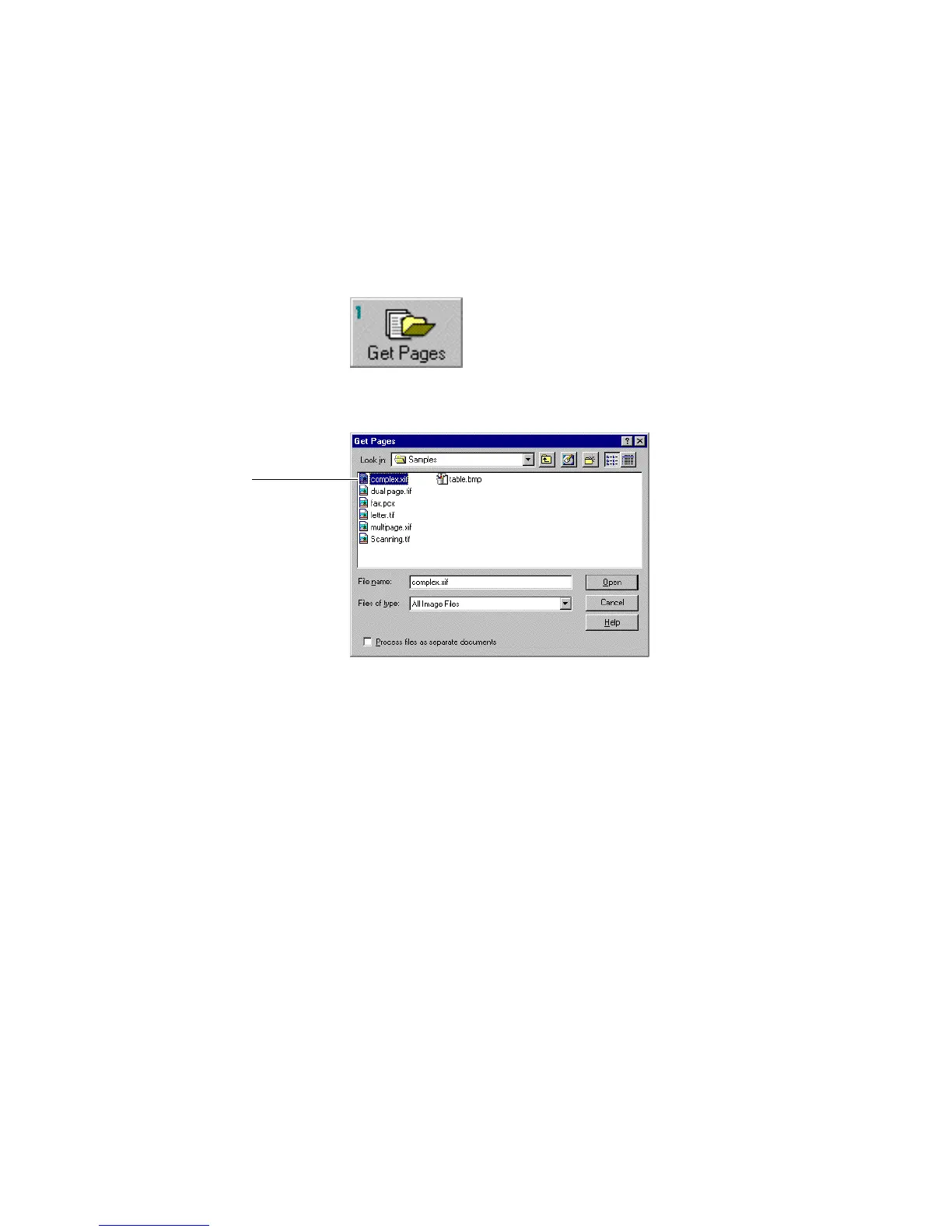
4. Click the Get Pages button.
The Get Pages dialog box appears (Figure 5–17).
Select complex.xif
Figure 5–17. Get Pages dialog box with complex.xif selected
5. Double click complex.xif.
TextBridge gets the page, and displays it in the Image view.
The page you see should be a four-column magazine article
beginning with a title and piechart. Notice that the piechart is
already marked as a locked image. This is a segmented XIF file.
☞ If this is not the correct page, in the File menu, click New. Click
OK to close the current document. You can begin again by
selecting Get Page.



 To Next Page