Advanced Sample Sessions 6–3
3. In the Get Pages dialog box, double click table.bmp.
After TextBridge reads and processes the page image, it displays
the page in the image view.
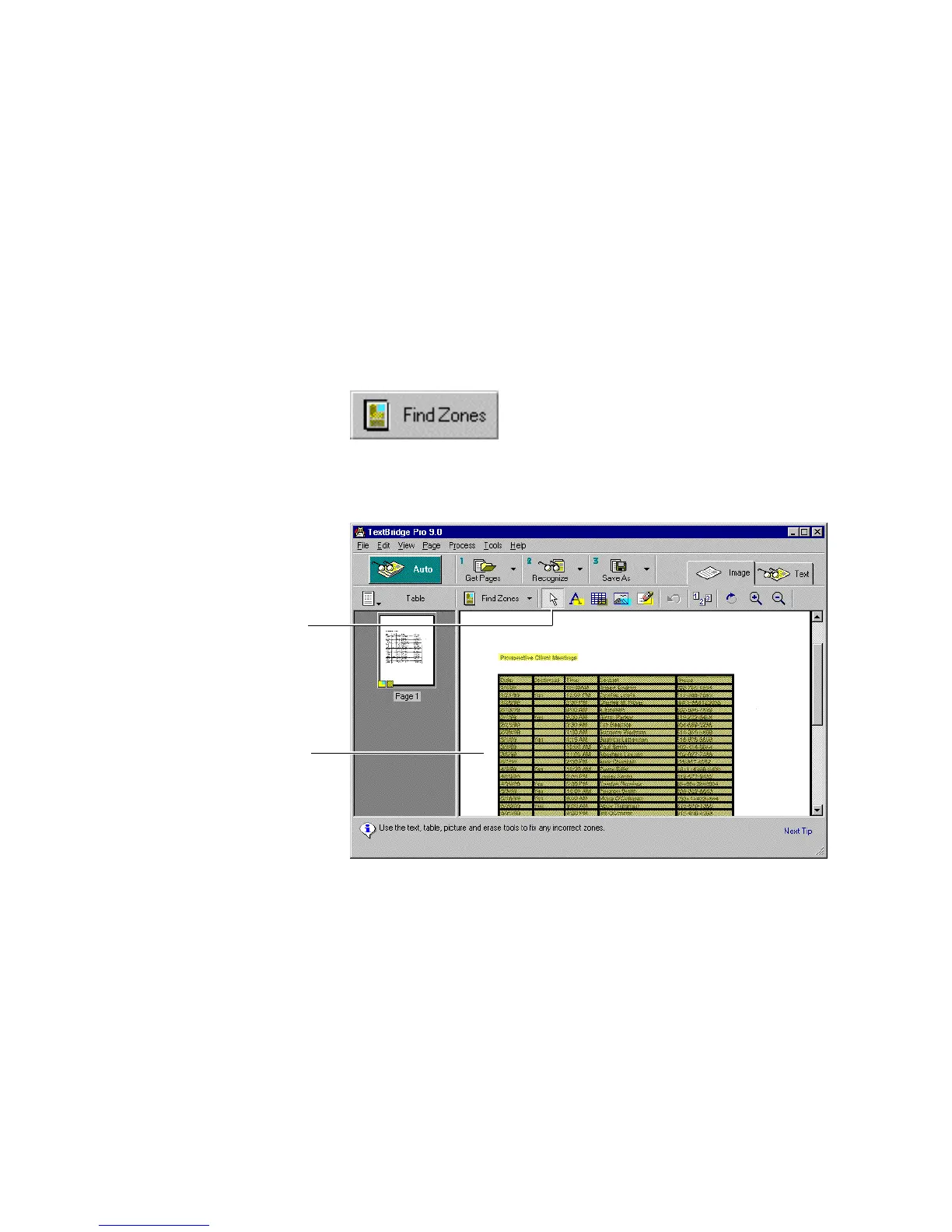
4. Click the Find Zones button.
TextBridge automatically finds the zones on the page. Notice that
the table is zoned with lines marking the cell borders (Figure 6–2).
Click the Select button
Table zoned with cell borders
Figure 6–2. Zoned table.bmp in Image View



 To Next Page