4–6 TextBridge Pro User’s Guide
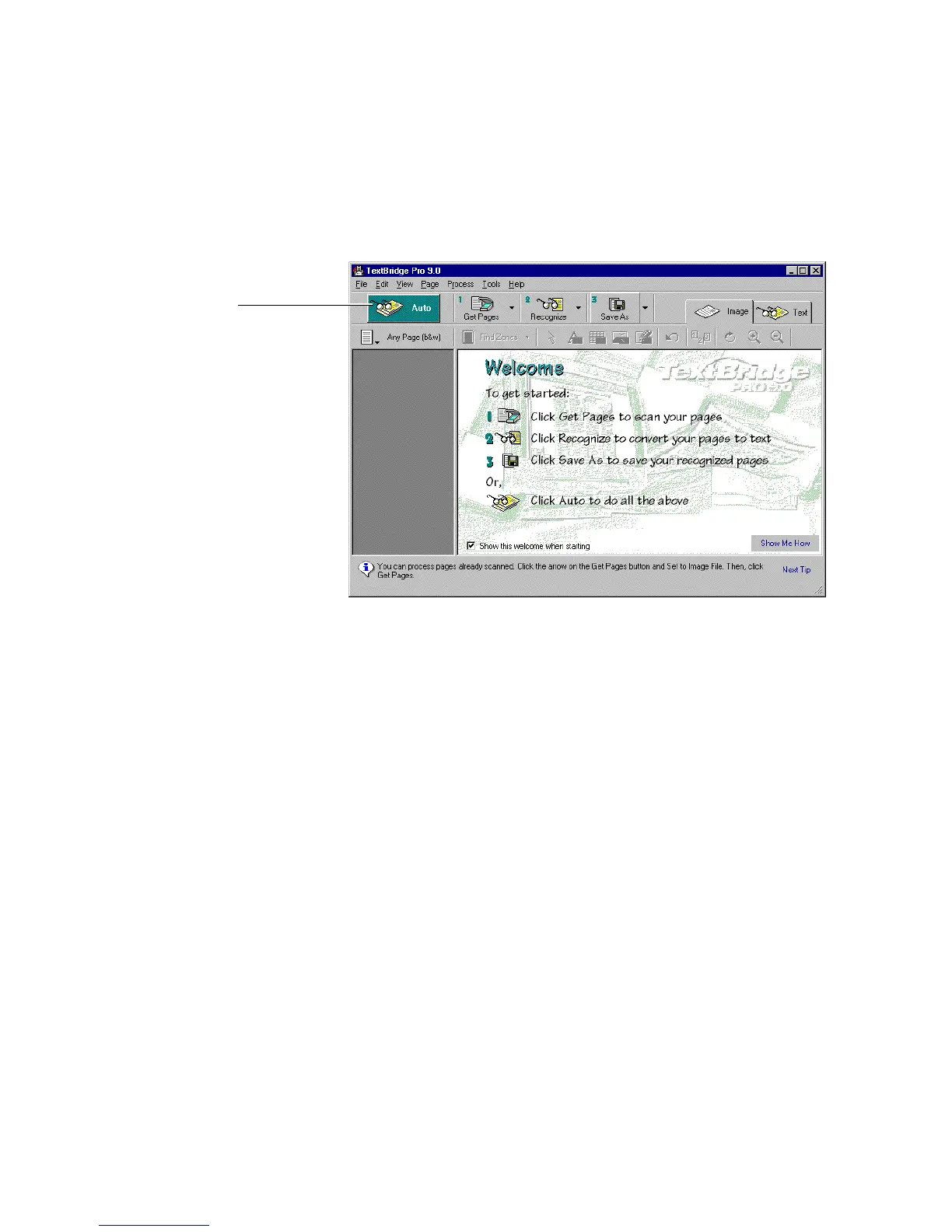
Click Auto button
Figure 4–2. Click the Auto button in the TextBridge window
2. If scanning, you may do the following:
Click the More Pages button in the Add More Pages to Scanner
dialog box (Figure 4–3) to scan another page.
or
Click the Other Side button to scan the other side of two-sided
pages.
or
Click the Done button when there are no more pages to add.
TextBridge recognizes the text, saves any pictures to be placed in
your output, and remembers the format for your output.



 To Next Page