Learning to Use TextBridge 4–7
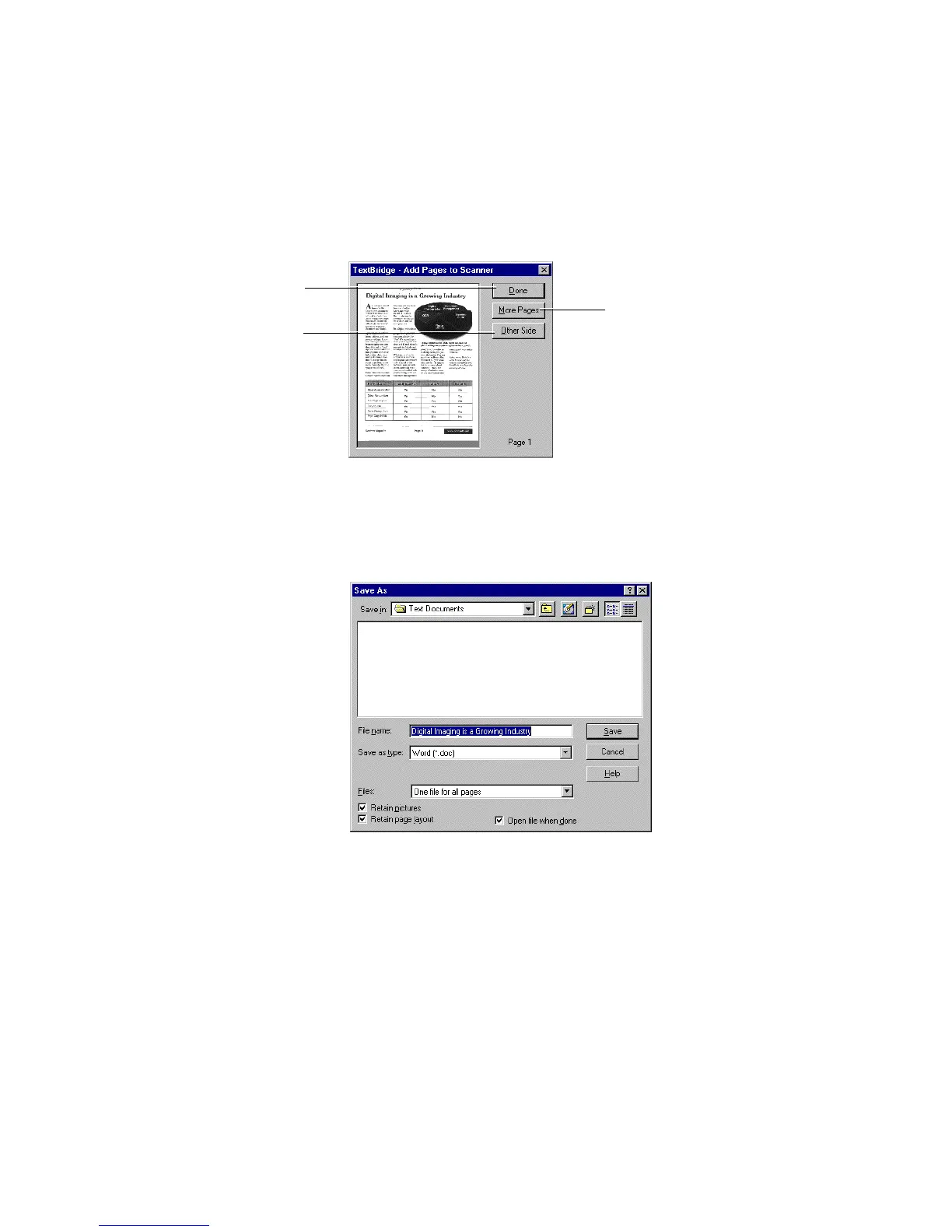
Click Done to proceed when
all pages are scanned
Click to scan second side(s)
of a two-sided document
Click to scan more pages
Figure 4–3. Add Pages to Scanner dialog box
3. Save the text with any picture(s) in a file format of your
choice.
Figure 4–4. Save the document using the Save As dialog box
4. Proofread the results of the OCR process, in your selected
application, or process a new document.



 To Next Page