…you connect the storage device to Windows computers, and you don’t need to allow a Mac to write to
the disk. NTFS is not recommended for connections to compatible Android mobile devices.
Use HFS+ if:
…you connect the storage device to Mac computers, and you don’t need to allow a Windows computer to
read or write to the disk. HFS+ is the only format compatible with Time Machine. HFS+ is not
recommended for connections to compatible Android mobile devices.
Use APFS if:
…you connect the storage device to Mac computers, and you don’t need to allow a Windows computer to
read or write to the disk. Do not use APFS if you intend to use Seagate Ultra Touch with Time Machine, or
if your computer is not running macOS 10.13 or later. APFS is not recommended for connections to
compatible Android mobile devices.
Use exFAT if:
…you need to allow both Mac and Windows computers to read and write to the disk. exFAT is
recommended when connecting to compatible Android devices.
You can use FAT32 if:
…you connect the storage device to older Windows and Mac computers. FAT32 is not recommended for
modern operating systems and computers.
Manual formang
Use the steps below to manually format and partition a storage device.
Mac
macOS version 10.11 and later
1. Open the Finder and go to Applications > Utilities > Disk Utility.
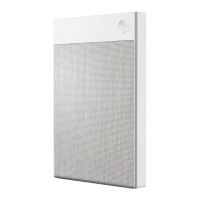
2. In the sidebar to the left, select your Seagate Ultra Touch.
Formatting erases everything on the storage device. Seagate highly recommends that you back
up all data on your storage device before performing the steps below. Seagate is not
responsible for any data lost due to formatting, partitioning, or using a Seagate storage device.




 To Next Page