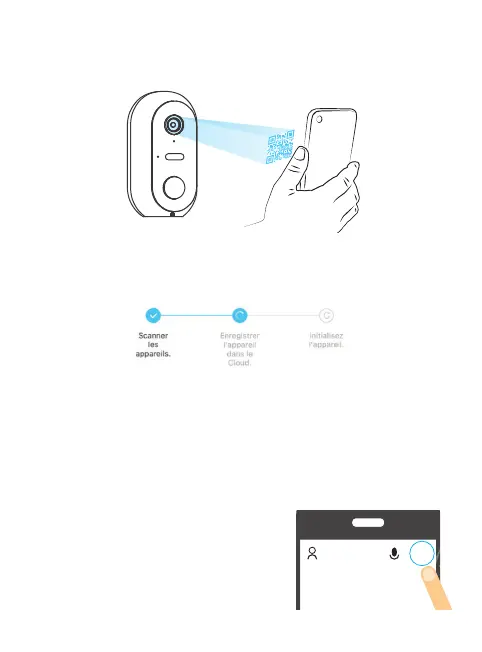
5.2.4 The SEDEA Home application will then display a QR Code that you need to
point to your camera:
Place your smartphone or tablet in front of the camera (at a distance of 15 to
20 cm) so that it can scan the QR Code displayed on the screen.
Once the code has been recognised, the camera emits a series of beeps.
Conrm that you have heard the beeps on your smartphone. The camera is now
connected to the Wi-Fi network and linked to your SEDEA Home account.
Another beep will sound and the camera will be registered in the SEDEA Home
Cloud:
You can then view the images and enjoy all the smart features of this device!
In some cases, it is possible that the connection is dicult with the «QR Code»
mode: too much light, backlight, broken smartphone screen etc...
If you nd yourself in one of these cases, you can use the «» :
5.2.1 Click on the + symbol at the top right of
the screen:
+


 To Next Page