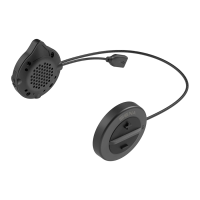
SMH5
18
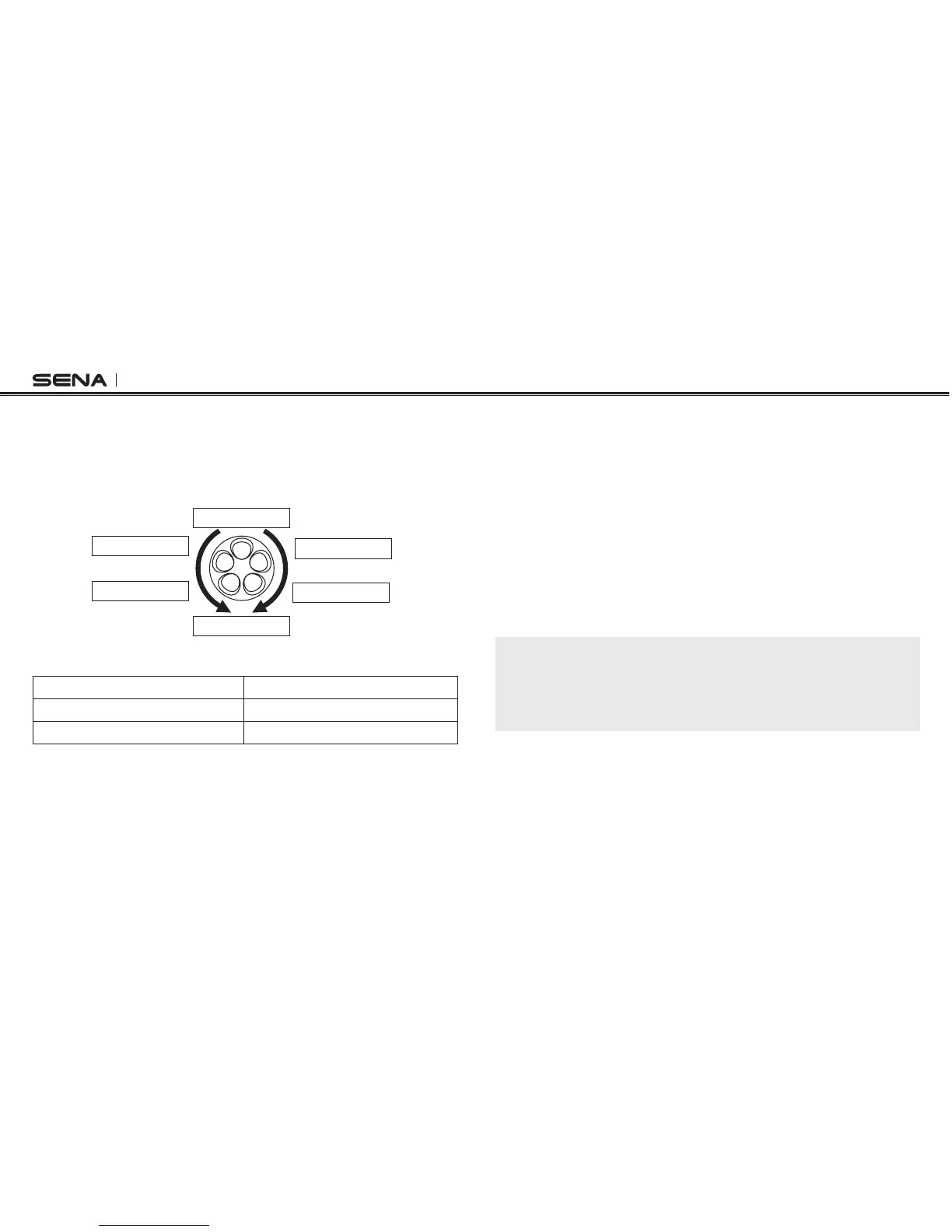
Thevoicepromptforeachmenuitemisasbelow:
(1) Speed dial (4) Sidetone
(2) VOX phone (5) Delete all pairings
(3) Voice prompt (6) Exit conguration
Speed dial
Sidetone
Exit configuration
Delete all pairings
VOX phone
Voice prompt
10.1 Assigning Speed Dial
Voice Prompt
“Speed dial”
Factory Default N/A
Execute Tap the Phone Button
1. To assign a phone number as a speed dial, rotate the Jog Dial until
you hear a voice prompt saying “Speed dial”.
2. Tap the Phone Button, and you will hear a voice prompt saying
“Speed dial one” and “Phone connected”.
3. Rotate the Jog Dial to select one of three speed dial numbers and
you hear a voice prompt saying “Speed dial (#)”.
4. Call a phone number you want to assign and you will hear a
voice prompt saying “Save speed dial (#)”. The phone number is
automatically assigned to the selected speed dial number. Then
the phone call will hang up before being connected.
5. To exit the menu, rotate the Jog Dial clockwise or counter
clockwise until you hear a voice prompt saying “Cancel”, and tap
the Phone Button to conrm. You will then hear a voice prompt
saying “Cancel”. If any button is not pressed within 1 minute, the
SMH5 will exit the conguration menu and go back to stand-by
mode.
Note:
1. After assigning a phone number to one of three speed dials, you can
continually assign another phone number to the rest of two speed dials.
2. You can assign phone numbers to speed dials in your PC. Please visit the
Sena Bluetooth web site at www.SenaBluetooth.com for more information.



 To Next Page