54
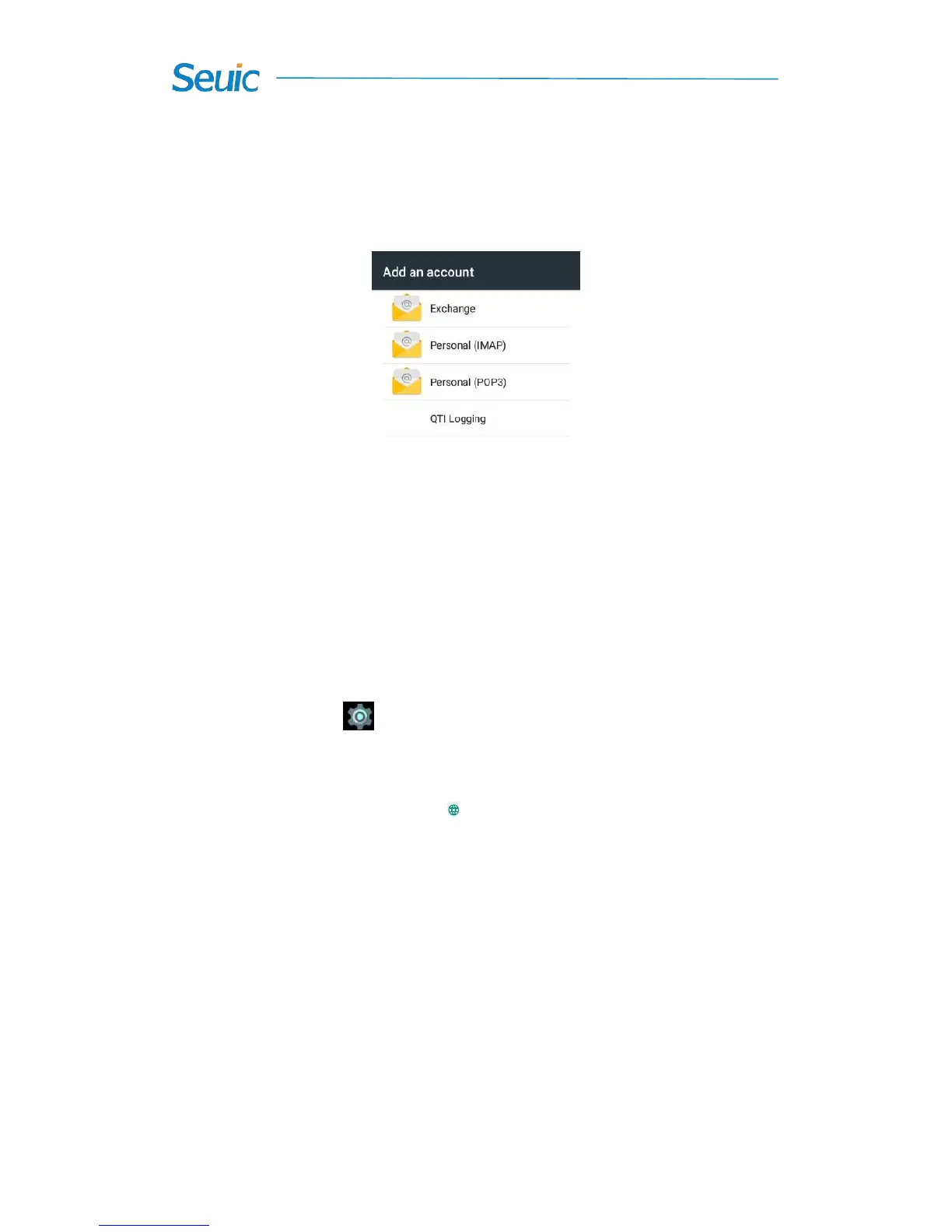
Create accounts and sync contents with your accounts(you can sync
contacts information, calendar and so on with other cloud-based products,
requiring an account and server).
Figure 7-49 Add an account
7.17 Language and input
Find this icon:
->Settings
->Language and input
On this setting screen, some options are available, such as Language,
Spell checker and Personal dictionary. You can select your favorite
keyboard and input settings, set text-to-speech output and adjust the
pointer speed. If you install other input methods, they will be displayed
on this interface.



 To Next Page