Doc# E169703 V.1.02 QS - 6
Shark® 250 Meter Quickstart
Electro Industries/GaugeTech
The Leader In Power Monitoring and Smart Grid Solutions
Electro Industries/GaugeTech
The Leader In Power Monitoring and Smart Grid Solutions
c. System Wiring, select from pull-down menu:
- 3 Element Wye; 2.5 Element Wye; 2 CT Delta
This value must be set properly for the meter to calculate readings correctly.
d. Use the Minimum Voltage Threshold box to enter the minimum voltage threshold, which is a
percentage of the voltage full scale. This setting adjusts the pick up threshold for the voltage. You
set a percentage of the PT primary (PT numerator X PT multiplier) up to 12.7 in the entry field, to
configure when the meter will start reading values above 0 voltage.
e. Total Demand Distortion (TDD Setting): This setting of the Device Profile allows you to set the
maximum value for current, which is used for the TDD (Total Demand Distortion) calculation. TDD
is an index used to measure harmonics. In this field enter the maximum load current for TDD. To
disable TDD, enter 0 in the field.
f. CT Reversal Phase Enables: Use this setting to enable CT reversal for any phase. This feature is
useful if a CT is wired the wrong way and you do not want to (or cannot) change the wiring. This
setting is only available for a three element WYE hookup. For any other hookup, this setting will
be ignored.
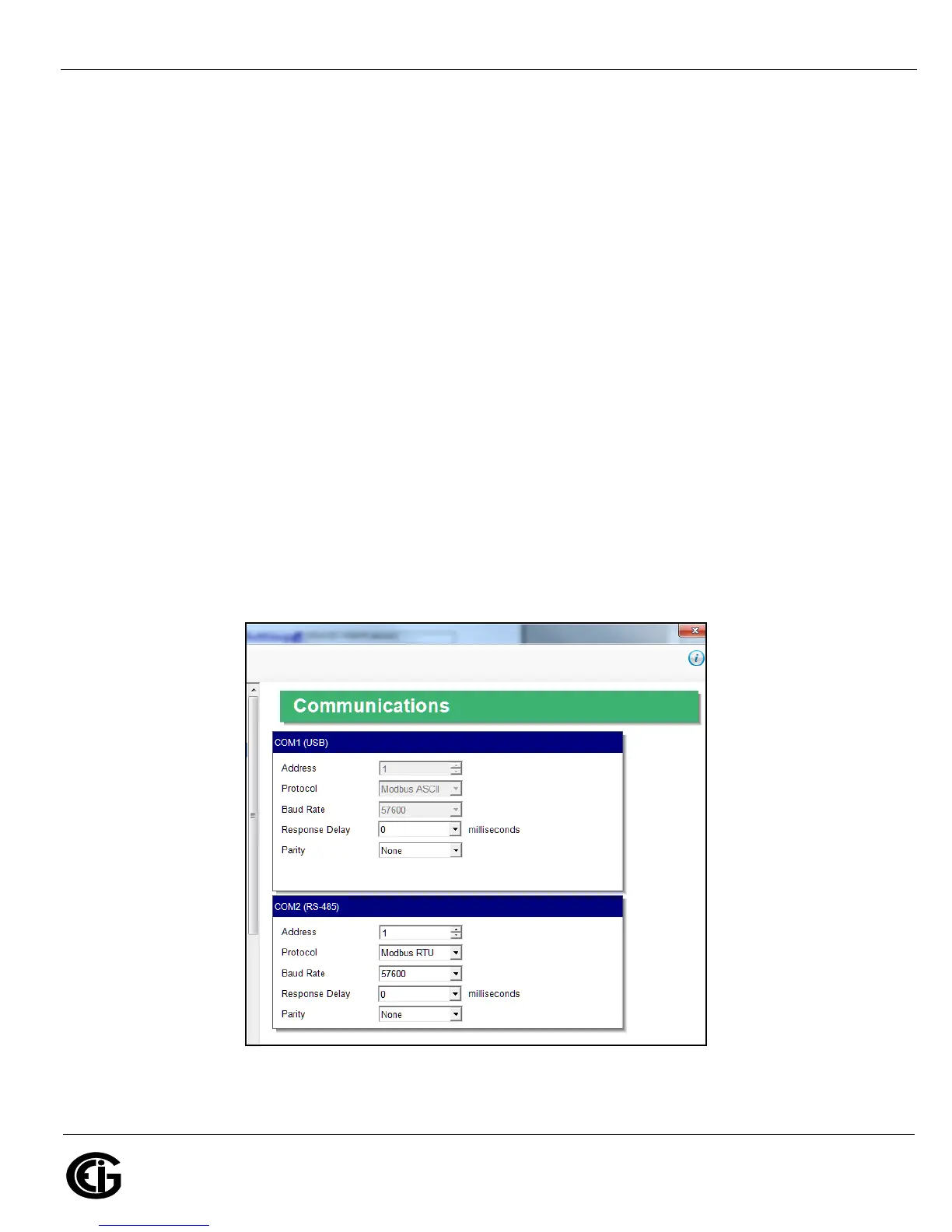
Program Communications Setting:
1. From the Device Profile screen, double-click General Settings>Communications>a listed port.
The settings shown here are for the meter’s serial ports.





 To Next Page