Connecting Peripheral Equipment
TIPS
• Thelengthofthesignalcablesorsurroundingenvironment
mayaffecttheimagequality.
• Thescreenmaynotdisplayproperlywhenusingterminals
otherthanPCDVI-D/AVDVI-Dfortheinputmode.Inthis
case, turn off the power to all the monitors connected in a
daisy chain and then turn the power on again.
• WhenconnectingmonitorsinadaisychainsetAUTO
INPUTCHANGEtoOFF.
• Videooutputisdisabledinthefollowingcases:
Whenthepoweristurnedoff
Whenthemonitorisininputsignalwaitingmode
10. LAN terminal
• YoucancontrolthemonitorfromaPConanetworkby
connecting a commercially available LAN cable between
this terminal and a network.
11. External speaker terminals
• Besuretouseexternalspeakerswithanimpedanceof6Ω
orgreaterandaratedinputofatleast10W.
32
1
Approx.
3-15/16 inch
(10 cm)
1.Attachaspeakercablecore(includedwiththePN-ZB02)to
the end of the speaker cable connected to the monitor.
2.Whilepushingthetab,insertthetipofthecable.
3. Release the tab.
TIPS
• Besuretoconnectthe+and-terminalsandtheleftand
right speakers properly.
• Avoidshortcircuitingthe+and-terminals.
12. Audio1 input terminals
13. Audio2 input terminals
• Settheaudioinputterminaltobeusedineachinput
modeinAUDIOSELECTontheOPTIONmenu.
14. PC RGB input terminals
• SetBNCofINPUTSELECTontheOPTIONmenutoPC
RGBwhenusingthePCRGBinputterminals.
• SelecttheaudioinputterminaltobeusedinPCRGBof
AUDIOSELECTontheOPTIONmenu.
15. AV component input terminals
•
SetBNCofINPUTSELECTontheOPTIONmenutoAV
COMPONENTwhenusingtheAVcomponentinputterminals.
• SelecttheaudioinputterminaltobeusedinAV
COMPONENTofAUDIOSELECTontheOPTIONmenu.
16. AV video input terminal
• SelecttheaudioinputterminaltobeusedinAVVIDEOof
AUDIOSELECTontheOPTIONmenu.
17. AV S-video input terminal
• SelecttheaudioinputterminaltobeusedinAVS-VIDEO
ofAUDIOSELECTontheOPTIONmenu.
Multiple monitor connection
The monitors can be aligned and used as a large screen.
[Example]
Second monitor
Secondary
(Expansion unit)
ID No.: 2
Third monitor
Secondary
(Expansion unit)
ID No.: 3
First monitor
Primary
(Main unit)
ID No.: 1
Fourth monitor
Secondary
(Expansion unit)
ID No.: 4
Remote control sensor box
(Supplied with the PN-ZR01 (optional))
TIPS
• ConnecttheRS-232Ccablesinorder,startingwiththerst
monitor (primary monitor). If monitors are connected in a
different order they may not be operable.
• Alwaysinstalltheremotecontrolsensorboxontheprimary
monitor.
■ Connection with video cable
May vary depending on the system being used.
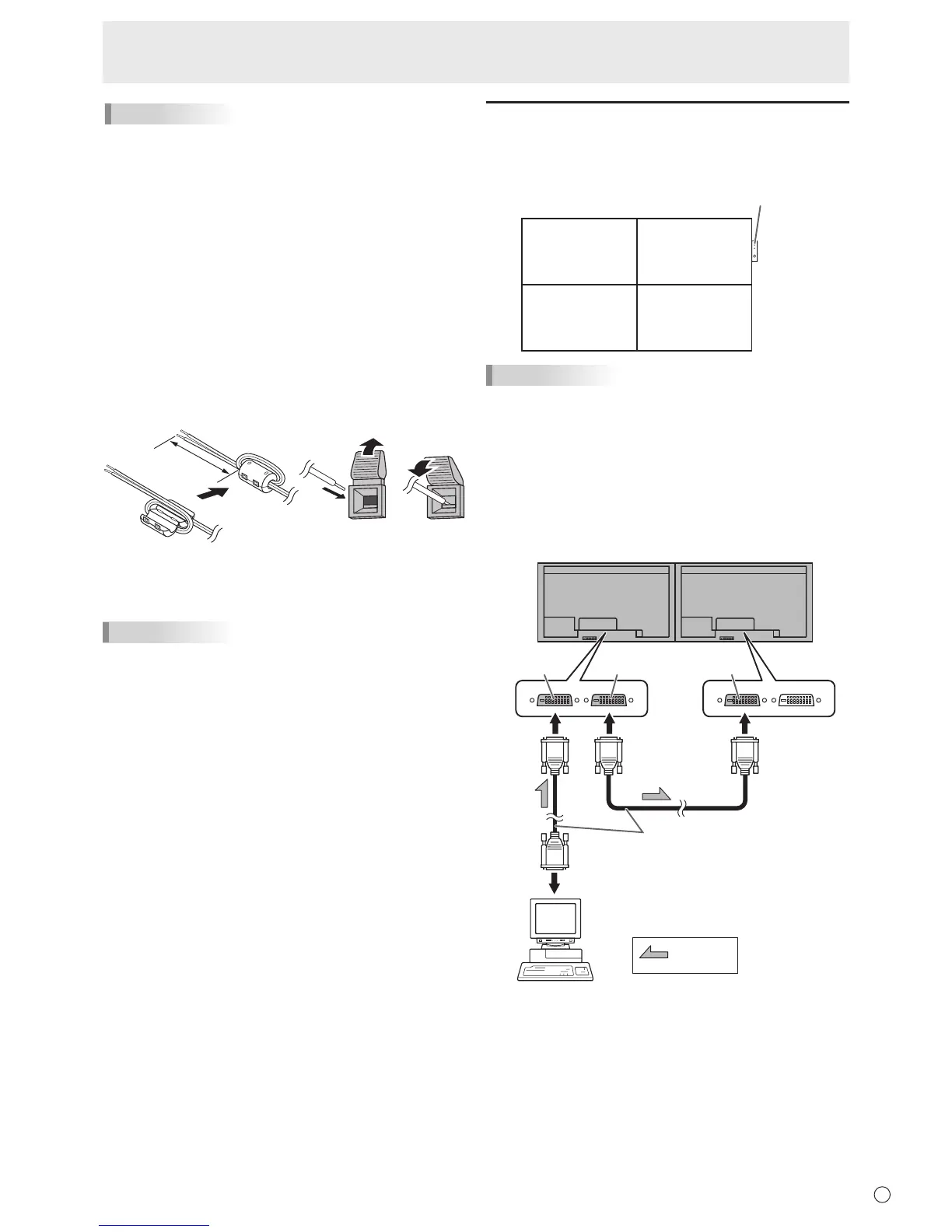
IfusingthePC/AVDVI-Dterminal,upto5monitorscanbe
connectedinadaisychain.(WhenthePN-ZB02isattached)
shows the
signal flow
PC/AV DVI-D
input terminal
First monitor
Second monitor
PC/AV DVI-D
output terminal
PC/AV DVI-D
input terminal
Digital signal (DVI) cables
(commercially available)
To PC digital RGB output terminal


 To Next Page