32
E
Controlling the Monitor with a PC (RS-232C)
YoucancontrolthismonitorfromaPCviaRS-232C(COM
port)onthePC.
You can also connect multiple monitors via a daisy chain by
usingaPC.ByassigningIDnumberstoeachmonitor(see
page34),youcanmakeinputmodeselection/adjustmentor
cancheckthestatusofaspecicmonitor.
Precautions when the PN-ZB02 (optional) is attached
• TocontrolthemonitorviaRS-232C,setRS-232C/LAN
SELECTtoRS-232C.
• YoucannotuseRS-232CandLANcontrolsimultaneously.
PC connection
n
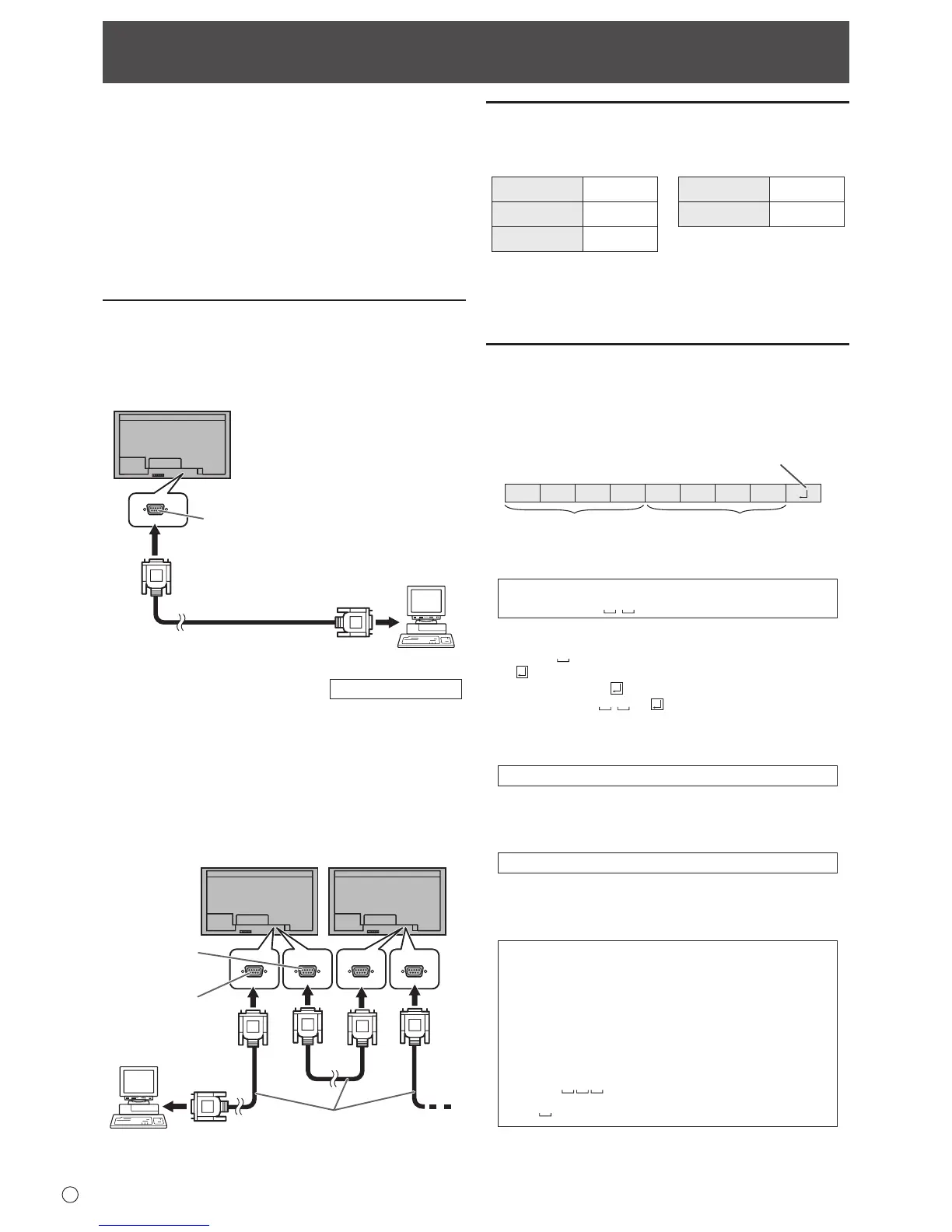
One-to-one connection with a PC
ConnectwithRS-232straightcablebetweenthePC’sCOM
port(RS-232Cconnector)andtheRS-232Cinputterminalon
the monitor.
RS-232 straight cable
(commercially available)
To COM port
PC
RS-232C input terminal
n
Daisy chain connection…
Advanced operation
ConnectwithRS-232straightcablebetweenthePC’sCOM
port(RS-232Cconnector)andtheRS-232Cinputterminalon
therstmonitor.
Next,connectRS-232straightcabletotherstmonitor’s
RS-232Coutputterminalandtothesecondmonitor’s
RS-232Cinputterminal.Connectinthesamewaytothethird
andsubsequentmonitors.
Upto25monitorscanbeconnected.(Dependingonthe
length of the cable used and the surrounding environment.)
RS-232 straight cables
(commercially available)
First monitor Second monitor
PC
To COM port
RS-232C
input terminal
RS-232C
output terminal
Communication conditions
SettheRS-232CcommunicationsettingsonthePCtomatch
the monitor’s communication settings as follows:
Baudrate *
Stop bit
1bit
Datalength 8 bits Flowcontrol None
Parity bit None
*SettothesamebaudrateastheBAUDRATEsettingof
SETUPmenu.(Initialsetting:38400bps)
*Whenconnectingmultiplemonitorsinadaisychain,setall
monitorstothesameBAUDRATE.
Communication procedure
n
Command format
WhenacommandissentfromthePCtothemonitor,the
monitor operates according to the received command and
sendsaresponsemessagetothePC.
C1 C2 C3 C4 P1 P2 P3 P4
Return code
Command field
(4 prescribed
alphanumerical characters
Parameter field
(4 character string comprised of:
0-9, +, -, space, ?)
Example:VOLM0030
VOLM
30
* Besuretoinput4charactersfortheparameter.Padwith
spaces (“
”) if necessary.
(“
”isareturncode(0D
H
,0A
H
or0D
H
))
Wrong :VOLM30
Right :VOLM 30
Wheninputtinganegativevalue,specifyanumericalvaluein
three digits.
Example:AUTR-005
DonotusespacesforMPOS,DATE,andSC01through
SC08.Specifyparametersusingaspeciednumberof
characters.
Example:MPOS010097
Ifacommandhas“R”listedfor“DIRECTION”inthe
“RS-232Ccommandtable”onpage37,thecurrentvaluecan
be returned by using “?” as the parameter.
Example:
VOLM???? ←
FromPCtomonitor(Howmuch
is current volume setting?).
30 ←
FrommonitortoPC(Current
volumesetting:30).
* IfanIDnumber(seepage33)hasbeenassigned
(Forexample,IDnumber=1).
VOLM
? ←
FromPCtomonitor.
30 001 ←
FrommonitortoPC.



 To Next Page