oso SETTINGS SCREEN PREPARATIONS
The following 5 items can be set by using the OSD.
1: TIMER ... Setting a timer recording (and checking it). See page 23 for the
setting procedure.
2: MODE SELECTION ...VCR operating conditions are set according to the
broadcast reception and tape playback conditions.
3: CLOCK ... Setting the present time.
4: LANGUAGE ... Selection of language to be used for the OSD
5: CHANNEL ... Setting the TV channels. See page 13 for setting procedure.
Details of operation TV screen
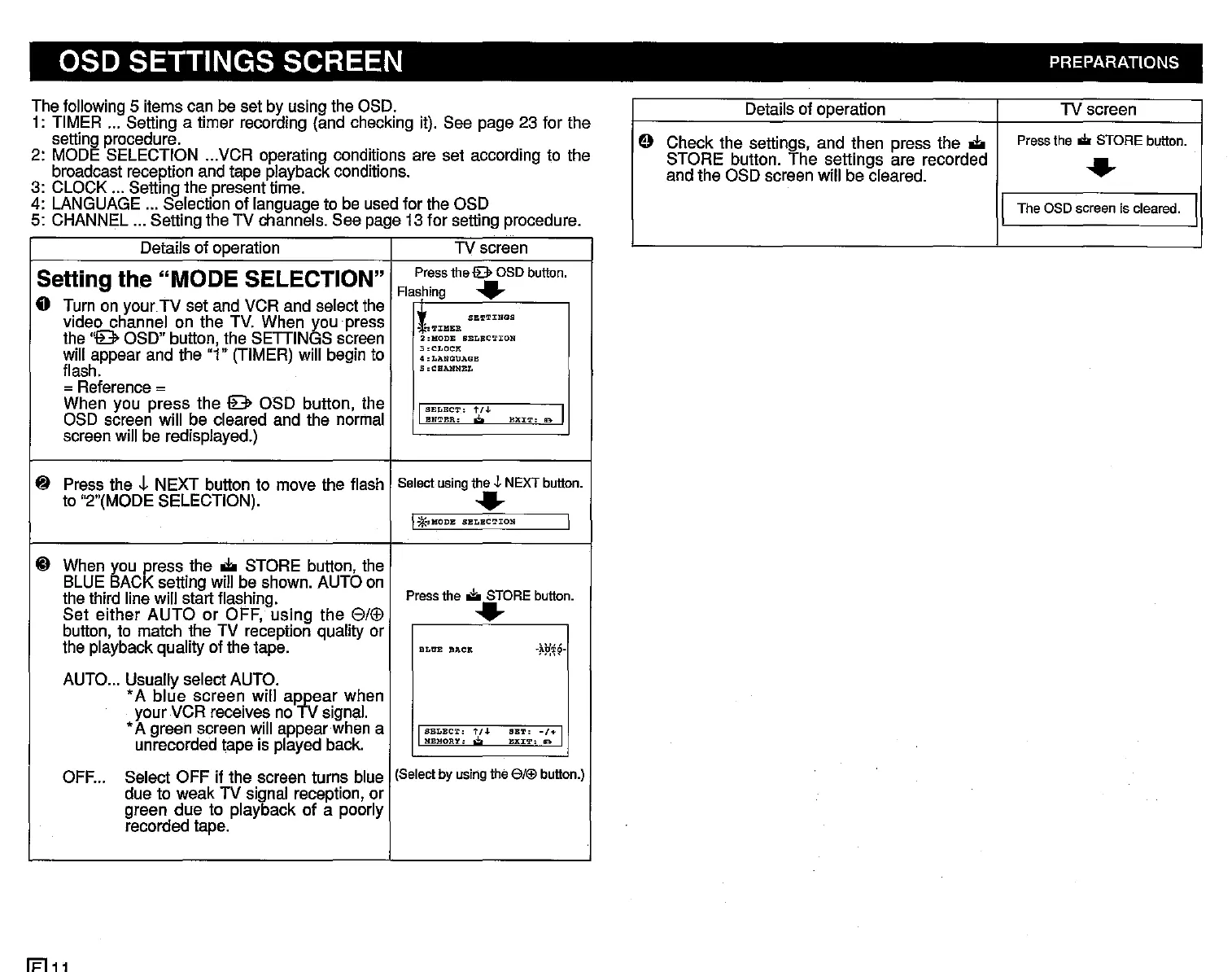
Setting the "MODE SELECTION"
Press the
lB>
OSD button.
Flashing
..
o Turn on
your
TV set and VCR and select the
video channel on the TV. When you press
It
SE~TINGS
·;'l':tI!lRR
the
"9
OSD" button, the SETIINGS screen
2:HODE
SELBC'l'XO»
will appear and the "1" (TIMER) will begin to
3,CLOCP:
4,LANQOAGE
flash.
5
,CHANNEL
=Reference =
When you press the 9 OSD button, the
I
SELECT.:
t/J.
BXI'l'.
lB I
OSD screen will be cleared and the normal
ENTER:
,,;,
screen will be redisplayed.)
8 Press the .j, NEXT button to move the flash
Select using the J.NEXT button.
to "2"(MODE SELECTION).
..
I
*'
MODE
SELBC'l'ION
I
@ When you
~ess
the
IIIi
STORE button, the
BLUE BAC setting will be shown. AUTO on
Press the
i:!o
STORE button.
the third line will start flashing.
Set either
AUTO
or OFF, using the
8/(f)
..
button, to match the TV reception quality or
the playback quality of the tape.
BLtrE
BACK
~~?:t~·
AUTO... Usually select AUTO.
• A blue screen will
aJ¥(7ar when
your VCR receives no signal.
• A green screen will appear when a
I
SELECT-,
t/+
SB!!.':
-/+
I
unrecorded tape is played back.
KEBORY,
.;,
EXJ:'l':
le
OFF... Select OFF if the screen turns blue
(Select by using the 6/Efj button.)
due to weak TV signal reception, or
green due to playback of a poorly
recorded tape.
~11
Details of operation
TV screen
e Check the settings, and then press the
IIIi
Press the ilr STORE button.
STORE button. The settings are recorded
..
and the OSD screen will be cleared.
IThe aSD screen is cleared.
I



 To Next Page