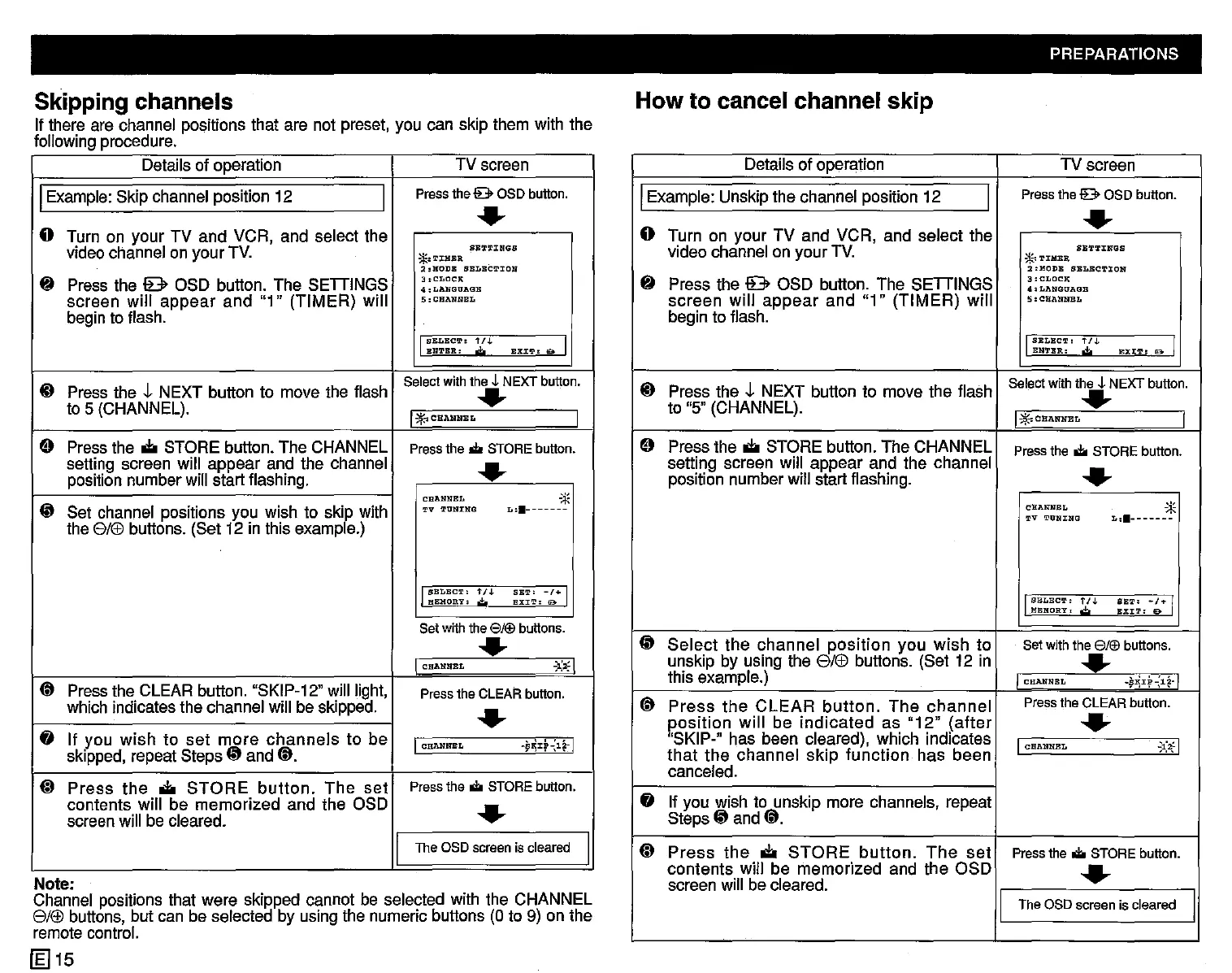
Skipping channels
If there are channel positions that are not preset, you can skip them with the
following procedure.
How to cancel channel skip
PREPARATIONS
Details of operation
TV screen
IExample:Skip channel position 12
I
Press the 9 OSD button.
.....
o Turn on your TV and VCR, and select the
SETTINGS
video channel on your TV.
*.'1'J:HBR
2:HODB
SELECTION
{t
Press the 9 OSD button. The SETIINGS
3.CLOCK
4,LAN"GUAGB
screen will
appear
and
"1" (TIMER) will
5:CHANNBL
begin to flash.
IBBLBC!l.':
t/J.
SKI'!"
& I
ENTER.
,,;,
ID
Press the t NEXT button to move the flash
Select with the
~
NEXT button.
.....
to 5 (CHANNEL).
I.;r.-:CHANNBL
I
9 Pressthe
ol:i
STORE button. The CHANNEL Press the
.to
STORE button.
setting screen will appear and the channel
.....
position number will start flashing.
CHANNEL
"*
CP
Set channel positions you wish to
skiPe
with
'l'V '1'UNl:NG
L
••
-------
the elf£!buttons. (Set 12 in this examp e.)
I
SELECT:
t/J.
SB'1"
-1+
I
l\BHORY:
.;,
EXIT:
0
Set with the
8/®
buttons.
.....
CHANNEL
.
~.;,:
I
@
Pressthe CLEAR button. "SKIP-12" will light,
Press the CLEAR button.
which indicates the channel will be skipped.
.....
fj
If you
wish
to
set
more
channels
to be
I
CHANNEL
-~~J:f~l~~
I
skipped, repeat Steps
CP
and @.
(D
Press
the
ol:i
STORE
button.
The
set
Press the
.to
STORE button.
contents will be memorized and the OSD
.....
screen will be cleared.
I
TheaSD
screen
is
cleared
I
Note:
Channel positions that were skipped cannot be selected with the CHANNEL
elf£! buttons, but can be selected by using the numeric buttons (0 to 9) on the
remote control.
[gJ15
Details of operation
TV screen
IExample: Unskip the channel position 12
I
Press the 9 OSD button.
o Turn on your TV and VCR, and select the
.....
video channel on your TV.
SB'l",I'J:NGS
*''1'IIlIBR
2.HODB
SELECTION
fj
Press the 9 OSD button. The SETIINGS
3:CLOClt
4.LANGUAGB
screen will
appear
and "1" (TIMER) will
5:CBANNEL
begin to flash.
I
SELEC'r:
t/J.
li:XIT:
lBo I
ENTER:
,,;,
ID
Press the t NEXT button to move the flash
Select with the
~
NEXT button.
to "5" (CHANNEL).
.....
I~~CBANNEL
I
9 Press the
ol:i
STORE button. The CHANNEL
Press the
.to
STORE button.
setting screen will appear and the channel
.....
position number will start flashing.
CHANNEL
"*
'J,'V
TtlNING
L
••
_______
ISELBC'1"
t I J.
SE'l"
-/+
I
lIBRORY,
,;,
EXIT:
9
CP
Select
the channel
position
you wish to
Set with the
8/®
buttons.
unskip by using the elf£! buttons. (Set 12 in
.....
this example.)
I CHANNEL
-¥~J:f-:l~·1
@
Press
the
CLEAR
button.
The
channel
Press the CLEAR button.
position
will
be
indicated
as
"12"
(after
.....
"SKIP-" has been cleared), which indicates
I
CHANNEL
';1:~1
that
the channel
skip
function has been
canceled.
fj
If you wish to unskip more channels, repeat
Steps
CP
and @.
(D
Press
the
ol:i
STORE
button.
The
set
Press the
.to
STORE button.
contents will be memorized and the OSD
.....
screen will be cleared.
I
TheaSD
screen
is
cleared
I


 To Next Page
 Loading...