EasyManua.ls Logo

Shimadzu ATY224 - User Manual

Shimadzu ATY224
152 pages
Print Icon
To Next Page IconTo Next Page
Loading...
321-78001D
Sep. 2016
SHIMADZU MIDDLE EAST & AFRICA FZE UAE HEAD OFFICE
Warehouse No. RA08UC02, Jebel Ali, Dubai, P.O. Box 262081 United
Arab Emirates
Phone: 971(4)883-6668 Fax: 971(4)883-6808
Kosuyolu Mah., Salih Omurtak Cad., No:57
34718, Kadikoy Istanbul, Turkey
Phone: 90(216)545-8940 Fax: 90(216)545-8941
79 Science Park Drive #02-01/08, Cintech IV Singapore Sceince
Park 1 Singapore 118264
Phone: (65)6778-6280 Fax: (65)6779-2935
SHIMADZU MIDDLE EAST & AFRICA FZE ISTANBUL BRANCH
Unit F, 10-16 South Street Rydalmere N.S.W. 2116
Phone: 61(2)9684-4200 Fax: 61(2)9684-4055
Phone: 55(11)2134-1688 Fax: 55(11)3611-1635
SHIMADZU SCIENTIFIC INSTRUMENTS (OCEANIA) PTY. LTD.
SHIMADZU(CHINA)Co.,LTD. PUXI BRANCH
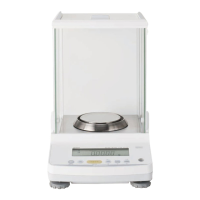
ATY324ATY224ATY124ATY64
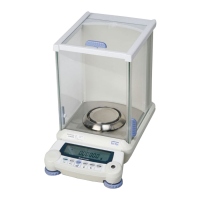
ATX324ATX224ATX124ATX84

Table of Contents

Other manuals for Shimadzu ATY224

Questions and Answers

  • B
    Brian HansonAug 12, 2025
    How to troubleshoot WindowsDirect communication not operating on Shimadzu ATY224?
    • T
      trujillotylerAug 12, 2025
      If WindowsDirect communication for your Shimadzu Scales isn't working, first check the communication cable (whether it's a Shimadzu authorized part or a general market alternative) and its connection. If you're using a USB serial converter, ensure it's set to a COM port number between COM1 and COM4, as higher numbers might not be compatible. Also, the driver for the USB serial converter may need to be reinstalled. Some notebooks have a setting to disable RS-232C ports to save power; make sure this setting is enabled. Finally, LAN communications might interfere with serial key device settings, so try using WindowsDirect communication without the LAN.
  • J
    Jared WintersAug 16, 2025
    What to do if the cursor doesn't move to another cell when inputting data into Excel from Shimadzu ATY224 Scales?
    • K
      Kimberly JohnsAug 16, 2025
      When inputting data into Excel from Shimadzu Scales, and the cursor doesn't move to another cell, first turn off any function for conversion to 2-byte characters in Windows. Next, in Excel, go to [Options], then the [Edit] tab, and ensure that [Move selection after Enter] is checked. If cells move correctly with keyboard input, there's no issue. You can also check the input data in another application like Notepad.
  • W
    William MorganAug 20, 2025
    Why is the operation sometimes abnormal on Shimadzu ATY224?
    • C
      Christina HartAug 20, 2025
      If your Shimadzu Scales are sometimes operating abnormally, it could be due to the PC's processing capability. Try setting the communication speed to 300 bps. Malfunctions can also occur if the data transmission interval is too short, so ensure each data batch is displayed before the next one is sent. Avoid using the continuous output function if there's limited processing capability. Also, refrain from using the PC's keyboard or mouse while data is being sent from the balance.
  • J
    Jennifer WhiteAug 25, 2025
    Why is data input to the PC as garbled characters from Shimadzu Scales?
    • J
      James PruittAug 25, 2025
      If data is input to your PC as garbled characters from Shimadzu Scales, it's possible that either the balance or the PC isn't correctly set for the WindowsDirect connection function. Please refer to "Setting the Function" on page 105 to reconfigure these settings.
  • S
    Sarah YoungAug 27, 2025
    What to do if data is input to the PC as garbled characters with Shimadzu ATY224?
    • B
      Benjamin StevensonAug 27, 2025
      If data is being input as garbled characters, ensure that both the balance and the PC are properly configured for the WindowsDirect connection function. Refer to 'Setting the Function' to reconfigure these settings.
  • M
    morgansinghAug 31, 2025
    How to fix WindowsDirect communication not operating at all on Shimadzu ATY224 Scales?
    • J
      jacquelineyoungSep 1, 2025
      If WindowsDirect communication is not working, verify the communication cable (use a Shimadzu authorized part or another part available on the general market) and check the connection. If using a USB serial converter, ensure it's set to COM1 to COM4. Reinstall the USB serial converter driver if necessary. Also, ensure RS-232C ports are enabled in your PC's power settings. Finally, try disabling LAN communications to avoid interference with serial key device settings.
  • K
    Kyle WallaceSep 4, 2025
    What to do if the cursor doesn't move to another cell in Excel with Shimadzu Scales?
    • K
      kjonesSep 4, 2025
      If the cursor isn't moving to another cell when inputting data into Excel, first, disable any function for conversion to 2-byte characters in Windows. Next, in Excel's [Options], under the [Edit] tab, check the [Move selection after Enter] option. If the issue persists, check the input data in another application like Notepad.
  • D
    David LindseySep 7, 2025
    Why is the operation sometimes abnormal with Shimadzu Scales?
    • E
      Ernest SmithSep 8, 2025
      If the operation is sometimes abnormal, try setting the communication speed to 300 bps. Ensure that one batch of data is displayed before the next is sent, and avoid using the continuous output function if there are processing limitations. Also, refrain from using the PC's keyboard or mouse while data is being sent from the balance.

Summary

Introduction

How to Find Information

What You Can Do

1 BEFORE WEIGHING

Components Overview

Identifies key parts of the balance like the main body, pan, and display.

Operation Keys

Explains the function of each key on the balance.

Display Panel Overview

Details the symbols and indicators shown on the balance's display.

Installation Guide

Installation Site Selection

Guidance on selecting an appropriate location for balance installation.

Installation Precautions

Important safety and operational precautions for balance placement.

Unpacking and Delivery Inspection

Installing Balance Components

Installing the Components

Procedure for fitting balance components like pan supporter and ring.

Leveling the Balance

Steps to ensure the balance is correctly leveled using adjustment screws.

Turning the Power ON

Warming Up the Balance

Performing Span Calibration

4 CALIBRATION

Automatic calibration (ATX only)

Details on automatic span calibration for ATX series balances.

Announcement of calibration request (ATY only)

Information on calibration requests specific to ATY series balances.

Span Calibration and Adjustment

Procedure for adjusting balance sensitivity using internal or external weights.

Calibration of the Internal Weight (ATX Only)

Specific steps for calibrating the internal weight on ATX series.

Leaving a Record of Calibration

How to output and manage calibration records for multiple balances.

5 FUNCTIONS RELATING TO TARING

Zero Tracking Function

Maintains zero indication by compensating for fluctuations.

Auto Zero Function

Automatically compensates for zero point drift after weighing.

Auto Tare Function

Automatically tares the balance after outputting a weight reading.

Zero; Tare Timing Change Function

Selects when zero point setting/taring is executed.

6 ADJUSTING RESPONSE AND STABILITY

Selecting the Weighing Mode

Choose between General and Pouring modes based on application.

Easy Setting of Response and Stability

Quick adjustment to match user preferences and application needs.

Setting the Stability Detection Range

Configure the range for judging weight reading stability.

Setting the Stability Mark Lighting Timing

Adjust the timing for the stability mark to indicate stable reading.

7 SETTING UNITS

Units Display and Conversion Factors

Lists available units and their conversion factors.

Selecting Units to Display

Choose which units are available for display during weighing.

Setting User-Specified Units

Configure custom units with conversion factors and minimum indication.

8 APPLICATION FUNCTION MODE

Application Modes Overview

Explanation of Piece Counting, Percentage Weighing, and Formulation modes.

Piece Counting Setup

Set up the balance for counting pieces by weight.

Percentage Weighing Setup

Configure the balance for measuring weights as percentages.

Formulation Setup

Guide to using the formulation mode for mixing components.

9 COMPARATOR FUNCTION

Comparator Modes Explained

Explains Target mode and Checkweighing mode for comparisons.

Target Mode Setup

Configure target value and tolerance range for comparisons.

Checkweighing Mode Setup

Set upper/lower limits for pass/fail determination.

10 CONNECTION AND COMMUNICATION WITH PERIPHERAL DEVICES

Convenient Output Functions

Details on Auto Print, Continuous Output, and Output Timing Change.

WindowsDirect Communication

Enables direct data transfer to Windows applications.

PC Connectivity (RS-232 C)

Instructions for connecting the balance to a PC via RS-232C.

Communication Settings and Data Formats

Configure communication parameters like baud rate, parity, and data formats.

Printer Connectivity

Steps to connect the balance to an optional printer.

11 MAINTENANCE

Maintaining the Balance

General care instructions for the balance body, pan, and display.

Removing the Glass Door

Step-by-step guide to safely remove and reinstall the glass door.

Inspections Guide

Guidelines for daily and periodic inspections to ensure performance.

About Weights

Information on selecting appropriate weights for calibration and checks.

12 TROUBLESHOOTING

Troubleshooting Common Symptoms

Solutions for common issues like display problems or inaccurate results.

Responding to Error Messages

Explains probable causes and countermeasures for various display messages.

13 FOR YOUR INFORMATION

Power Management Features

Covers Auto Power-Off function and startup display settings.

Security and Data Features

Includes changing passwords, GLP output, and setting balance ID.

Technical Specifications

Lists detailed technical specifications for the ATX/ATY series.

Shimadzu ATY224 Specifications

General IconGeneral
TypeAnalytical Balance
Capacity220 g
Readability0.1 mg
Repeatability (Standard deviation)0.1 mg
Linearity±0.2 mg
DisplayLCD
InterfaceRS-232C
Operating Temperature5°C to 40°C
Response Time3 sec
CalibrationExternal Calibration
Weighing Unitsg, mg, oz, ct, mom, dwt, GN, tl
Power SupplyAC adapter

Related product manuals