Aoralscan 3_Manual_V1.0.0.30 - 38 -
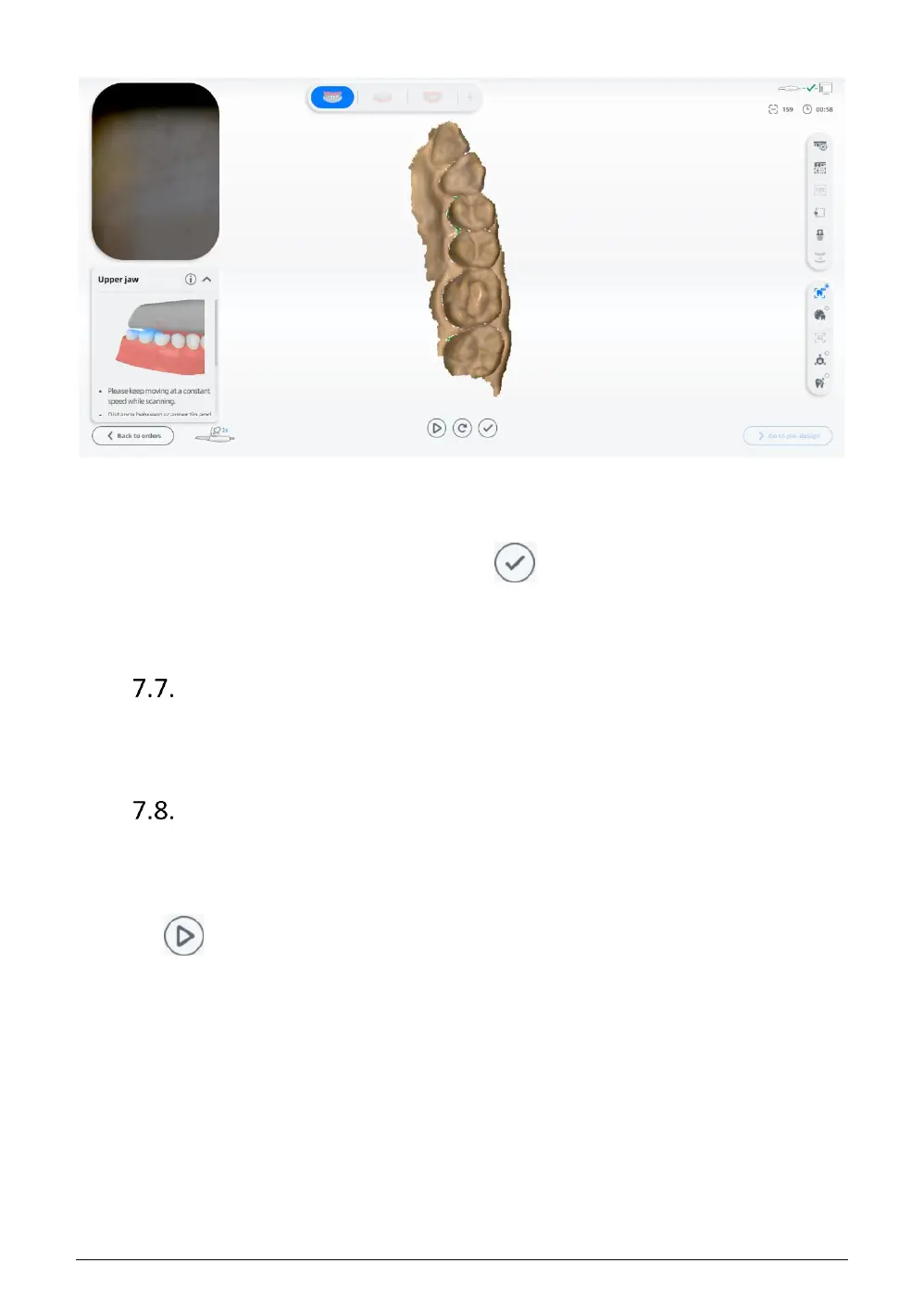
When the scanning head leave the object or the scanning is paused, the green area means
this area is not scanned. User can re-scan the corresponding area according to the demand.
Confirm that the model scan is complete. Click or long press the space bar to process
and save the data. After the completion, the upper jaw icon is green and ticked, indicating that
the scanning process is finished.
Scan Lower Jaw
After the upper jaw scanning and the data processing are completed, the lower jaw scanning
interface is automatically displayed. The procedure is the same as scanning the upper jaw.
Scan Total Jaws
After the lower jaw scanning and the data processing are finished, the total jaw scanning
interface is automatically displayed.
Click or press the space bar to start scanning. After scanning some data, the software
automatically performs dynamic bite stitching alignment, as shown below.




 To Next Page