EasyManua.ls Logo

Shure MoveMic - User Manual

Shure MoveMic
32 pages
Print Icon
To Next Page IconTo Next Page
Loading...
MoveMic
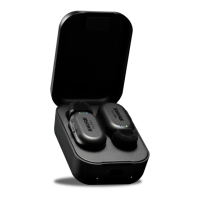
The Shure MoveMic
Online user guide for the Shure MoveMic Kit. Pair the MoveMic cliplav to your device or the receiver. Shoot landscape or portrait video.
Stream to Facebook or YouTube. Adjust EQ, compression, update firmware, find supported devices, and troubleshoot.
Version: 1.2 (2024-C)

Questions and Answers

  • G
    Gregory McfarlandAug 13, 2025
    What to do if Shure Headphone audio is distorted?
    • B
      brianwebbAug 14, 2025
      If your Shure Headphone audio is distorted, use the audio meter to ensure that volume peaks are within the target range (the gray area). If the level reaches the red peak indicator of the input meter, tap the input meter to access mic gain and turn the gain down with the slider.
  • B
    Brandon BrownAug 17, 2025
    What to do if Shure MoveMic mic no longer paired to MOTIV?
    • M
      Miss Elizabeth WilliamsAug 17, 2025
      If your Shure Headphone mic is no longer paired to MOTIV, close and reopen the app. The microphones will automatically attempt to re-pair. Tap the Add Mic icon to re­pair. You'll know that the connection is secure when the micro­ phone name is visible in the status bar. If you are still experiencing pairing issues, tap the microphone icon and select Forget. Then follow pairing instructions with this clean start.
  • J
    jonesbarbaraAug 21, 2025
    What to do if Shure MoveMic audio sounds bad or distant?
    • C
      cgreenAug 21, 2025
      If the audio from your Shure Headphone sounds bad or distant, confirm that the MoveMic is connected. You'll know that the connection is secure when the microphone name is visible in the app. If you are using the hardware receiver, ensure that your cable connections are secure.
  • N
    nicole95Aug 25, 2025
    What to do if Shure MoveMic is paired, but the audio meter does not register a signal?
    • F
      Frank RoseAug 25, 2025
      If your Shure Headphone is paired, but the audio meter does not register a signal, edit the privacy setting for your recording device under SETTINGS > PRIVACY > MICRO­ PHONE to give MOTIV permission to use the microphone.
  • J
    jhendersonAug 28, 2025
    What to do if Shure MoveMic recording stops due to overheating?
    • J
      Julie SmithAug 28, 2025
      If your Shure Headphone recording stops due to overheating, ensure that your device has cooled down before starting a new recording.
  • R
    Robert BruceSep 1, 2025
    What to do if Shure Headphone audio is not in sync with video?
    • X
      xandersonSep 1, 2025
      If your Shure Headphone audio is not in sync with video, switch to a lower frame rate or resolution size. You might achieve better performance with a less system intensive frame rate.
  • C
    Connie MorganSep 5, 2025
    What to do if I am unable to share Shure MoveMic file?
    • J
      Jessica WagnerSep 5, 2025
      If you are unable to share a Shure Headphone file, convert your file to a compressed file format. Connect your mobile device to your computer and use file transfer, like iTunes, to down­ load the file to your desktop. Split your track in two, export both files and recombine them using audio editing software.
  • T
    Tammy JonesSep 8, 2025
    What to do in the event that the MoveMics, charge case, receiver or app become unresponsive for Shure MoveMic?
    • D
      Diana MillsSep 8, 2025
      In the event that the MoveMics, charge case, receiver or app become unresponsive for Shure Headphone, it may be necessary to perform a factory reset to restore the item to factory settings.

Summary

Quick Start Guide

Wearing the Mic

How to wear the microphone for optimal camera visibility.

MoveMic Best Practices

Recommendations for optimal recording performance and discreet placement.

General Description

Features

Key features and compatibility of the MoveMic system.

The Shure MoveMic

Powering the MoveMic On and Off

Instructions for turning the MoveMic transmitter on and off.

MoveMic LED Indicators

Explains the visual indicators on the MoveMic transmitter.

The MoveMic Charge Case

Charge Case Status LED Indicators

Explains the LED indicators on the MoveMic charge case.

Important Tips for Care and Storage of Shure Rechargeable Batteries

Guidelines for maintaining Shure rechargeable batteries for longevity.

The MOTIV Audio Application

Pairing to the MOTIV app

Step-by-step guide to connect MoveMic to the MOTIV Audio app via Bluetooth.

Mic Settings Overview

Adjust microphone settings like gain, equalization, and compression.

Preset Modes

Description of preset modes (Speech, Singing) for optimizing audio.

Custom Presets

How to create and save custom microphone settings.

Advanced Mic Settings

Fine-tuning sound with limiter, compressor, and equalizer controls.

The MOTIV Video Application

Features

Key features and compatibility of the MOTIV Video application.

Video Standby Mode

Overview of the MOTIV Video app's standby screen interface.

Mic Gain Sliders

How to use the mic gain sliders to adjust audio input levels.

Video Record Mode

Explanation of the MOTIV Video app's recording interface.

Compressed Format Recording

Live Streaming

Live Stream Using the MOTIV Video App

How to connect and stream using the MOTIV Video app.

Record a Test Run

Steps to perform a test stream before going live.

Stream to Facebook

Detailed steps for streaming live video to Facebook.

Stream to YouTube

Detailed steps for streaming live video to YouTube.

While You Stream

Monitoring viewer activity and comments during a live stream.

Hardware Receiver

The MoveMic Receiver

Overview of the MoveMic Receiver's features and capabilities.

MoveMic Receiver LED Indicators

Explains the LED status indicators on the MoveMic receiver.

Adjusting the Receiver

How to adjust the physical position of the receiver.

Connecting to the Receiver

Connecting to the Camera

How to connect the MoveMic receiver to a camera using a cable.

Connecting to the Phone

How to connect the MoveMic receiver to a phone or computer.

Pairing to the Receiver

Step-by-step guide for pairing MoveMics with the receiver.

The Receiver Display

Explanation of the information shown on the MoveMic Receiver's display.

The Receiver Menu Tree

Visual representation of the MoveMic Receiver's menu structure.

Recording Tips

Turn On Airplane Mode and Do Not Disturb

Recommended settings to prevent recording interference.

Capture Clear Sound

Tips for achieving the best signal-to-noise ratio and audio clarity.

Use the Dark Theme

How to enable the dark theme for the application display.

Monitor Your Sound

Guidance on monitoring audio during recordings using wired headphones.

Gallery

Video Playback

How to play back recorded videos from the gallery.

Sharing Video Recordings

Save to Camera Roll

How to save video recordings to the device's photo library.

Save to Dropbox

Instructions for saving MOTIV files to Dropbox for backup or sharing.

AirDrop with MOTIV

How to use AirDrop to share WAV files from MOTIV.

MoveMic Firmware Updates

Troubleshooting

System Requirements

System Requirements and Compatibility: iOS

Specific requirements for iOS devices.

System Requirements and Compatibility: Android

Specific requirements for Android devices.

Accessories

List of included accessories with the MoveMic kits.

Specifications

Open Source Attribution

Certifications

Shure MoveMic Specifications

General IconGeneral
Polar PatternOmnidirectional
Battery Life (Single Mic)Up to 8 hours
Cable LengthNot applicable (Wireless)
ColorBlack
TypeLavalier
Frequency Response50Hz - 20kHz
Operating RangeUp to 100 ft (30 m)
ConnectorUSB-C

Related product manuals