Selecting A Custom
Group
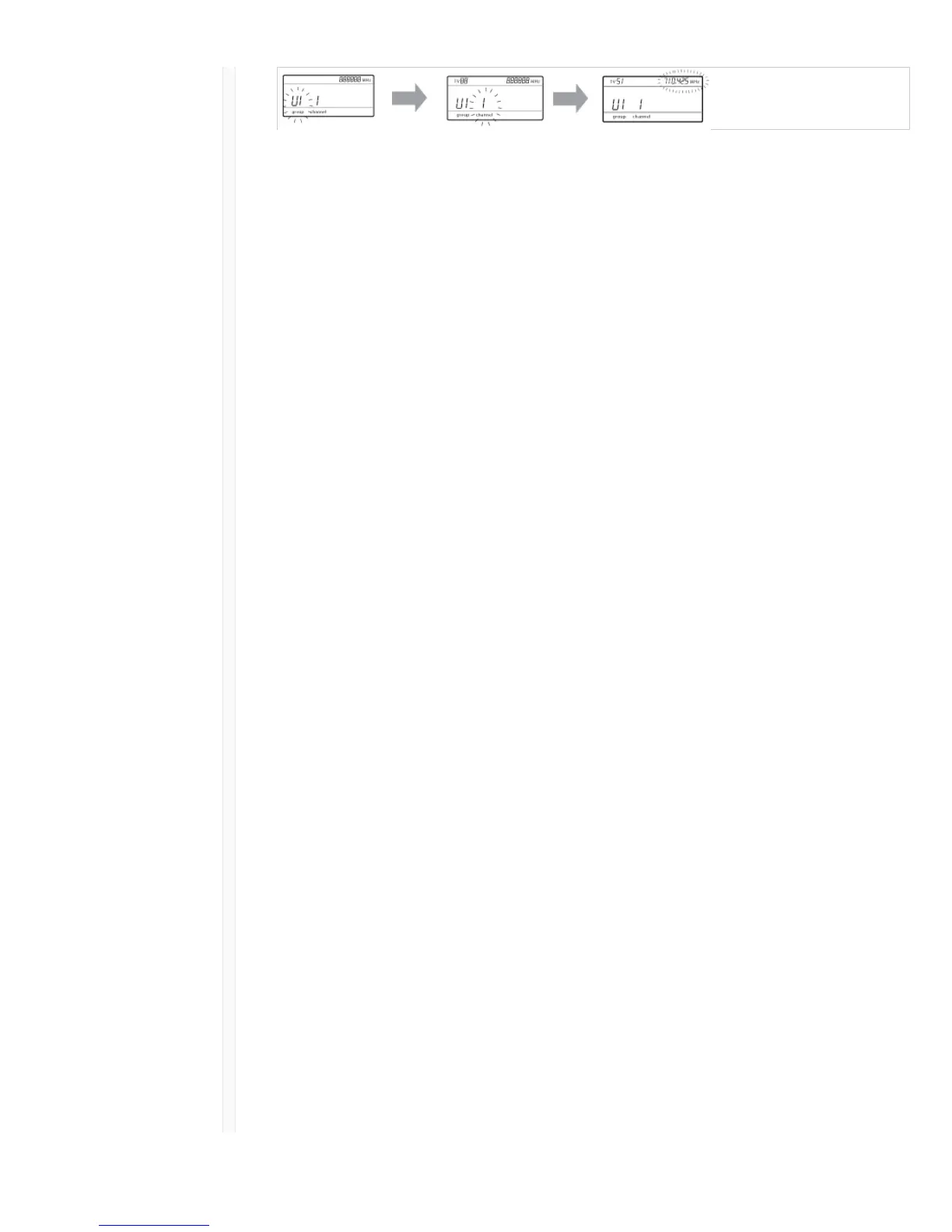
The receiver has 6 custom groups available named U1, U2, U3, U4, U5, and
U6.
1. Press menu while holding the enter button to access the Custom
Group screen.
2. Press enter to enable editing of a group (indicated by the group
flashing).
3. User the arrow buttons to select a group (U1 to U6).
4. Press enter to advance to channel selection.
Selecting a Channel 1. Use the arrow buttons to select a channel (1-60). Each group can
contain up to 60 channels (frequencies).
2. Press enter to save the selected channel and advance to frequency
assignment.
Assigning a Frequency
to a Channel
1. Use the arrow buttons to assign a frequency to the selected channel.
2. Press enter to save.
After pressing enter, the channel will flash to allow for adding more
channels and frequencies to the custom group. To add more channels and
frequencies, repeat steps 2 and 3. When finished, press the menu button
several times to return to the main menu.
Transmitter IR Sync from a Custom Group
To ensure accurate display of group and channel information, IR sync the transmitter from the Custom
Group menu screen:
1. Press menu while holding the enter button to access the Custom Group screen.
2. Turn on the transmitter and press the sync button on the receiver.
3. Align the IR sync windows of the transmitter and receiver.
4. sync good appears on the display when IR sync is complete.
Note: If the IR sync fails, repeat the IR sync procedure, carefully maintaining alignment between the IR windows of
the transmitter and receiver.
Deleting a Custom Group
1. Press menu while holding the enter button to access the Custom Group screen.
2. Press enter to enable editing of a group (indicated by the group flashing).
3. User the arrow buttons to navigate to display the group number and the words DEL.
4. Press enter to delete the group.
To delete individual channels from a custom group, do the following:
1. Enter the custom groups menu and select the frequency for the channel to be deleted.
2. Press and hold an arrow button until the frequency displays ---.--- MHz.
3. Press and hold the menu button to confirm change and exit.
Creating Custom Groups using Wireless Work Bench 6
Custom groups can be created in WWB6 by accessing the Frequency Coordination tab. Refer to the
WWB6 help system for detailed instructions for configuring Custom Groups.
Networking


 To Next Page