Setting the IP Address and Subnet Mask Manually
IP addresses and subnet masks can be manually set from the advanced menu in the receiver or from
the monitor panel in Wireless Workbench 6.
Network settings entered manually must be valid and conform to IP protocols to ensure proper
network communication.
Receiver Menu
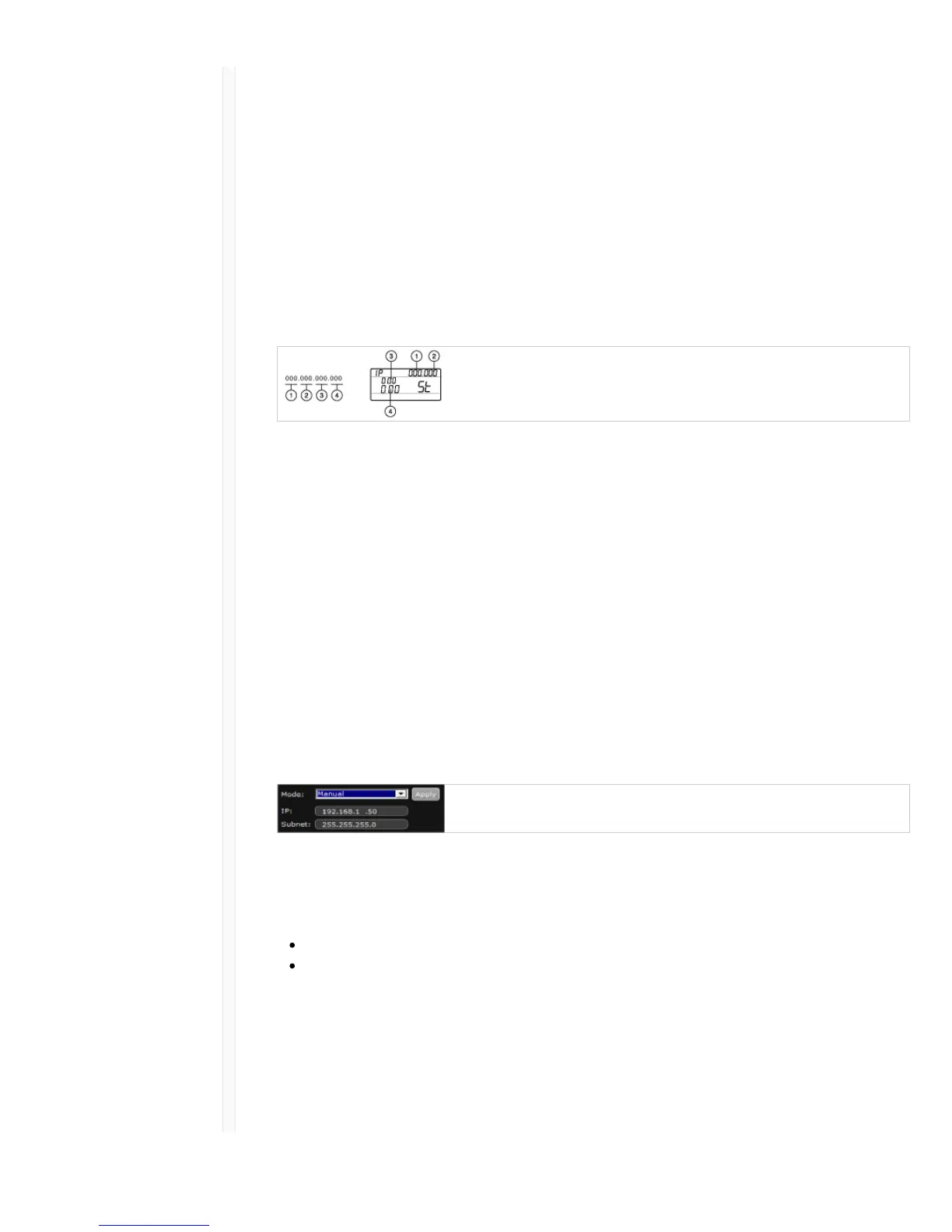
IP addresses and subnet addresses contain 4 groups of numbers. Each group can contain up to 3
digits. A decimal point separates each group.
When setting an IP address or subnet address, each of the 4 groups must be edited individually. The
following diagram shows how the groups are mapped to the receiver display:
1. Press menu while holding the enter button to access the advanced menu.
2. Press the menu button to navigate to the IP menu.
3. Use the arrow buttons to set the mode to St (static) and press enter.
4. Use the arrow buttons to edit the first group. Press enter to save and continue to the next group.
5. Use the arrow buttons and enter button to edit the remaining 3 groups.
6. When group 4 has been edited, the display will show the subnet mask menu. Use the arrow
buttons to scroll and select a preset value for each of the subnet mask groups.
7. When finished, press enter to save settings.
Note: To restore automatic DHCP IP addressing, enter the IP menu and select AU (automatic). The Network Reset
menu option can also be used to restore DHCP addressing.
Wireless Workbench 6
1. Open the Channel Properties tab in WWB6.
2. Click on Utilities and set the networking mode to Manual.
3. Enter valid numbers in the IP and Subnet fields.
4. When finished, select Apply.
Connecting to an External Control System
The receiver connects to external controls systems (AMX or Crestron) via Ethernet cables.
Connection: Ethernet (TCP/IP; QLXD receiver is the client)
Port: 2202
For a comprehensive list of command strings, visit: http://shure.custhelp.com/
Managing QLX-D with Wireless Workbench 6
Shure's Wireless Workbench 6 (WWB6) software enables networked monitoring and control of the
QLX-D receiver. Additional tools in WWB6 offer RF spectrum monitoring, network configuration, and


 To Next Page