firmware updating.
Visit www.shure.com/wwb for a free download of Wireless Workbench software.
Managing and Monitoring Settings
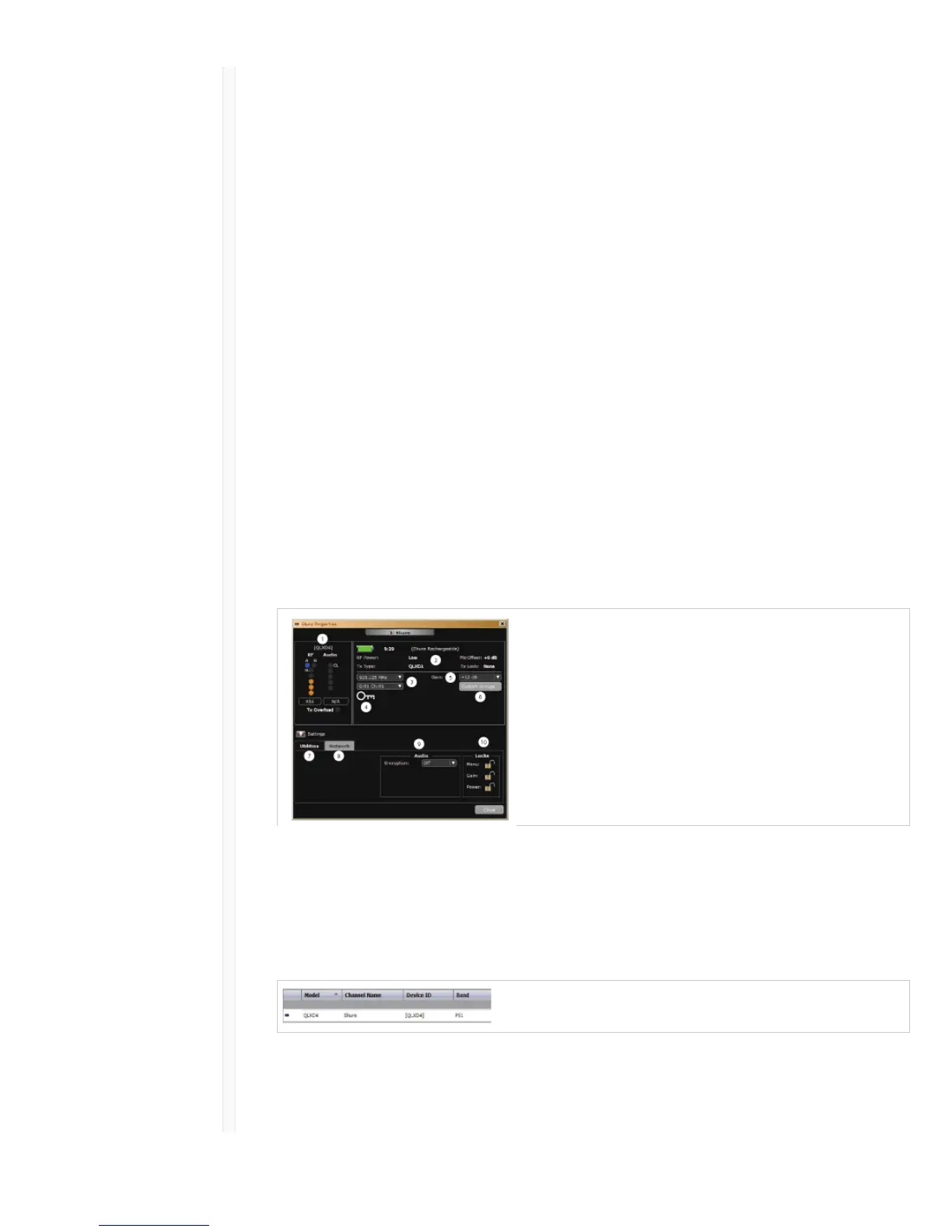
Manage and monitor receiver settings by opening the Monitor tab in Wireless Workbench. Click on
the Settings button to show or hide the full Properties window.
ɠ RF and Audio Meters Displays: current levels, band, TV, and TX Overload
ɡ Transmitter Settings Displays: RF Power, Tx Type, Mic Offset, Tx Lock
ɢ Frequency Settings Use drop-down to edit frequency value
ɣ Encryption Icon Illuminates when Encryption is enabled
ɤ Receiver Gain Setting Use drop-down to increase or decrease gain settings
ɥ Custom Groups Click to enter to create custom groups
ɦ Utilities Access receiver functions
ɧ Network Tab Set network mode, view: IP address, Subnet, MAC, Firmware version,
Network reset
ɨ Encryption Enable/Disable Encryption
ɩ Receiver Locks Lock/Unlock: Menu, Gain, Power
Viewing the Receiver in WWB6 Inventory
Click on the Inventory tab to view the receiver channels. Double-click on parameters to enable editing.
Tip: Clicking on the receiver icon next to the channel name flashes the front panel LEDs on the
receiver for remote identification.
Hardware Identify
When Hardware Identify is triggered from a receiver, the corresponding representation of that receiver


 To Next Page