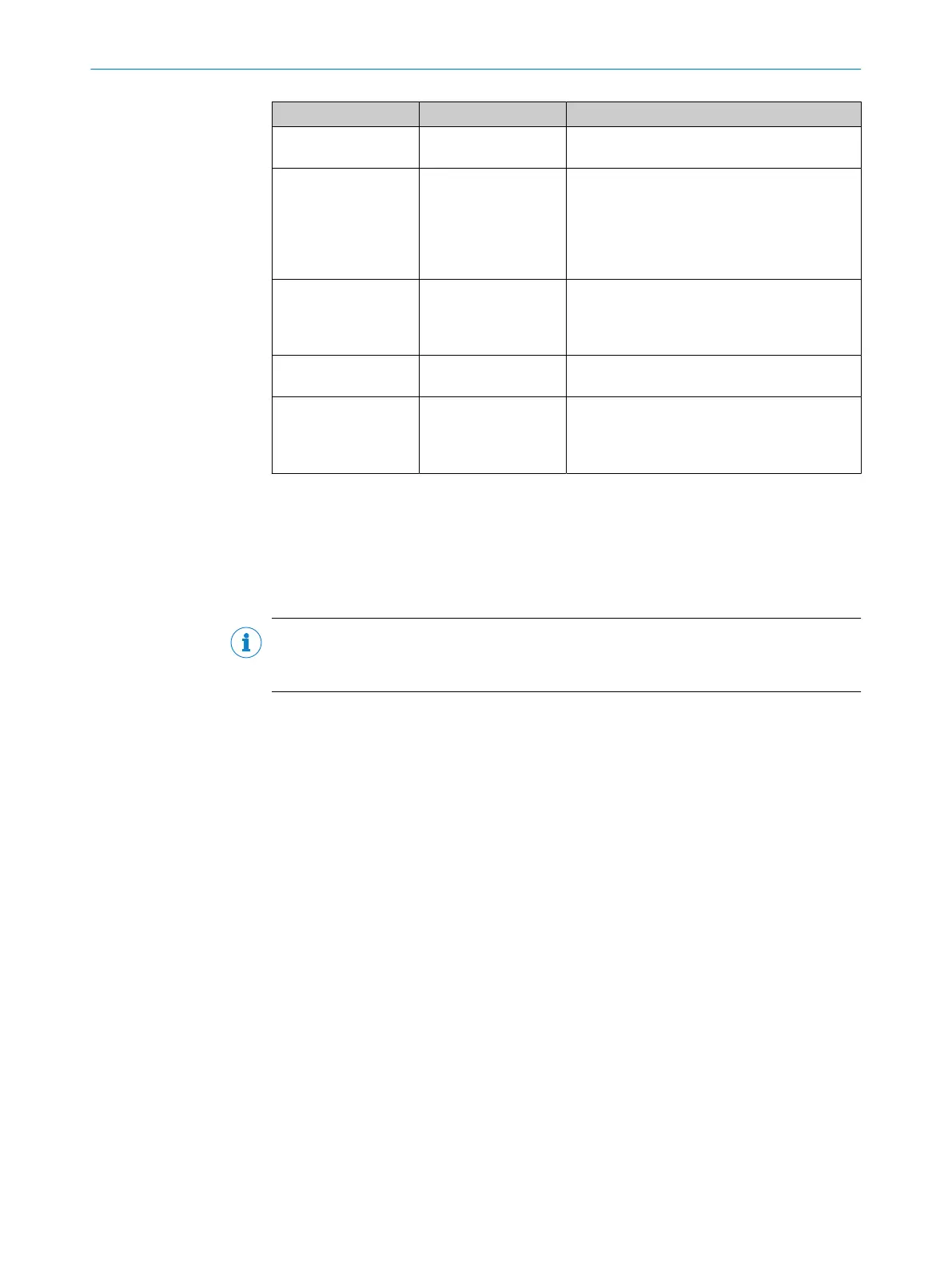
LED status Meaning Troubleshooting
O Gr
een
PROFIsafe communi‐
c
ation is active
–
Ö
0.5 Hz
, green
Passivation of the
de
vice has been com‐
pleted, e.g. after
communication error
or connection termina‐
tion
b
P
erform reintegration of the device.
Ö
2 Hz, green
A process image with
F_iP
ar_CRC is used,
but value 0 is speci‐
fied as F_iPar_CRC.
b
Ent
er the correct F_iPar_CRC in the config‐
uration program of the controller.
b
Use process image without F_iPar_CRC.
O Red
Serious error, device
no
t ready
b
Chec
k and restart the device.
b
Replace device.
Ö R
ed
Incorrect PROFIsafe
conf
iguration
b
Chec
k the PROFIsafe parameters, in partic‐
ular, F_Dest_Add, WD_Time, F_iPar_CRC.
b
Check the PROFINET connection (see
table 8, page 18).
Diagnostics using the display
Y
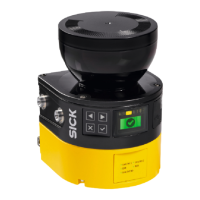
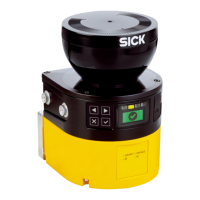
ou can use the buttons at the front of the safety laser scanner to display the PROFI‐
NET alarms.
1. Press the OK button twice.
2. Diagnostics > PROFINET alarms
NOTE
N
ote: Active alarms are also displayed in the CPU diagnostics buffer in Safety Designer
and in TIA Portal.
Why does “Waiting for input” appear on the display?
•
T
he safety laser scanner has not yet received a valid bit from the controller for
selecting a monitoring case.
•
There is an error in the PROFINET/PROFIsafe parameters.
S3000 PROFINET vs microScan3 - PROFINET
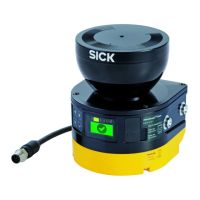
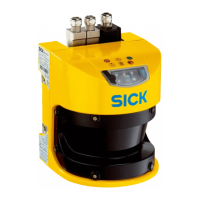
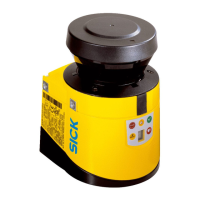
If the microScan3 - PROFINET is replacing a safety laser scanner of type S3000 PRO‐
FINET, take into consideration that the process image has a different structure even
though the size of the process image remains the same at 6 bytes.
TROUBLESHOOTING 6
8026545/2021-03-15 | SICK T E C H N I C A L I N F O R M A T I O N | microScan3 - PROFINET
19
Subject to change without notice




 To Previous Page