Different networks/companies have different rules regarding opening ports, but the process of enabling this port is as follows:
. From the Start menu, open Settings.
. Using the search box, find Firewall, then open Windows Defender Firewall.
. Click on Advanced Settings, click on Inbound rules.
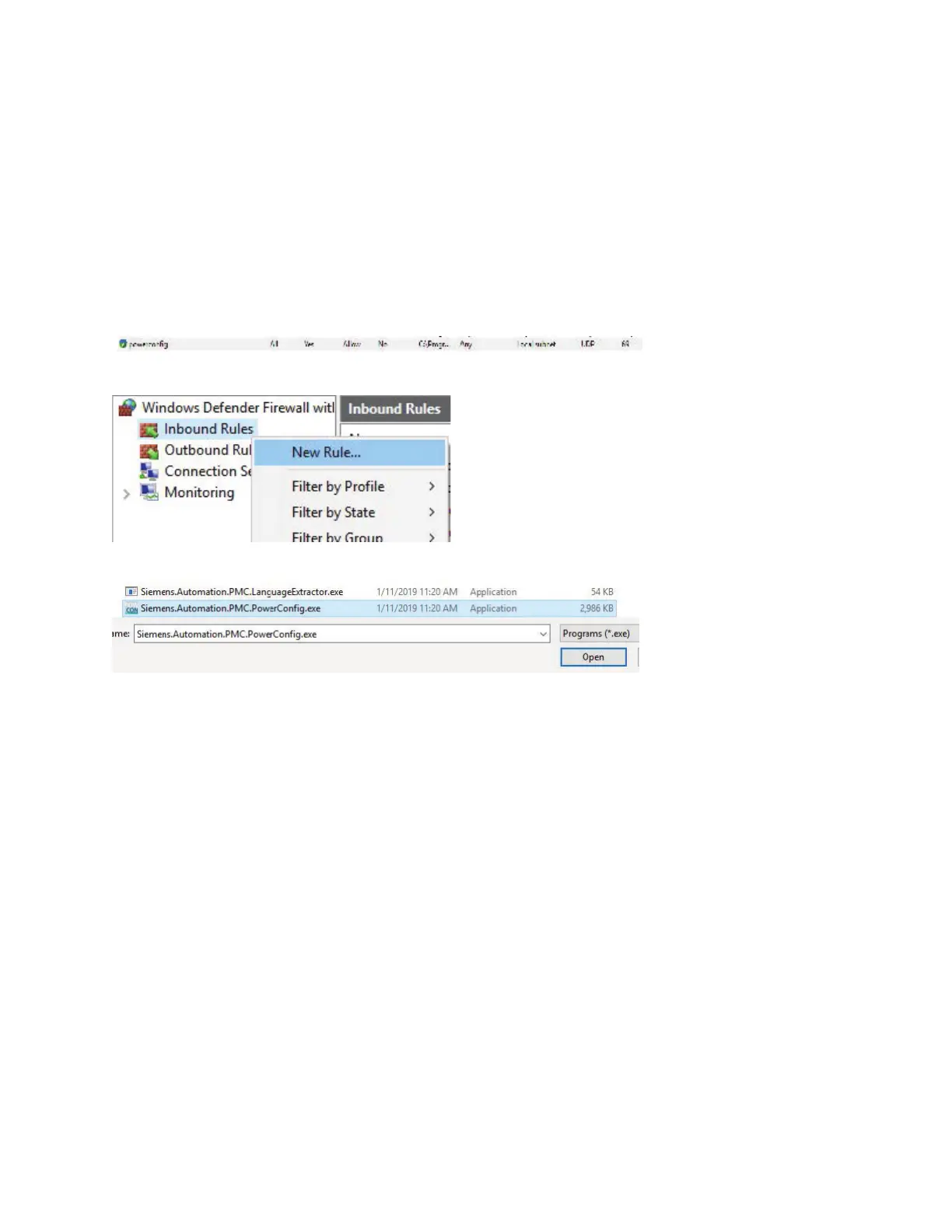
. If powerconfig installed correctly, there should be an entry like this:
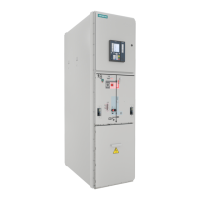
. Right click on Inbound Rules and click on New Rule:
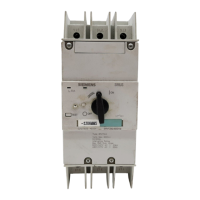
. Select Program and Browse to the location of powerconfig and select this file:
Click Open and Next. Chose Allow the connection and click Next.
. Make sure the Domain, Private and Public boxes are checked and click Next. Name the rule powerconfig. In the
description, type "Allow UDP port for COM discovery" and click Finish.
. Double click on the rule and a box of settings will open up, click on the Protocols and Ports tab. Select UDP
under Protocol type and Specific Ports. Enter under that pull-down:
How to configure a new COM with powerconfig
Appendix : Configuring Windows Defender Firewall to allow COM discovery
Quick Start Guide | powerconfig



 To Next Page