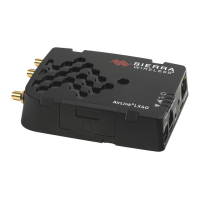
Connecting a Sierra Wireless LX40 Router to an Eaton Network Card P-164001160—Rev 01 1
CCoonnnneeccttiinngg aa SSiieerrrraa WWiirreelleessss LLXX4400 LLTTEE RRoouutteerr ttoo aann EEaattoonn NNeettwwoorrkk CCaarrdd
IInnttrroodduuccttiioonn
This document provides instructions for connecting a Sierra Wireless LX40 LTE Router to one of the following
Eaton connectivity cards:
• Industrial Gateway Card (INDGW-M2)
• Gigabit Industrial Gateway X2 Card (INDGW-X2)
• Gigabit Network (Network-M2)
NOTE The Network-M2 has now reached end-of-life (EOL) status.
PPrreerreeqquuiissiitteess
• Eaton UPS with a INDGW-M2, INDGW-X2, or Network-M2 card loaded with the latest firmware
• Environmental Monitoring Probe Gen 2
• PredictPulse LTE Modem Kit, part number P-154000455
NOTE The router contained in the PredictPulse LTE Modem Kit must be powered by a 120V
electrical outlet powered by the UPS. This ensures that the router is protected during a
power outage. If no UPS-protected outlet is available, a Universal Accessory Power
(UAP) kit is required. The UAP must be installed by an Eaton technician. Contact your
Eaton service representative for a quote.
• USB-to-USB (MicroUSB B)
• CAT5 ethernet cable
• Download the latest card firmware and RNDIS driver from the Eaton product site:
– For the INDGW-M2 card, go to
https://www.eaton.com/us/en-us/catalog/backup-power-ups-surge-it-power-distribution/eaton-
industrial-gateway-card.resources.html
– For the INDGW-X2 card, go to
https://www.eaton.com/us/en-us/catalog/backup-power-ups-surge-it-power-distribution/eaton-gigabit-
industrial-gateway-card.html.
Go to the Resources page and scroll down to the Software, firmware, and applications section. Click
the links to download the firmware and RNDIS driver files.
IINNDDGGWW--MM22 oorr IINNDDGGWW--XX22 CCaarrdd IInnssttaallllaattiioonn
The hot-swappable INDGW-M2 and INDGW-X2 cards (see Figure 1 and Figure 2) can be installed without
turning off the UPS or disconnecting the load. To install the card:
1. Ensure that the UPS has logic power.
2. Remove the two screws securing the Minislot or X-slot cover and remove the cover from the UPS. Retain
the screws.
3. Remove the INDGW-M2 or INDGW-X2 card from its shipping package.
4. Slide the card into the open slot. Secure with the screws removed in Step 2.
5. Wait for the Warning LED (see Figure 1 or Figure 2) to flash only green to indicate that the card is
operational. The ON LED also flashes green when the card is ready.

 Need help?
 General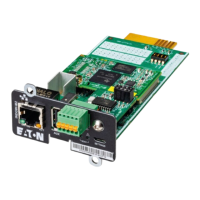

 To Next Page