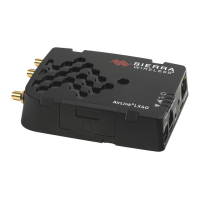
Connecting a Sierra Wireless LX40 Router to an Eaton Network Card P-164001160—Rev 01 3
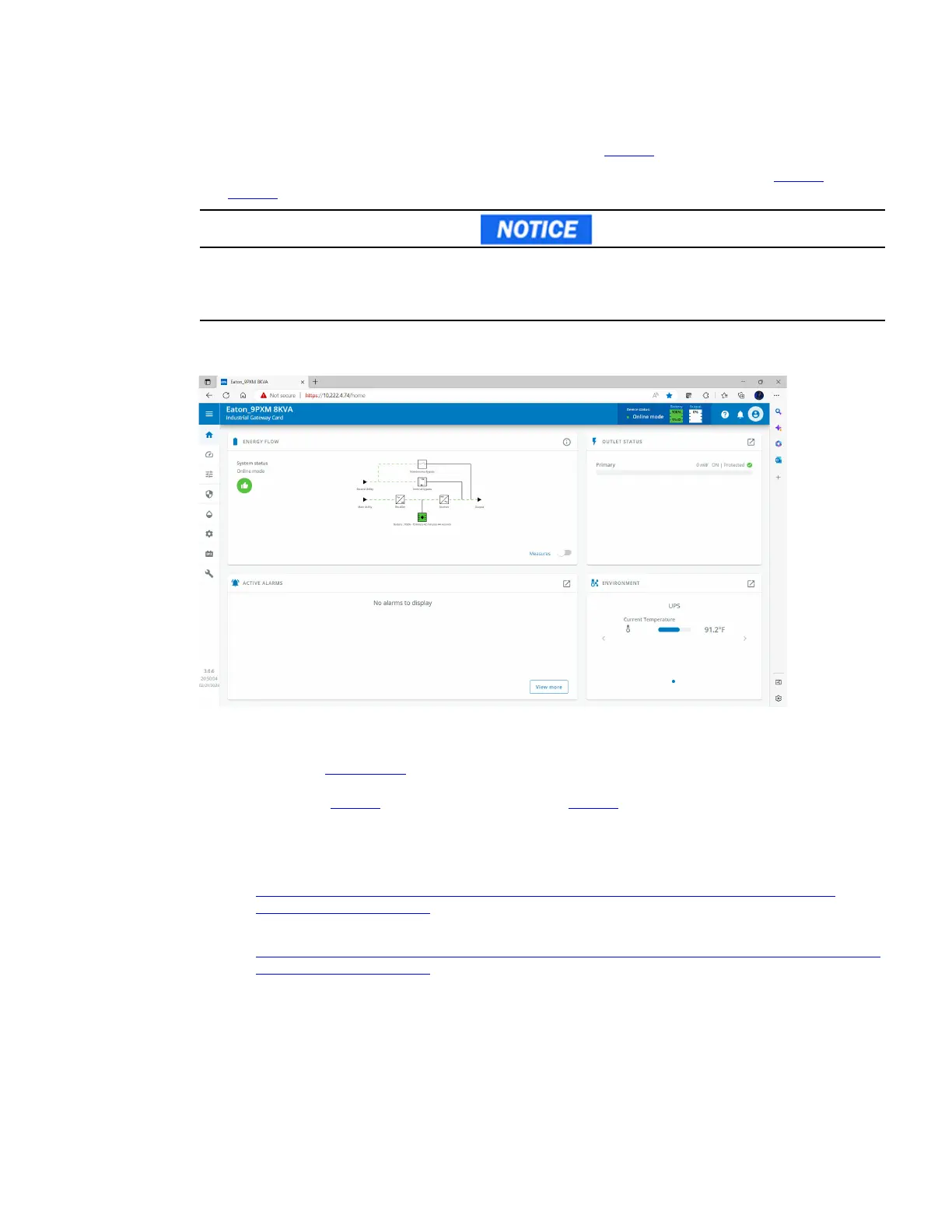
12. The INDGW-M2 or INDGW-X2 card home page displays (see Figure 3).
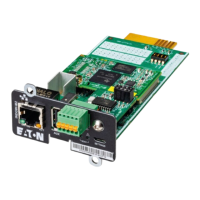
13. The green ON LED should be flashing to indicate that the card is operating normally (see Figure 1 or
Figure 2).
If the green ON LED is not flashing, the INDGW-M2 or INDGW-X2 card may need to be reset. Remove the card
to reset it, wait 10 seconds, plug it back in, and wait 3 minutes. If the LED still does not flash, contact the
Brightlayer Data Center at 800-356-5737, option 2, option 2 to troubleshoot.
Figure 3. INDGW-M2 or INDGW-X2 Home Page
IINNDDGGWW--MM22 oorr IINNDDGGWW--XX22 CCaarrdd FFiirrmmwwaarree UUppddaattee
1. As noted in the Prerequisites section, the installation requires the latest card firmware. To view the
firmware installed on the INDGW-M2 or INDGW-X2 card, click the Maintenance (wrench) icon on the card
home page (see Figure 3). The Firmware tab shown in Figure 4 displays.
2. The Version column shows the firmware version of the card. To check the latest firmware for the network
card:
• For an INDGW-M2 card, go to
https://www.eaton.com/us/en-us/catalog/backup-power-ups-surge-it-power-distribution/eaton-
industrial-gateway-card.html
• For an INDGW-X2 card, go to
https://www.eaton.com/us/en-us/catalog/backup-power-ups-surge-it-power-distribution/eaton-gigabit-
industrial-gateway-card.html
3. Click Resources, then scroll down and expand the Software, firmware, and applications section.
INDGW-M2 or INDGW-X2 Card Installation


 To Next Page