6 Connecting a Sierra Wireless LX40 Router to an Eaton Network Card P-164001160—Rev 01
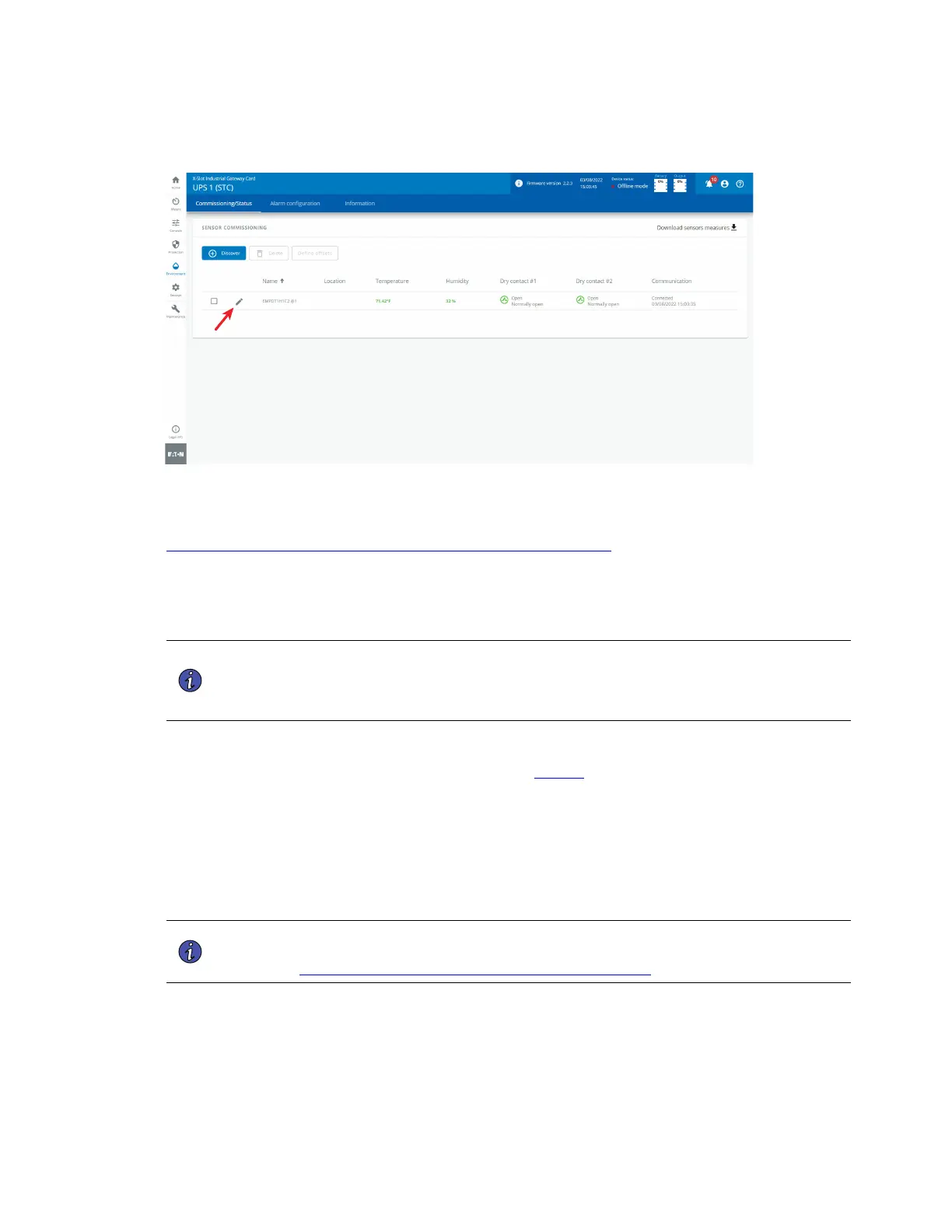
Figure 7. EMP Sensor Discovered
NNeettwwoorrkk--MM22 CCaarrdd IInnssttaallllaattiioonn aanndd CCoonnffiigguurraattiioonn
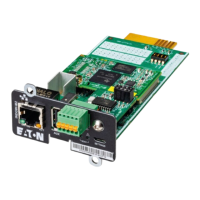
For instructions on installing and configuring a Network-M2 card, refer to the document
PredictPulse™ Setup for an Eaton® Gigabit Network (Network-M2) Card.
IInnssttaalllliinngg aanndd CCoonnnneeccttiinngg tthhee SSiieerrrraa WWiirreelleessss LLXX4400 LLTTEE RRoouutteerr
Refer to the Quick Start Guide provided with the Sierra Wireless LX40 LTE router for additional instructions on
mounting the router and connecting power.
NOTE The router must be powered by a 120V electrical outlet powered by the UPS. This
ensures that the router is protected during a power outage. If no UPS-protected outlet is
available, a Universal Accessory Power (UAP) kit is required. The UAP must be installed
by an Eaton technician. Contact your Eaton service representative for a quote.
To install the Sierra Wireless LX40 LTE router:
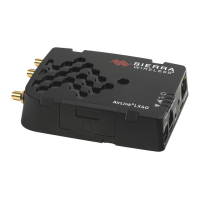
1. Unpack the shipping carton and ensure it contains (see Figure 8):
• One Sierra Wireless LX40 router
• One AC adapter
• One antenna
• One CAT6 cable
2. Install the router in a suitable location.
NOTE If the double-sided tape provided with the EMP is not used to attach the EMP, it may be
used to secure the Sierra Wireless LX40 LTE router (see
Environmental Monitoring Probe (EMP) Gen 2 Installation).
Network-M2 Card Installation and Configuration


 To Next Page