Your Device 13
Your Device
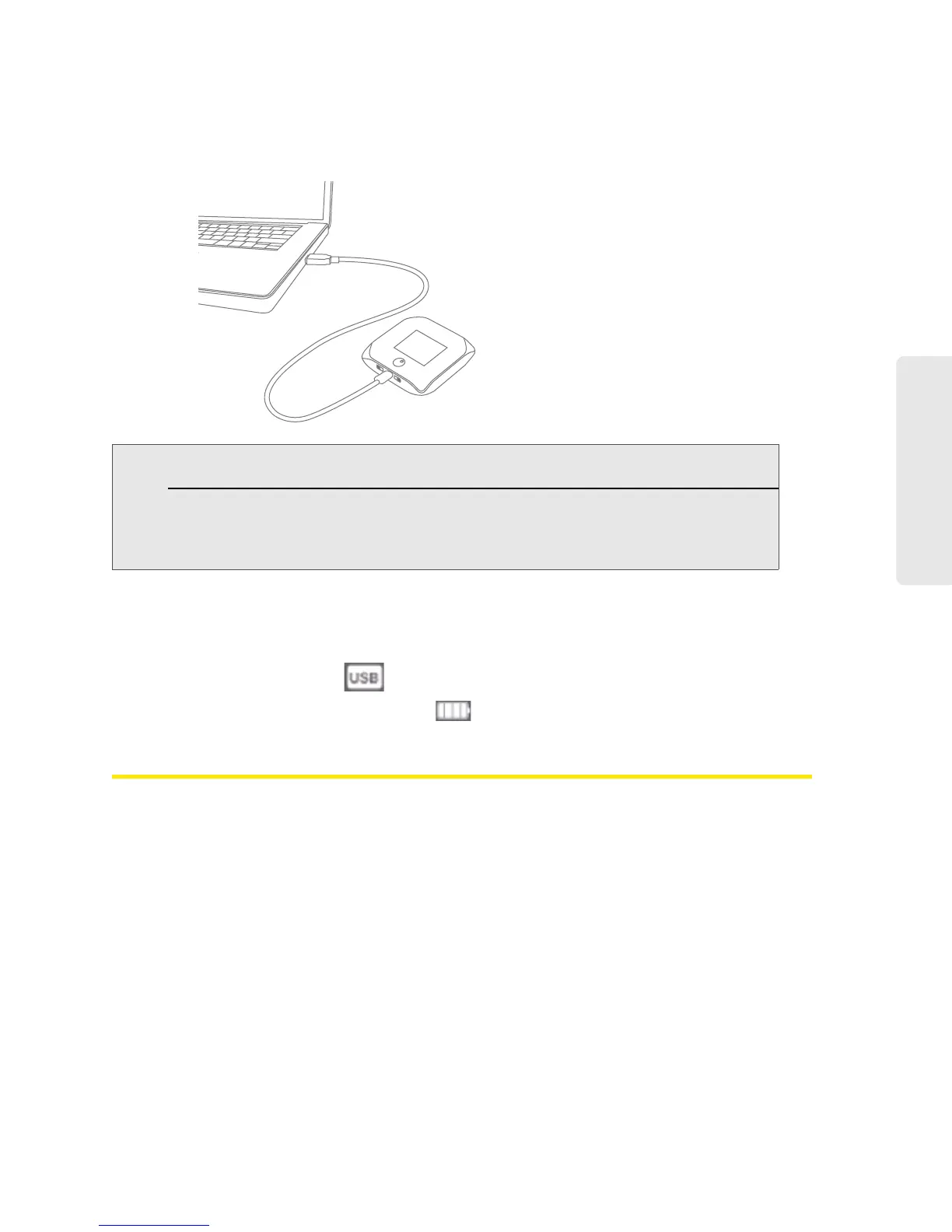
Charging Through Your Computer
1. Make sure your computer is turned on.
2. Insert the larger end of the micro-USB cable into your computer.
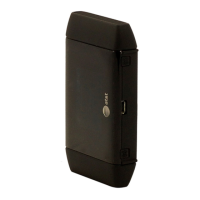
3. Insert the other end of the cable into the micro-USB port on the side of your device.
When charging, the LCD shows
.
When the device is charged, the LCD shows
.
Power Button
Turning Your Device On and Off
Turning Your Device On
1. Make sure that:
䡲 The
device has a charged battery inserted.
— or —
䡲 The
device is connected to the AC charger or a computer (through the micro-USB cable),
as explained above.
Notes: If you’ll be using USB for data transfer (and not just for charging the device), you must install the
device driver. (See “Making a Tethered Connection” on page 29.)
If you’re using Mac OS X 10.4.x, after you connect the device you may see a warning message that
your computer is running on UPS backup battery and that you should perform a computer
shutdown. You can continue with your work. To prevent this message from being displayed, install
the device driver. (See “Making a Tethered Connection” on page 29.)


 To Next Page