Using Your Device 29
Using Your Device
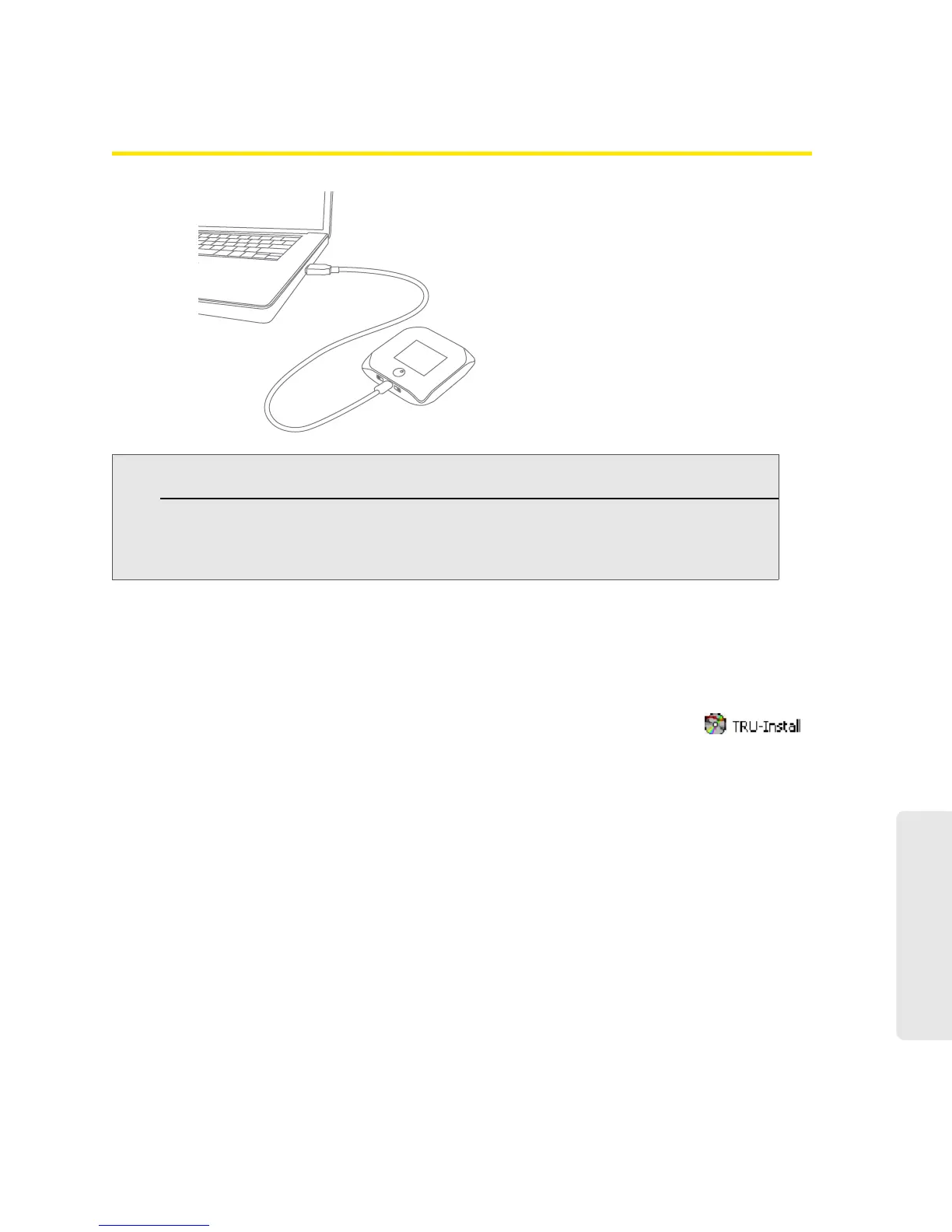
Making a Tethered Connection
Note: If you’ll be using USB for data transfer (and not just for charging the device), you must install the
device driver (see below). No installation CD is required — the device supports the TRU-Install feature.
Windows
To install the device driver on Windows:
1. Make sure the device is turned on.
2. Connect the device to your computer through the micro-USB cable.
3. If the TRU-Install window is not displayed, in Windows Explorer browse to the
entry (under My Computer), then browse to the Win folder and run
Setup.exe.
— or —
If you’re running Windows Vista and the AutoPlay window opens, click
Run setup.exe.
4. In the TRU-Install window, click OK.
5. Install the Sierra Wireless USB driver. (Follow the onscreen instructions.)
Mac
To install the device driver on Mac:
1. Make sure the device is turned on.
2. Connect the device to your computer through the micro-USB cable.
3. In the window that appears, double-click the .pkg file.
4. Install the Sierra Wireless USB driver. (Follow the onscreen instructions.)
5. When prompted for your password, enter your Mac password.
If you’re using Mac OS X 10.4.x, after you connect the device you may see a warning message that
your computer is running on UPS backup battery and that you should perform a computer
shutdown. You can continue with your work. To prevent this message from being displayed, install the
device driver (see “Mac” on page 29).


 To Next Page