90 Settings
䡲
WPA/WPA2 Personal (recommended setting) — Wi-Fi devices that use either WPA or WPA2 can
connect to the Overdrive Pro 3G/4G Mobile Hotspot. Supported by most Wi-Fi devices.
4. Click Save.
The option you select determines the Wi-Fi security used and also the maximum length of the Wi-Fi
passwor
d.
Wi-Fi Password
If Wi-Fi security is enabled, a Wi-Fi password is required to connect to the Wi-Fi network.
To make your password more secure:
● Use let
ters and numbers
● Use
special characters (for example, @)
● Use both upper
case and lowercase letters
To change the Wi-Fi password:
1. Log in to the home page.
2. Click Advanced settings > Wi-Fi > Security.
3. In the Wi-Fi Password field, type the password; the maximum length depends on the Wi-Fi
security type that you’ve selected.
䡲
None — No security is used (no password is required to access the Wi-Fi network); this setting
is not recommended. Anyone may access your device and use your Internet connection. (You
are responsible for payment for data usage fees.)
䡲
WEP 64 bit - Shared — The password must be 5 ASCII characters.
䡲
WEP 128 bit - Shared — The password must be 13 ASCII characters.
䡲
WEP 64 bit - Open — The password must be 5 ASCII characters.
䡲
WEP 128 bit - Open — The password must be 13 ASCII characters.
䡲
WPA-Personal TKIP — The password must be 8 to 63 ASCII characters.
䡲
WPA-Personal TKIP/AES — The password must be 8 to 63 ASCII characters.
䡲
WPA2-Personal AES — The password must be 8 to 63 ASCII characters.
䡲
WPA2-Personal TKIP/AES — The password must be 8 to 63 ASCII characters.
䡲
WPA/WPA2 Personal — The password must be 8 to 63 ASCII characters.
4. Click Save.
Wi-Fi Password Reminder
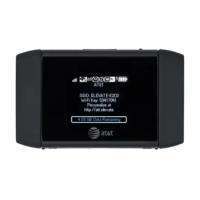
To display the Wi-Fi password on the LCD of the device when the
Wi-Fi Password Reminder feature is
enabled:
1. If the LCD is dark (no text or icons are displayed):
䡲 Ma
ke sure the LCD is enabled. (See “Turning the LCD On or Off” on page 71.)
䡲 Briefly pr
ess the power button on the device.


 To Next Page