RV-C OmniScope Manual
Once rebooted you're ready for the 'Key' entry. Note: Your key, a 26-character code, may have
been pre-loaded with your included-CD, if so, no intervention is required. If it wasn't included—or
if you've just downloaded the latest distro or are maybe starting over, the 'key' will need to be
added manually. You'll know the key by its length and jumble of letters, symbols and numbers; its
on the label located on the little black “Apox” box—the one with the USB cord.
To Add a key manually: Open the Omniscope program. If you're greeted with the error “No
Adapter Found” return to the previous steps for installing the driver. Call us if you get stuck here.
Otherwise, click on <Add Key> (top right corner) and type in the key. Type it in exactly then click
<Add> then <Done>. Clicking <Done> first means you'll be re-entering the key :-/
The keys are all based on the serial number of the USB-to-RV-C adapter. If your shop is using
multiple adapters, you can enter keys for all the different adapters on all the different computers so
you don't have to worry about which computer is being used with which adapter. The keys are
stored in a file called “key.txt” which can be shared among all the computers in the shop. Thus
you can install OmniScope and its modules on any number of computers, as long as you have at
least one valid adapter and the proper code.
Lost your 'sticker' and don't know the code? Call us; we'll recreate it for you while on the phone.
Updates And Scripts
SilverLeaf deliberately designed OmniScope to make it as simple as possible to update the
system and download new modules. To update any of the modules, scripts, or files, simply
download or copy them into the C:\Omniscope folder you created. There are no other installation
programs to run. Drop modules into the main Omniscope folder.
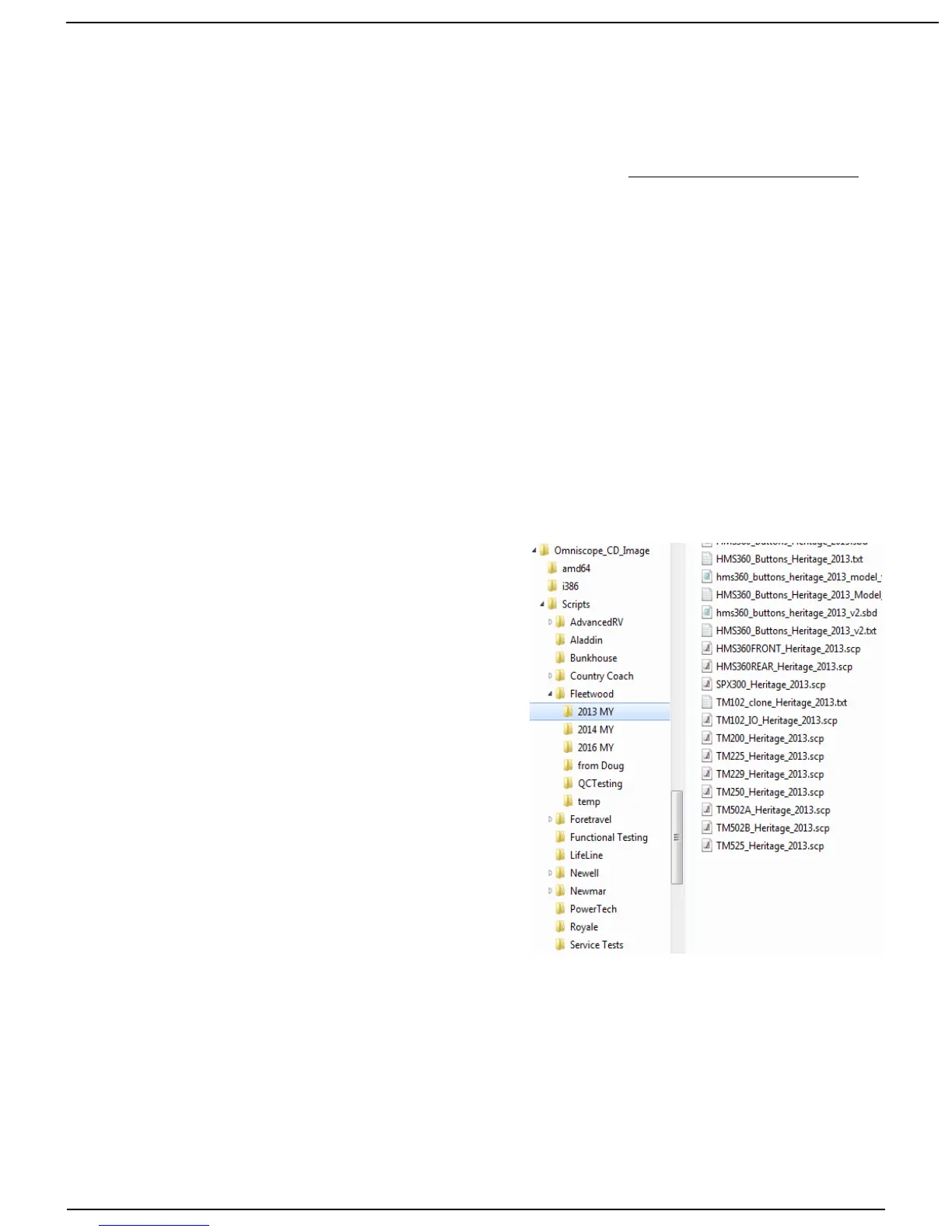
Manually drop Scripts into a folder this way:
C:\Omniscope
...Coach (Fleetwood)
… … year (2013)
...TM/VMS unit (ex. TM250)
...Special Purpose (Tests) or unique script.
This way the Coach scripts are easy to find. Also,
individual units' scripts and those for testing may be
found quickly.
Its here where you'll also save a “Clone” for when you
want to create a script to duplicate settings for a very
specific coach or unit. This is also helpful for when, as
in a HMS unit, the settings are tailored by the owner but
must be the same at each Control Panel.
The ones shown, at right, are typical. More about this later on. First, an Introduction and
Overview...
Page 4 10/31/17



 To Next Page