RV-C OmniScope Manual
Running Scripts
A script may act like a devices' settings crib-sheet
or a mini-utility though it's not really an independent
program. Only one script can be run at a time, and
running a script does not open a new, separate
program. A script is a set of instructions to be
processed by OmniScope, typically the instructions
are RV-C commands to configure or test devices on
the network.
Simple scripts often run automatically, with little or
no intervention from the user. The script will start by
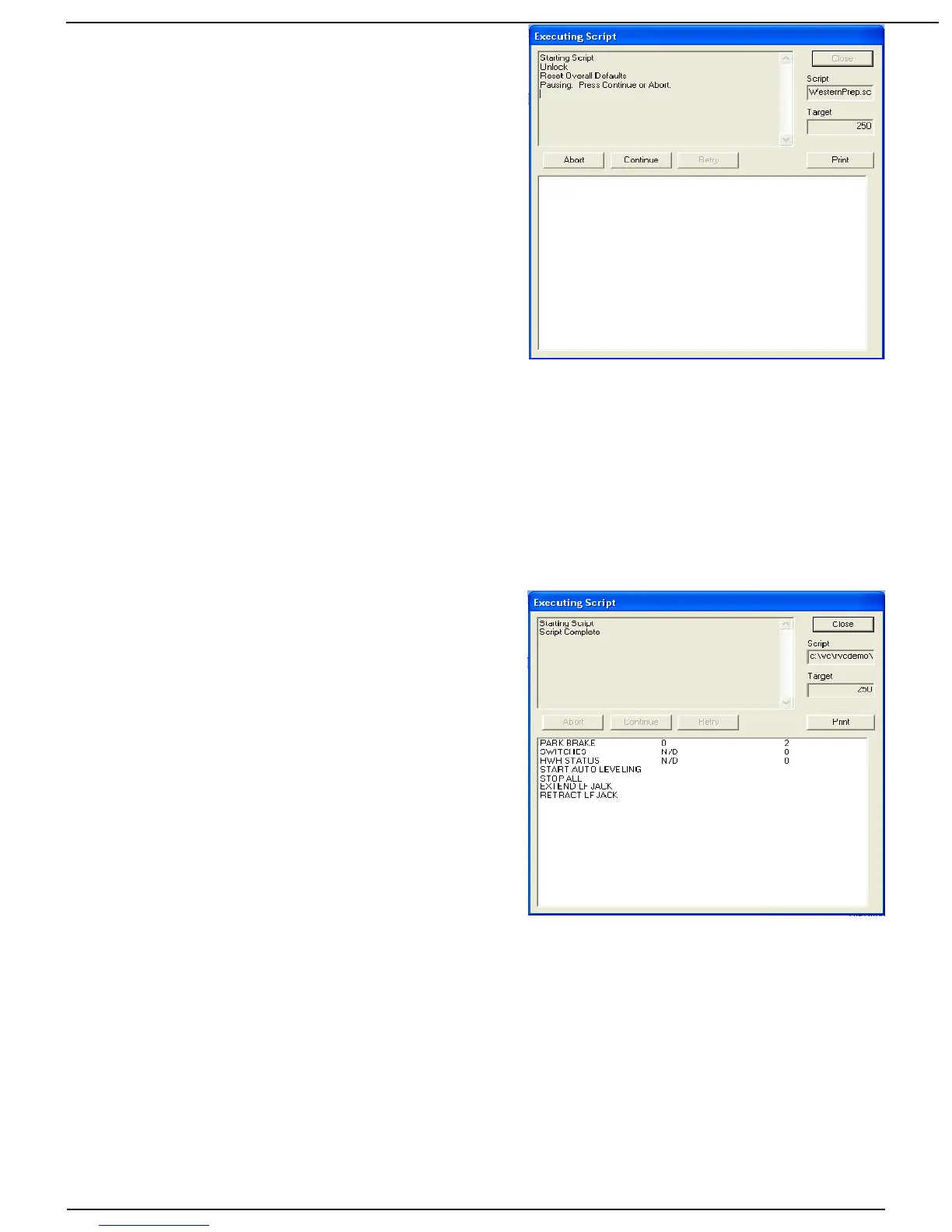
opening the Script Execution window. The top left
box in this window provides information on the status
of the script execution. The script writer may include
various messages to provide feedback for the user.
The script may include pauses, where the script will
wait for you to accomplish something and/or click a button, enter a term or name or just hit 'Enter'
after a message is displayed. The Abort button will end the script. The Continue button will cause
the script to resume processing. While the script is running you can click Abort to stop the script
mid-stream.
Some scripts may include commands that require a specific response from the target device. In
this case you may see the Retry button activate, meaning that the device has not responded as
expected and you have the option of trying the command again. Clicking on Continue will cause
the command to be skipped.
When the script is complete click on Close to close
the window and return to the main OmniScope
screen. Clicking on Print will print the contents of the
status window to the default printer.
Some scripts require more intervention from the
technician. Scripts can include menus. For example,
a configuration script for a certain model of RV may
require you to choose various options such as the
model of generator or the floor plan of the RV.
Scripts can also feature displays of live network
data. The box at the bottom of the Script Execution
box is the “Monitor List”. Scripts may put data items
in that box, and the data items will continuously
update with the latest values that appear on the
network. Two numbers will appear next to the name
of the data item. The number in the middle is the
current value. This can be “N/D”, or “No Data”, meaning that the data item has not been detected
on the network. It can also be “Err”, meaning that the device sending the datum is registering
some problem with the data item.
The number on the right is the number of times the datum has been seen on the network.
Normally this should continuously count up. The speed depends on the type of data, and can vary
from ten times per second to once every five seconds. In some cases the data is only provided on
an “as needed” basis.
The Monitor List can also include lines with no numbers. These lines are actually “buttons” than
can be double-clicked to trigger specific commands. The effect depends on the intentions of the
script-writer. This technique is often used to provide a way to test various system functions, such
Page 8 10/31/17



 To Next Page