RV-C OmniScope Manual
Starting OmniScope
This is an advanced tool capable of helping the technician troubleshoot, service and configure
RV-C based equipment. Make sure you understand the potential outcome before making changes
with the Omniscope.
Plug in the USB-to-RV-C adapter into the PCs' USB port. When starting the program you may
see “Tool Not Responding” message. This can be caused merely by unplugging the adapter
unexpectedly, and is not necessarily a real problem as the program often can find the adapter on a
second try. If it can't, the program will abort. Make sure the adapter is plugged in and try again.
Checking The Adapter
The adapter has four LEDs, two green, two red. When you first plug it in you should see just
one green LED flashing. If not, then the unit is not receiving 12Vdc power - check the cable and
the port for problems.
Once the OmniScope program has initialized the adapter, rapid flashing will stop. Instead the
LEDs will start flashing with each data packet that it sends and receives on the data bus. If you
have not yet plugged the adapter into the RV diagnostic port there should be an initial few flashes
and not much else. When you plug it into the RV you should start seeing lots of activity.
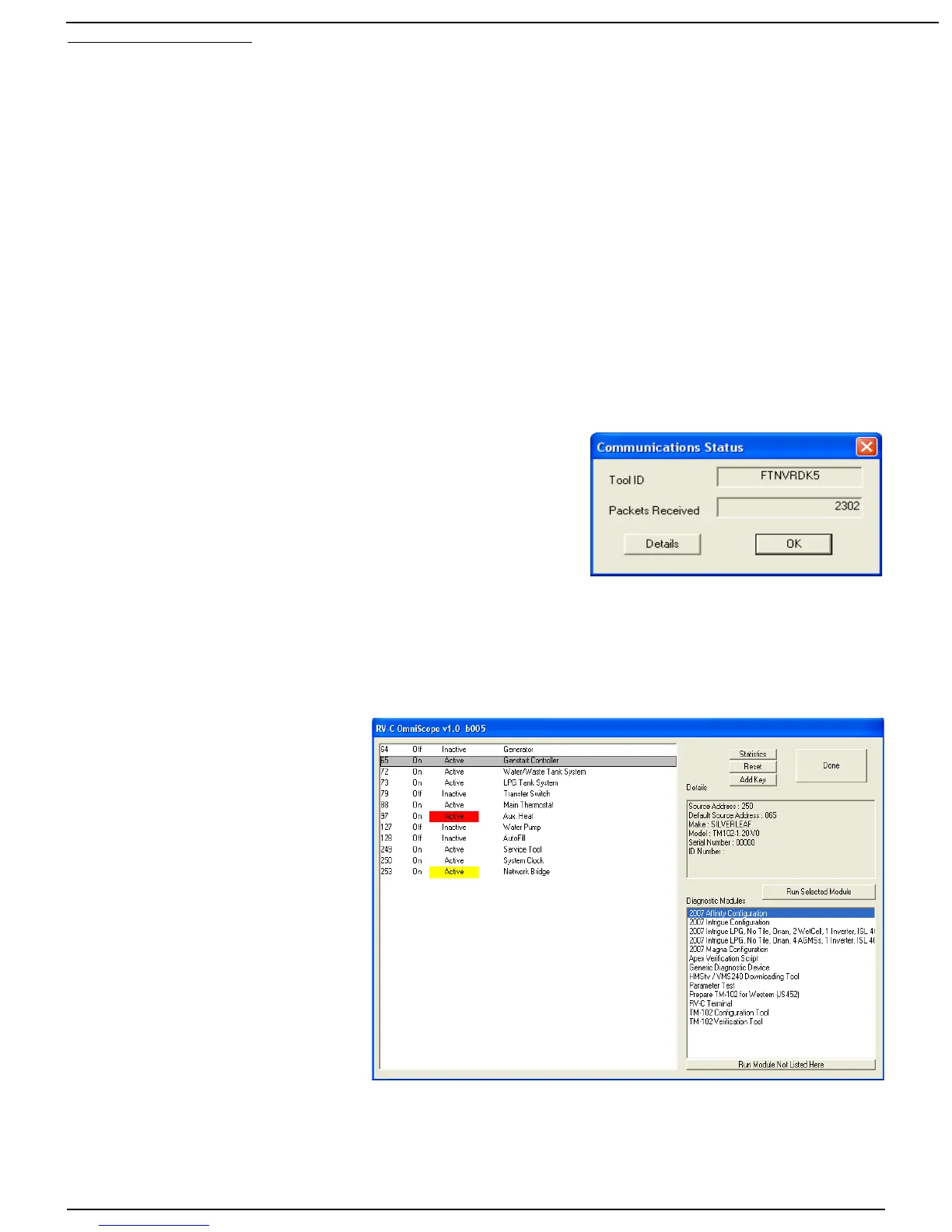
You can verify this by clicking the Statistics button in the
OmniScope program. This should bring up a box showing
two items. The Tool ID is an eight-digit serial number for the
adapter. Packets Received is the number of packets seen so
far on the network. This number should be constantly
increasing. If not, exit the program and start again just to be
sure the problem wasn't the tool initialization. If it still doesn't
work, you must start troubleshooting the physical wiring.
Running the OmniScope Program
OmniScope itself is a very simple program. It merely provides a general overview of the status
of the nodes on the network, and it provides a way to run other programs called “modules”. It's
the modules that do most of the real work - OmniScope itself is simply a starting point.
The OmniScope screen shows
three boxes. On the left is the
“Device List” - a list of every
“device” that has been detected.
Keep in mind that one node may
include several functions - each
function will show up as a different
device.
For each device OmniScope lists
the DSA, or Default Source
Address. This code merely
identifies the function of the device
- e.g. generator or inverter. Next it
lists the general operating status,
“On” or “Off”, and “Active” or
“Inactive”. For example, the
charger may be “On” but “Inactive”
if no AC power is available for charging. The status may be highlighted in red or yellow if some
sort of problem is being reported by the device.
The Device List (left side) will always include at least one item: the Service Tool itself.
Page 6 10/31/17



 To Next Page