41
SEQUENCING
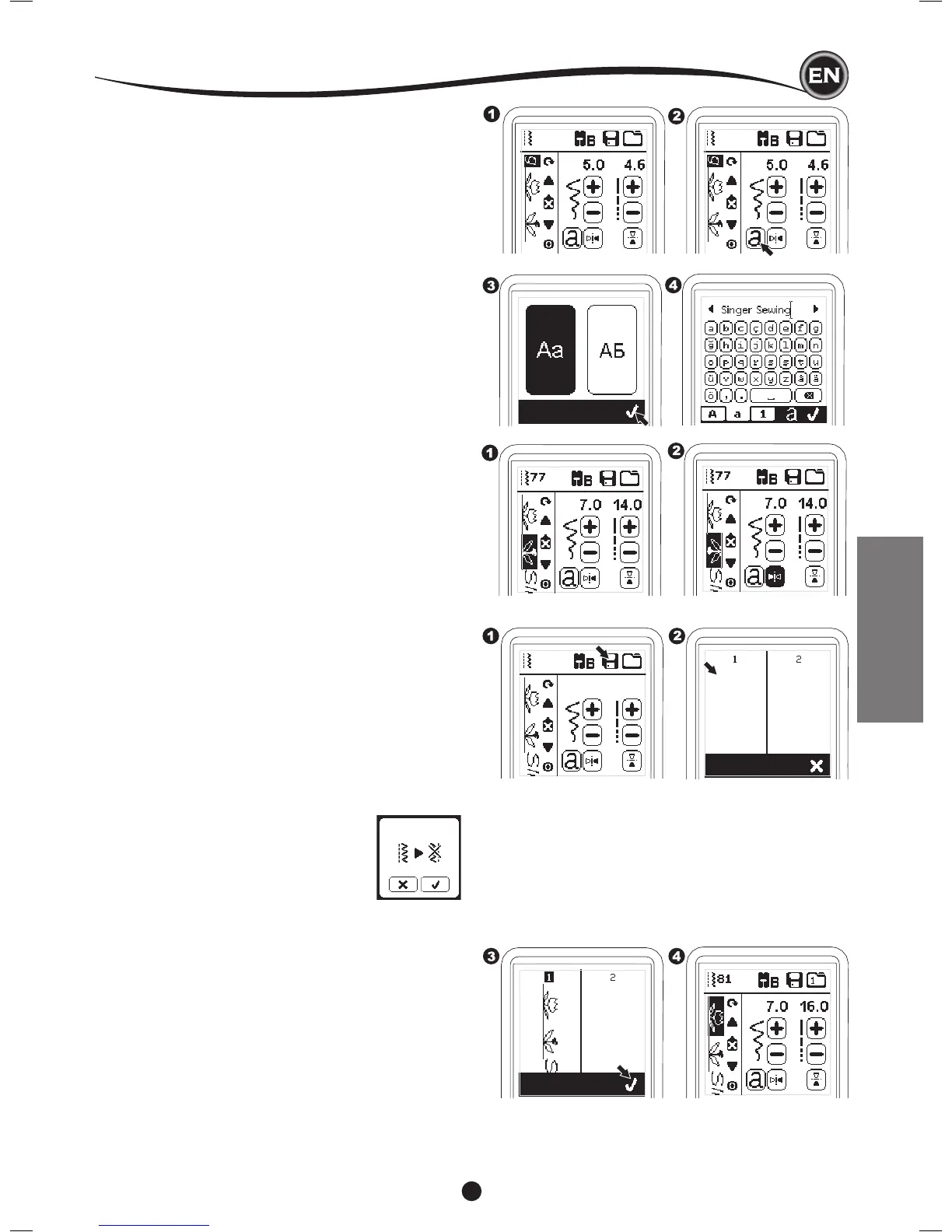
HowtoEditaLetterinaSequence
1. Shift the cursor to the letter you want to edit.
2. Press the Letter button.
The Letter Style Selecting Screen will appear.
3. Select letter style and press the “
✓
“ button.
The Letter Sequence Screen will appear.
4. Edit the letter as described on the previous page.
3. When the selected memory number is highlighted, press
the “
✓
” button.
4. The Sequence Screen will appear and the folder icon
indicate the number of memorized folder.
NOTE: If the selected folder already has a
memorized sequence in it, a message will
appear asking to overwrite the previous
sequence or not. To overwrite (deleting
previous sequence), press the “
✓
”. To cancel
(exit), press the “X”. The message will
disappear.
SavingSequence
You can save stitch sequences into memory. There are
two separate memory folders for saving stitch sequences.
Memorized sequences remain in the memory if you turn off the
machine.
ToMemorizeorSaveaSequence
1. Press the Memory button after you have selected patterns
or letters.
2. Select one of the two memories by pressing directly. (To
cancel, press “X” button)
AdjustingEachPatternorLetterina
Sequence
You can change the settings (stitch width/length, mirror/
reverse) of each stitch pattern.
1. Shift the cursor to the pattern you want to edit.
2. Change the setting as normal setting. (Page 14)
Sequencing


 To Next Page