Quick Installation Guide | 1312 | Quick Installation Guide
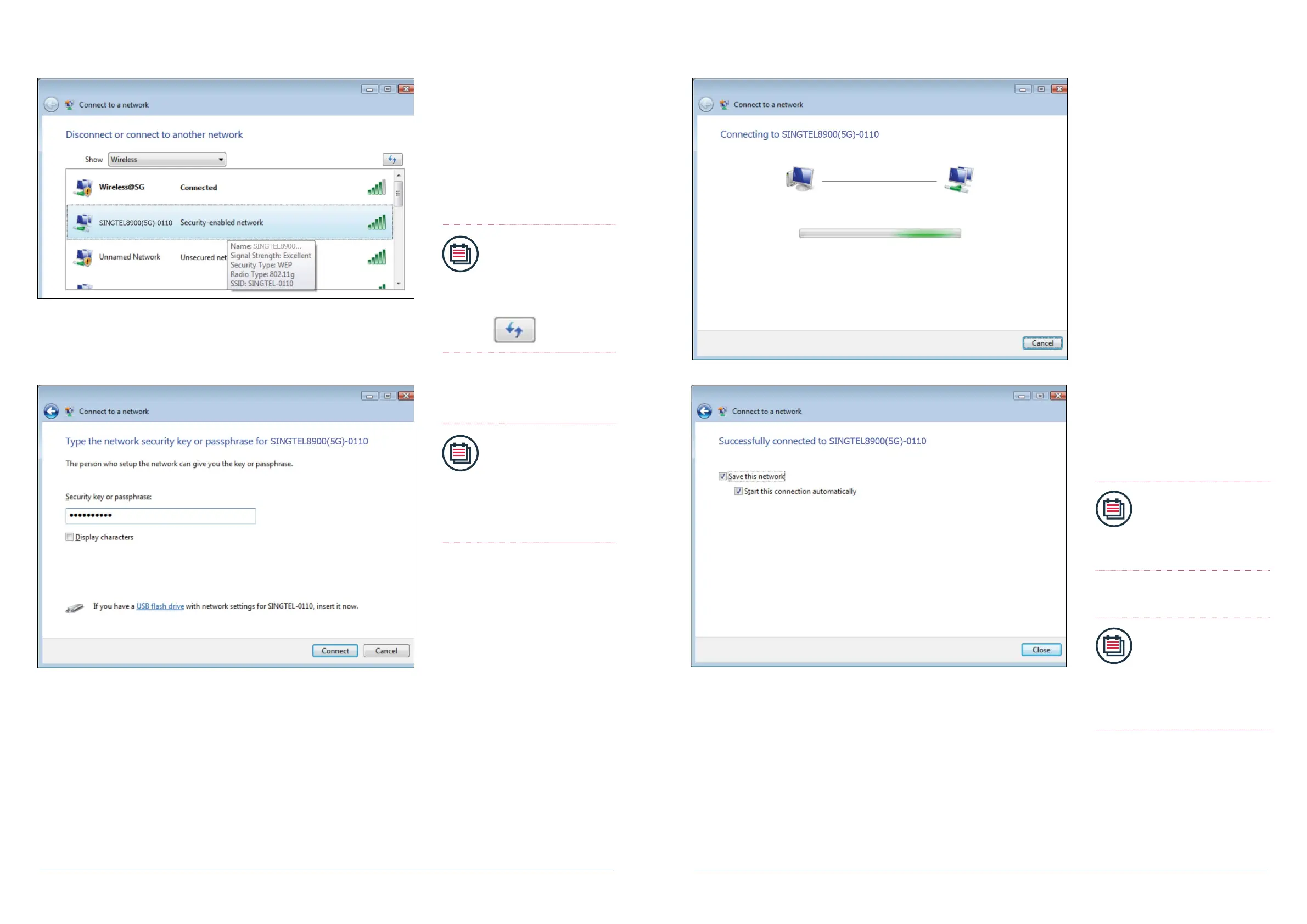
5. Find the Network Name of
your wireless network (e.g.
SINGTEL8900(5G)-0110).
Note:
Please refer to section A
if you are unsure of your
Network Name or try
refreshing your Network
list if you do not see it.
6. Click on the Connect button.
7. Please wait while your computer
tries to connect to the Router.
8. You will now be prompted to enter
your Network Key.
Note:
You will see this when
• You are connecting to
the Router for the rst
time
• You have unselected the
option to save the
Network Key.
9. Type in your Network Key in the
“Security key or passphrase” eld.
10. Click on the Connect button.
11. Please wait while your computer
authenticates with your wireless
network.
12. Your wireless connection is
succesfully congured when you
see the screen on the left.
13. Make sure that “Save this network”
is selected.
Note:
This option will save your
Network Key. If you do not
enable this option, you will
always be prompted to
enter the key.
14. Ensure that you have “Start this
connection automatically” selected.
Note:
This option will connect
your computer to the
Router automatically. If you
do not enable this option,
you will be required to
connect to the wireless
network manually.
15. You have successfully congured
your wireless connection on
Windows Vista.
16. Click on “Close” to exit the
window.


 To Next Page