Hands-On Practice
6 Select the Page Sorter tab. Insert a blank Notebook page by pressing the Blank Page
button on the Notebook toolbar.
7 From the Shapes drop-down menu on the Notebook toolbar, select the square. Position your
cursor on the left side of your work area and draw a large rectangle.
8 Select the Pointer tool from the Notebook toolbar. Fill the rectangle with color by selecting
the rectangle then choosing Properties from the object’s drop-down menu.
9 To the right of the rectangle, write or type Official Languages: and below this write or type English,
Spanish, English and French.
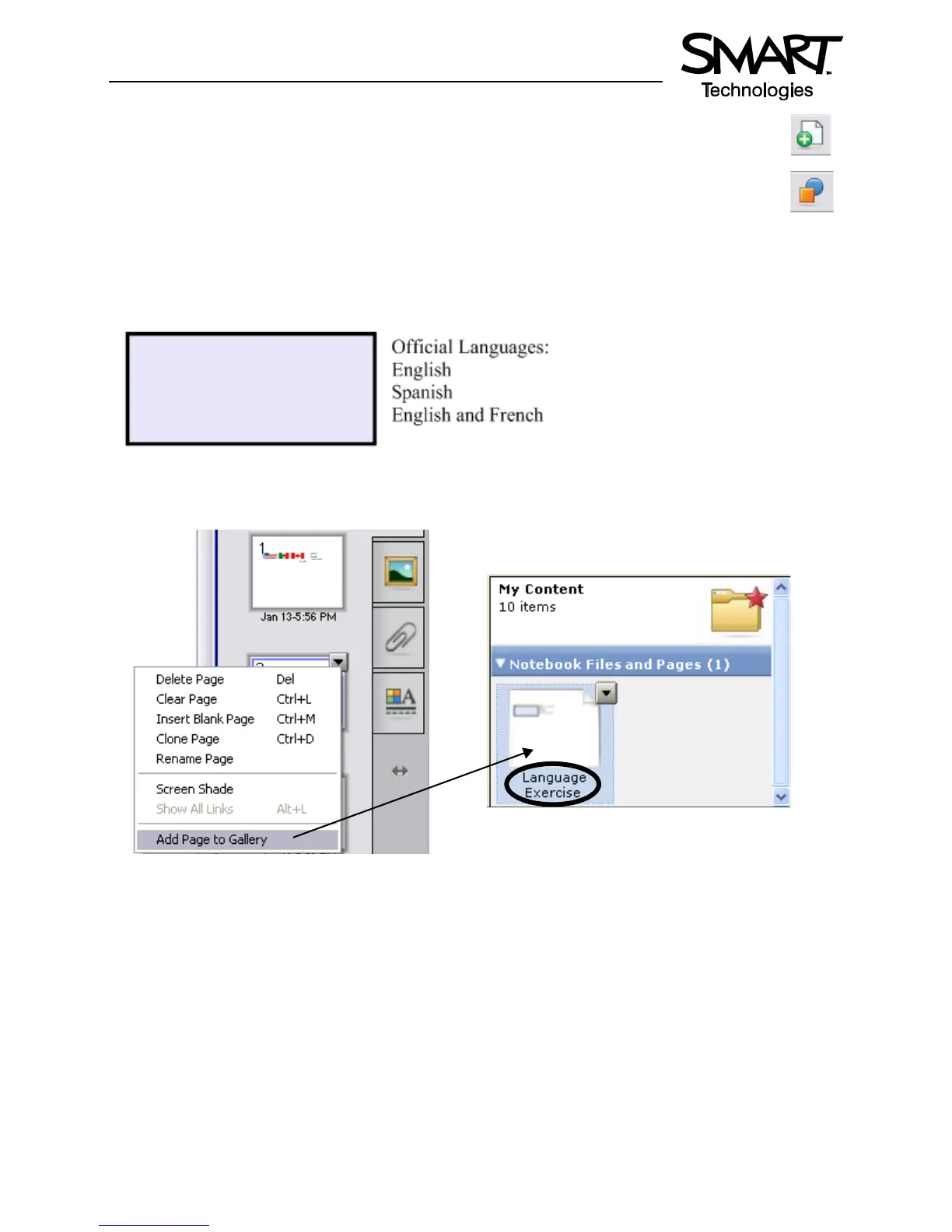
10 Press the page thumbnail’s drop-down menu in the Page Sorter tab. Select Add Page to Gallery to
place the entire Notebook page into the My Content area of the Gallery collections. This gives you
quick and easy access to Notebook pages for lesson planning and delivery.
TIP: Name your new Notebook page Language Exercise so you can organize your Gallery items into
meaningful groups.


 To Next Page